Author: Ben Richardson

  • Data extraction in AutoCAD and everything about it

    Data extraction in AutoCAD and everything about it

    [fusion_builder_container type=”flex” hundred_percent=”no” hundred_percent_height=”no” min_height_medium=”” min_height_small=”” min_height=”” hundred_percent_height_scroll=”no” align_content=”stretch” flex_align_items=”flex-start” flex_justify_content=”flex-start” flex_wrap_medium=”” flex_wrap_small=”” flex_wrap=”wrap” flex_column_spacing=”” hundred_percent_height_center_content=”yes” equal_height_columns=”no” container_tag=”div” menu_anchor=”” hide_on_mobile=”small-visibility,medium-visibility,large-visibility” status=”published” publish_date=”” class=”” id=”” margin_top_medium=”” margin_bottom_medium=”” margin_top_small=”” margin_bottom_small=”” margin_top=”” margin_bottom=”” padding_top_medium=”” padding_right_medium=”” padding_bottom_medium=”” padding_left_medium=”” padding_top_small=”” padding_right_small=”” padding_bottom_small=”” padding_left_small=”” padding_top=”” padding_right=”” padding_bottom=”” padding_left=”” link_hover_color=”” hue=”” saturation=”” lightness=”” alpha=”” link_color=”var(–awb-color3)” border_sizes_top=”” border_sizes_right=”” border_sizes_bottom=”” border_sizes_left=”” border_color=”” border_style=”solid” border_radius_top_left=”” border_radius_top_right=”” border_radius_bottom_right=”” border_radius_bottom_left=”” box_shadow=”no” box_shadow_vertical=”” box_shadow_horizontal=”” box_shadow_blur=”0″ box_shadow_spread=”0″ box_shadow_color=”” box_shadow_style=”” z_index=”” overflow=”” gradient_start_color=”” gradient_end_color=”” gradient_start_position=”0″ gradient_end_position=”100″ gradient_type=”linear” radial_direction=”center center” linear_angle=”180″ background_color_medium=”” background_color_small=”” background_color=”” background_image_medium=”” background_image_small=”” background_image=”” skip_lazy_load=”” background_position_medium=”” background_position_small=”” background_position=”center center” background_repeat_medium=”” background_repeat_small=”” background_repeat=”no-repeat” background_size_medium=”” background_size_small=”” background_size=”” background_custom_size=”” background_custom_size_medium=”” background_custom_size_small=”” fade=”no” background_parallax=”none” enable_mobile=”no” parallax_speed=”0.3″ background_blend_mode_medium=”” background_blend_mode_small=”” background_blend_mode=”none” video_mp4=”” video_webm=”” video_ogv=”” video_url=”” video_aspect_ratio=”16:9″ video_loop=”yes” video_mute=”yes” video_preview_image=”” pattern_bg=”none” pattern_custom_bg=”” pattern_bg_color=”” pattern_bg_style=”default” pattern_bg_opacity=”100″ pattern_bg_size=”” pattern_bg_blend_mode=”normal” mask_bg=”none” mask_custom_bg=”” mask_bg_color=”” mask_bg_accent_color=”” mask_bg_style=”default” mask_bg_opacity=”100″ mask_bg_transform=”left” mask_bg_blend_mode=”normal” render_logics=”” logics=”” absolute=”off” absolute_devices=”small,medium,large” sticky=”off” sticky_devices=”small-visibility,medium-visibility,large-visibility” sticky_background_color=”” sticky_height=”” sticky_offset=”” sticky_transition_offset=”0″ scroll_offset=”0″ animation_type=”” animation_direction=”left” animation_color=”” animation_speed=”0.3″ animation_delay=”0″ animation_offset=”” filter_hue=”0″ filter_saturation=”100″ filter_brightness=”100″ filter_contrast=”100″ filter_invert=”0″ filter_sepia=”0″ filter_opacity=”100″ filter_blur=”0″ filter_hue_hover=”0″ filter_saturation_hover=”100″ filter_brightness_hover=”100″ filter_contrast_hover=”100″ filter_invert_hover=”0″ filter_sepia_hover=”0″ filter_opacity_hover=”100″ filter_blur_hover=”0″ admin_toggled=”yes” admin_label=”Container1″][fusion_builder_row][fusion_builder_column type=”1_1″ layout=”1_1″ background_position=”left top” background_color=”” border_color=”” border_style=”solid” border_position=”all” spacing=”yes” background_image=”” background_repeat=”no-repeat” padding_top=”” padding_right=”” padding_bottom=”” padding_left=”” margin_top=”0px” margin_bottom=”0px” class=”” id=”” animation_type=”” animation_speed=”0.3″ animation_direction=”left” hide_on_mobile=”small-visibility,medium-visibility,large-visibility” center_content=”no” last=”true” min_height=”” hover_type=”none” link=”” border_sizes_top=”” border_sizes_bottom=”” border_sizes_left=”” border_sizes_right=”” first=”true”][fusion_text columns=”” column_min_width=”” column_spacing=”” rule_style=”” rule_size=”” rule_color=”” hue=”” saturation=”” lightness=”” alpha=”” content_alignment_medium=”” content_alignment_small=”” content_alignment=”” hide_on_mobile=”small-visibility,medium-visibility,large-visibility” sticky_display=”normal,sticky” class=”” id=”” margin_top=”” margin_right=”” margin_bottom=”” margin_left=”” fusion_font_family_text_font=”” fusion_font_variant_text_font=”” font_size=”” line_height=”” letter_spacing=”” text_transform=”” text_color=”” animation_type=”” animation_direction=”left” animation_color=”” animation_speed=”0.3″ animation_delay=”0″ animation_offset=”” logics=””]

    Before AutoCAD came with a Data Extraction feature, CAD users had to track their data by hand.

    Luckily, the DATAEXTRACTION command was created as a method of circumventing this nuisance.

    Even after the by-hand method, you could extract data from AutoCAD, but you couldn’t showcase the data on the AutoCAD drawing itself.

    Once again, newer versions of AutoCAD allow for a more streamlined process.

    We now can do everything involving our data from within AutoCAD itself.

    For the purposes of this tutorial, we will be using a drawing file which contains lots of blocks, layers and other object types.

    You can use your own drawing file to follow along, with this tutorial.

    Additionally, if you want this tutorial in video format then here it is.

    [/fusion_text][fusion_youtube id=”UIPZlKK6hpA” alignment=”” width=”” height=”” autoplay=”false” api_params=”” hide_on_mobile=”small-visibility,medium-visibility,large-visibility” class=”” css_id=”” /][fusion_text columns=”” column_min_width=”” column_spacing=”” rule_style=”” rule_size=”” rule_color=”” hue=”” saturation=”” lightness=”” alpha=”” content_alignment_medium=”” content_alignment_small=”” content_alignment=”” hide_on_mobile=”small-visibility,medium-visibility,large-visibility” sticky_display=”normal,sticky” class=”” id=”” margin_top=”” margin_right=”” margin_bottom=”” margin_left=”” fusion_font_family_text_font=”” fusion_font_variant_text_font=”” font_size=”” line_height=”” letter_spacing=”” text_transform=”” text_color=”” animation_type=”” animation_direction=”left” animation_color=”” animation_speed=”0.3″ animation_delay=”0″ animation_offset=”” logics=””]

    Let’s say we are interested in creating, for whatever reason, a table that lists all the properties including the count of blocks used in our drawing.

    The workflow of doing this using data extraction is explained below.

    The same workflow will work for extracting other types of data like block attributes from drawing using the Data extraction tool.

    Starting The Data Extraction Wizard

    To start the Data Extraction command, type DX into the Command Line and hit ENTER.

    The Data Extraction wizard will open on the screen as shown in the image below, with options to create a new data extraction or to edit a pre-existing one.

    Choose the Create a new data extraction option in the window, and then click on Next >.

    In the next window specify the name of the data extraction file and specify a location where you want to save it and click the Save button.

    For this example, I will name this data extraction file “Sample DX” and save it on the Desktop.

    The next page i.e. page 2 of the Data Extraction wizard has the Panel on top called “Data source” which involves choosing whether we want to extract data from the whole drawing, or only a specific part.

    Since we are interested right now in every block of the drawing, choose the first option as shown by annotation A in the image below and then proceed by clicking Next >.

    [/fusion_text][fusion_tagline_box content_alignment=”left” link=”” button=”” linktarget=”_self” modal=”” button_size=”” button_type=”” buttoncolor=”default” title=”” description=”” hide_on_mobile=”small-visibility,medium-visibility,large-visibility” class=”” id=”” fusion_font_family_title_font=”” fusion_font_variant_title_font=”” title_font_size=”” title_line_height=”” title_letter_spacing=”” title_text_transform=”” title_color=”var(–awb-color2)” hue=”” saturation=”” lightness=”” alpha=”” description_font_size=”” content_font_size=”” backgroundcolor=”” shadow=”no” shadowopacity=”0.70″ border=”1″ bordercolor=”” highlightposition=”left” button_border_radius_top_left=”” button_border_radius_top_right=”” button_border_radius_bottom_right=”” button_border_radius_bottom_left=”” padding_top=”” padding_right=”” padding_bottom=”” padding_left=”” margin_top=”” margin_bottom=”” animation_type=”” animation_direction=”left” animation_color=”” animation_speed=”0.3″ animation_delay=”0″ animation_offset=””]

    Understanding options on Page 2 of the Data Extraction wizard

    Option A

    You can select the entire drawing or sheet using the first option and if you want to select only specific objects to extract the data then selecting the second option will work.

    Option B

    You can select the second radio button which says, “Select objects in the current drawing” and the box next to this option will activate.

    Click on the button as shown in option B of the image above and the data extraction wizard will disappear, and you will be able to select objects from your drawing.

    After making the selection press enter key and the wizard will pop back in.

    When you select specific objects from the drawing area the data extraction will happen only from selected objects of the drawing.

    Option C

    You can also add multiple drawings to extract data for the data extraction table.

    To add multiple drawings, click the “Add Drawings” button and select drawings from where you want to extract data and click Open Button.

    You can also select an entire folder of drawings using the “Add Folder” button and the data will be extracted from all the drawings of the folder.

    Option D

    You can make additional settings in the data extraction table by clicking the Settings button as shown in the option D of the figure above.

    You will get a list of checkboxes that look like the figure below.

    Here you can choose to extract data from blocks, Xref and include Xref as blocks in the data extraction table.

    You can also choose to extract data from only the model space of the entire drawing using the options in the “Extract from” panel.

    For this example, we will leave the default selection as shown in the image above but you can obviously modify it as per data extraction requirement.

    [/fusion_tagline_box][/fusion_builder_column][/fusion_builder_row][/fusion_builder_container][fusion_builder_container admin_label=”Course CTA” type=”flex” hundred_percent=”no” hundred_percent_height=”no” min_height_medium=”” min_height_small=”” min_height=”” hundred_percent_height_scroll=”no” align_content=”stretch” flex_align_items=”center” flex_justify_content=”center” flex_column_spacing=”” hundred_percent_height_center_content=”yes” equal_height_columns=”no” container_tag=”div” menu_anchor=”” hide_on_mobile=”small-visibility,medium-visibility,large-visibility” status=”published” publish_date=”” class=”” id=”” margin_top_medium=”” margin_bottom_medium=”” margin_top_small=”” margin_bottom_small=”” margin_top=”” margin_bottom=”” padding_top_medium=”” padding_right_medium=”” padding_bottom_medium=”” padding_left_medium=”” padding_top_small=”” padding_right_small=”” padding_bottom_small=”” padding_left_small=”” padding_top=”” padding_right=”” padding_bottom=”” padding_left=”” link_color=”” hue=”” saturation=”” lightness=”” alpha=”” link_hover_color=”” border_sizes_top=”” border_sizes_right=”” border_sizes_bottom=”” border_sizes_left=”” border_color=”” border_style=”solid” border_radius_top_left=”” border_radius_top_right=”” border_radius_bottom_right=”” border_radius_bottom_left=”” box_shadow=”no” box_shadow_vertical=”” box_shadow_horizontal=”” box_shadow_blur=”0″ box_shadow_spread=”0″ box_shadow_color=”” box_shadow_style=”” z_index=”” overflow=”” gradient_start_color=”” gradient_end_color=”” gradient_start_position=”0″ gradient_end_position=”100″ gradient_type=”linear” radial_direction=”center center” linear_angle=”180″ background_color=”” background_image=”” skip_lazy_load=”” background_position=”center center” background_repeat=”no-repeat” fade=”no” background_parallax=”none” enable_mobile=”no” parallax_speed=”0.3″ background_blend_mode=”none” video_mp4=”” video_webm=”” video_ogv=”” video_url=”” video_aspect_ratio=”16:9″ video_loop=”yes” video_mute=”yes” video_preview_image=”” pattern_bg=”none” pattern_custom_bg=”” pattern_bg_color=”” pattern_bg_style=”default” pattern_bg_opacity=”100″ pattern_bg_size=”” pattern_bg_blend_mode=”normal” mask_bg=”none” mask_custom_bg=”” mask_bg_color=”” mask_bg_accent_color=”” mask_bg_style=”default” mask_bg_opacity=”100″ mask_bg_transform=”left” mask_bg_blend_mode=”normal” render_logics=”” absolute=”off” absolute_devices=”small,medium,large” sticky=”off” sticky_devices=”small-visibility,medium-visibility,large-visibility” sticky_background_color=”” sticky_height=”” sticky_offset=”” sticky_transition_offset=”0″ scroll_offset=”0″ animation_type=”” animation_direction=”left” animation_color=”” animation_speed=”0.3″ animation_delay=”0″ animation_offset=”” filter_hue=”0″ filter_saturation=”100″ filter_brightness=”100″ filter_contrast=”100″ filter_invert=”0″ filter_sepia=”0″ filter_opacity=”100″ filter_blur=”0″ filter_hue_hover=”0″ filter_saturation_hover=”100″ filter_brightness_hover=”100″ filter_contrast_hover=”100″ filter_invert_hover=”0″ filter_sepia_hover=”0″ filter_opacity_hover=”100″ filter_blur_hover=”0″ admin_toggled=”yes”][fusion_builder_row][fusion_builder_column type=”1_1″ layout=”1_1″ align_self=”flex-start” content_layout=”column” align_content=”center” valign_content=”flex-start” content_wrap=”wrap” spacing=”” center_content=”no” column_tag=”div” link=”” target=”_self” link_description=”” min_height=”” hide_on_mobile=”small-visibility,medium-visibility,large-visibility” sticky_display=”normal,sticky” class=”” id=”” background_image_id=”” type_medium=”” type_small=”” order_medium=”0″ order_small=”0″ spacing_left_medium=”” spacing_right_medium=”” spacing_left_small=”” spacing_right_small=”” spacing_left=”” spacing_right=”” margin_top_medium=”” margin_bottom_medium=”” margin_top_small=”” margin_bottom_small=”” margin_top=”” margin_bottom=”” padding_top_medium=”” padding_right_medium=”” padding_bottom_medium=”” padding_left_medium=”” padding_top_small=”” padding_right_small=”” padding_bottom_small=”” padding_left_small=”” padding_top=”2%” padding_right=”2%” padding_bottom=”2%” padding_left=”2%” hover_type=”none” border_sizes_top=”” border_sizes_right=”” border_sizes_bottom=”” border_sizes_left=”” border_color=”” hue=”” saturation=”” lightness=”” alpha=”” border_style=”solid” border_radius_top_left=”10″ border_radius_top_right=”10″ border_radius_bottom_right=”10″ border_radius_bottom_left=”10″ box_shadow=”no” box_shadow_vertical=”” box_shadow_horizontal=”” box_shadow_blur=”0″ box_shadow_spread=”0″ box_shadow_color=”” box_shadow_style=”” z_index_subgroup=”regular” z_index=”” z_index_hover=”” overflow=”” background_type=”single” gradient_start_color=”” gradient_end_color=”” gradient_start_position=”0″ gradient_end_position=”100″ gradient_type=”linear” radial_direction=”center center” linear_angle=”180″ background_color=”var(–awb-color5)” background_image=”” lazy_load=”avada” skip_lazy_load=”” background_position=”left top” background_repeat=”no-repeat” background_blend_mode=”none” render_logics=”” sticky=”off” sticky_devices=”small-visibility,medium-visibility,large-visibility” sticky_offset=”” absolute=”off” absolute_top=”” absolute_right=”” absolute_bottom=”” absolute_left=”” filter_type=”regular” filter_hover_element=”self” filter_hue=”0″ filter_saturation=”100″ filter_brightness=”100″ filter_contrast=”100″ filter_invert=”0″ filter_sepia=”0″ filter_opacity=”100″ filter_blur=”0″ filter_hue_hover=”0″ filter_saturation_hover=”100″ filter_brightness_hover=”100″ filter_contrast_hover=”100″ filter_invert_hover=”0″ filter_sepia_hover=”0″ filter_opacity_hover=”100″ filter_blur_hover=”0″ transform_type=”regular” transform_hover_element=”self” transform_scale_x=”1″ transform_scale_y=”1″ transform_translate_x=”0″ transform_translate_y=”0″ transform_rotate=”0″ transform_skew_x=”0″ transform_skew_y=”0″ transform_origin=”” transform_scale_x_hover=”1″ transform_scale_y_hover=”1″ transform_translate_x_hover=”0″ transform_translate_y_hover=”0″ transform_rotate_hover=”0″ transform_skew_x_hover=”0″ transform_skew_y_hover=”0″ transition_duration=”300″ transition_easing=”ease” transition_custom_easing=”” animation_type=”” animation_direction=”left” animation_color=”” animation_speed=”0.3″ animation_delay=”0″ animation_offset=”” last=”true” border_position=”all” first=”true”][fusion_builder_row_inner][fusion_builder_column_inner type=”2_3″ layout=”2_3″ align_self=”center” content_layout=”column” align_content=”center” valign_content=”flex-start” content_wrap=”wrap” spacing=”” center_content=”no” column_tag=”div” link=”” target=”_self” link_description=”” min_height=”” hide_on_mobile=”small-visibility,medium-visibility,large-visibility” sticky_display=”normal,sticky” class=”” id=”” background_image_id=”” type_medium=”” type_small=”” order_medium=”0″ order_small=”0″ spacing_left_medium=”” spacing_right_medium=”” spacing_left_small=”” spacing_right_small=”” spacing_left=”6%” spacing_right=”” margin_top_medium=”” margin_bottom_medium=”” margin_top_small=”” margin_bottom_small=”” margin_top=”4%” margin_bottom=”4%” padding_top_medium=”” padding_right_medium=”” padding_bottom_medium=”” padding_left_medium=”” padding_top_small=”” padding_right_small=”” padding_bottom_small=”” padding_left_small=”” padding_top=”” padding_right=”” padding_bottom=”” padding_left=”2%” hover_type=”none” border_sizes_top=”” border_sizes_right=”” border_sizes_bottom=”” border_sizes_left=”” border_color=”” hue=”” saturation=”” lightness=”” alpha=”” border_style=”solid” border_radius_top_left=”” border_radius_top_right=”” border_radius_bottom_right=”” border_radius_bottom_left=”” box_shadow=”no” box_shadow_vertical=”” box_shadow_horizontal=”” box_shadow_blur=”0″ box_shadow_spread=”0″ box_shadow_color=”” box_shadow_style=”” overflow=”” background_type=”single” gradient_start_color=”” gradient_end_color=”” gradient_start_position=”0″ gradient_end_position=”100″ gradient_type=”linear” radial_direction=”center center” linear_angle=”180″ background_color=”” background_image=”” lazy_load=”avada” skip_lazy_load=”” background_position=”left top” background_repeat=”no-repeat” background_blend_mode=”none” render_logics=”” filter_type=”regular” filter_hue=”0″ filter_saturation=”100″ filter_brightness=”100″ filter_contrast=”100″ filter_invert=”0″ filter_sepia=”0″ filter_opacity=”100″ filter_blur=”0″ filter_hue_hover=”0″ filter_saturation_hover=”100″ filter_brightness_hover=”100″ filter_contrast_hover=”100″ filter_invert_hover=”0″ filter_sepia_hover=”0″ filter_opacity_hover=”100″ filter_blur_hover=”0″ animation_type=”” animation_direction=”left” animation_speed=”0.3″ animation_offset=”” last=”false” border_position=”all” first=”true”][fusion_text columns=”” column_min_width=”” column_spacing=”” rule_style=”” rule_size=”” rule_color=”” hue=”” saturation=”” lightness=”” alpha=”” content_alignment_medium=”” content_alignment_small=”” content_alignment=”” hide_on_mobile=”small-visibility,medium-visibility,large-visibility” sticky_display=”normal,sticky” class=”” id=”” margin_top=”” margin_right=”” margin_bottom=”” margin_left=”” fusion_font_family_text_font=”” fusion_font_variant_text_font=”” font_size=”” line_height=”” letter_spacing=”” text_transform=”none” text_color=”var(–awb-color8)” animation_type=”” animation_direction=”left” animation_color=”” animation_speed=”0.3″ animation_delay=”0″ animation_offset=”” logics=””]

    Learn AutoCAD right from scratch with video courses, Q&A support and live sessions by published Authors

    [/fusion_text][fusion_button link=”https://thesourcecad.com/autocad-courses/” title=”” target=”_self” link_attributes=”” alignment_medium=”” alignment_small=”” alignment=”left” modal=”” hide_on_mobile=”small-visibility,medium-visibility,large-visibility” sticky_display=”normal,sticky” class=”” id=”” color=”custom” button_gradient_top_color_hover=”var(–awb-color4)” hue=”” saturation=”” lightness=”” alpha=”” button_gradient_top_color=”var(–awb-color3)” button_gradient_bottom_color_hover=”var(–awb-color4)” button_gradient_bottom_color=”var(–awb-color3)” gradient_start_position=”” gradient_end_position=”” gradient_type=”” radial_direction=”” linear_angle=”180″ accent_hover_color=”” accent_color=”” type=”flat” bevel_color=”” bevel_color_hover=”” border_top=”” border_right=”” border_bottom=”” border_left=”” border_radius_top_left=”” border_radius_top_right=”” border_radius_bottom_right=”” border_radius_bottom_left=”” border_hover_color=”” border_color=”” size=”large” padding_top=”” padding_right=”” padding_bottom=”” padding_left=”” fusion_font_family_button_font=”” fusion_font_variant_button_font=”” font_size=”” line_height=”” letter_spacing=”” text_transform=”” stretch=”no” margin_top=”” margin_right=”” margin_bottom=”” margin_left=”” icon=”” icon_position=”left” icon_divider=”no” hover_transition=”none” animation_type=”” animation_direction=”left” animation_color=”” animation_speed=”0.3″ animation_delay=”0″ animation_offset=””]Check Course Details[/fusion_button][/fusion_builder_column_inner][fusion_builder_column_inner type=”1_3″ layout=”1_3″ align_self=”center” content_layout=”column” align_content=”center” valign_content=”flex-start” content_wrap=”wrap” spacing=”” center_content=”yes” column_tag=”div” link=”” target=”_self” link_description=”” min_height=”” hide_on_mobile=”large-visibility” sticky_display=”normal,sticky” class=”” id=”” background_image_id=”” type_medium=”” type_small=”” order_medium=”0″ order_small=”0″ spacing_left_medium=”” spacing_right_medium=”” spacing_left_small=”” spacing_right_small=”” spacing_left=”” spacing_right=”” margin_top_medium=”” margin_bottom_medium=”” margin_top_small=”” margin_bottom_small=”” margin_top=”” margin_bottom=”” padding_top_medium=”” padding_right_medium=”” padding_bottom_medium=”” padding_left_medium=”” padding_top_small=”” padding_right_small=”” padding_bottom_small=”” padding_left_small=”” padding_top=”” padding_right=”” padding_bottom=”” padding_left=”” hover_type=”none” border_sizes_top=”” border_sizes_right=”” border_sizes_bottom=”” border_sizes_left=”” border_color=”” hue=”” saturation=”” lightness=”” alpha=”” border_style=”solid” border_radius_top_left=”” border_radius_top_right=”” border_radius_bottom_right=”” border_radius_bottom_left=”” box_shadow=”no” box_shadow_vertical=”” box_shadow_horizontal=”” box_shadow_blur=”0″ box_shadow_spread=”0″ box_shadow_color=”” box_shadow_style=”” z_index_subgroup=”regular” z_index=”” z_index_hover=”” overflow=”” background_type=”single” gradient_start_color=”” gradient_end_color=”” gradient_start_position=”0″ gradient_end_position=”100″ gradient_type=”linear” radial_direction=”center center” linear_angle=”180″ background_color=”” background_image=”” lazy_load=”avada” skip_lazy_load=”” background_position=”left top” background_repeat=”no-repeat” background_blend_mode=”none” render_logics=”” sticky=”off” sticky_devices=”small-visibility,medium-visibility,large-visibility” sticky_offset=”” absolute=”off” absolute_top=”” absolute_right=”” absolute_bottom=”” absolute_left=”” filter_type=”regular” filter_hover_element=”self” filter_hue=”0″ filter_saturation=”100″ filter_brightness=”100″ filter_contrast=”100″ filter_invert=”0″ filter_sepia=”0″ filter_opacity=”100″ filter_blur=”0″ filter_hue_hover=”0″ filter_saturation_hover=”100″ filter_brightness_hover=”100″ filter_contrast_hover=”100″ filter_invert_hover=”0″ filter_sepia_hover=”0″ filter_opacity_hover=”100″ filter_blur_hover=”0″ transform_type=”regular” transform_hover_element=”self” transform_scale_x=”1″ transform_scale_y=”1″ transform_translate_x=”0″ transform_translate_y=”0″ transform_rotate=”0″ transform_skew_x=”0″ transform_skew_y=”0″ transform_origin=”” transform_scale_x_hover=”1″ transform_scale_y_hover=”1″ transform_translate_x_hover=”0″ transform_translate_y_hover=”0″ transform_rotate_hover=”0″ transform_skew_x_hover=”0″ transform_skew_y_hover=”0″ transition_duration=”300″ transition_easing=”ease” transition_custom_easing=”” animation_type=”” animation_direction=”left” animation_color=”” animation_speed=”0.3″ animation_delay=”0″ animation_offset=”” last=”true” border_position=”all” first=”false”][fusion_imageframe image_id=”25502|full” aspect_ratio=”” custom_aspect_ratio=”100″ aspect_ratio_position=”” skip_lazy_load=”” lightbox=”no” gallery_id=”” lightbox_image=”” lightbox_image_id=”” alt=”” link=”” linktarget=”_self” hide_on_mobile=”small-visibility,medium-visibility,large-visibility” sticky_display=”normal,sticky” class=”” id=”” max_width=”” sticky_max_width=”” align_medium=”none” align_small=”none” align=”center” mask=”” custom_mask=”” mask_size=”” mask_custom_size=”” mask_position=”” mask_custom_position=”” mask_repeat=”” style_type=”” blur=”” stylecolor=”” hue=”” saturation=”” lightness=”” alpha=”” hover_type=”none” margin_top_medium=”” margin_right_medium=”” margin_bottom_medium=”” margin_left_medium=”” margin_top_small=”” margin_right_small=”” margin_bottom_small=”” margin_left_small=”” margin_top=”” margin_right=”” margin_bottom=”” margin_left=”” bordersize=”” bordercolor=”” borderradius=”” z_index=”” caption_style=”off” caption_align_medium=”none” caption_align_small=”none” caption_align=”none” caption_title=”” caption_text=”” caption_title_tag=”2″ fusion_font_family_caption_title_font=”” fusion_font_variant_caption_title_font=”” caption_title_size=”” caption_title_line_height=”” caption_title_letter_spacing=”” caption_title_transform=”” caption_title_color=”” caption_background_color=”” fusion_font_family_caption_text_font=”” fusion_font_variant_caption_text_font=”” caption_text_size=”” caption_text_line_height=”” caption_text_letter_spacing=”” caption_text_transform=”” caption_text_color=”” caption_border_color=”” caption_overlay_color=”” caption_margin_top=”” caption_margin_right=”” caption_margin_bottom=”” caption_margin_left=”” animation_type=”” animation_direction=”left” animation_color=”” animation_speed=”0.3″ animation_delay=”0″ animation_offset=”” filter_hue=”0″ filter_saturation=”100″ filter_brightness=”100″ filter_contrast=”100″ filter_invert=”0″ filter_sepia=”0″ filter_opacity=”100″ filter_blur=”0″ filter_hue_hover=”0″ filter_saturation_hover=”100″ filter_brightness_hover=”100″ filter_contrast_hover=”100″ filter_invert_hover=”0″ filter_sepia_hover=”0″ filter_opacity_hover=”100″ filter_blur_hover=”0″]https://thesourcecad.com/wp-content/uploads/2014/10/Courses-new.png[/fusion_imageframe][/fusion_builder_column_inner][/fusion_builder_row_inner][/fusion_builder_column][/fusion_builder_row][/fusion_builder_container][fusion_builder_container type=”flex” hundred_percent=”no” hundred_percent_height=”no” min_height_medium=”” min_height_small=”” min_height=”” hundred_percent_height_scroll=”no” align_content=”stretch” flex_align_items=”flex-start” flex_justify_content=”flex-start” flex_wrap_medium=”” flex_wrap_small=”” flex_wrap=”wrap” flex_column_spacing=”” hundred_percent_height_center_content=”yes” equal_height_columns=”no” container_tag=”div” menu_anchor=”” hide_on_mobile=”small-visibility,medium-visibility,large-visibility” status=”published” publish_date=”” class=”” id=”” margin_top_medium=”” margin_bottom_medium=”” margin_top_small=”” margin_bottom_small=”” margin_top=”” margin_bottom=”” padding_top_medium=”” padding_right_medium=”” padding_bottom_medium=”” padding_left_medium=”” padding_top_small=”” padding_right_small=”” padding_bottom_small=”” padding_left_small=”” padding_top=”” padding_right=”” padding_bottom=”” padding_left=”” link_hover_color=”” hue=”” saturation=”” lightness=”” alpha=”” link_color=”var(–awb-color3)” border_sizes_top=”” border_sizes_right=”” border_sizes_bottom=”” border_sizes_left=”” border_color=”” border_style=”solid” border_radius_top_left=”” border_radius_top_right=”” border_radius_bottom_right=”” border_radius_bottom_left=”” box_shadow=”no” box_shadow_vertical=”” box_shadow_horizontal=”” box_shadow_blur=”0″ box_shadow_spread=”0″ box_shadow_color=”” box_shadow_style=”” z_index=”” overflow=”” gradient_start_color=”” gradient_end_color=”” gradient_start_position=”0″ gradient_end_position=”100″ gradient_type=”linear” radial_direction=”center center” linear_angle=”180″ background_color_medium=”” background_color_small=”” background_color=”” background_image_medium=”” background_image_small=”” background_image=”” skip_lazy_load=”” background_position_medium=”” background_position_small=”” background_position=”center center” background_repeat_medium=”” background_repeat_small=”” background_repeat=”no-repeat” background_size_medium=”” background_size_small=”” background_size=”” background_custom_size=”” background_custom_size_medium=”” background_custom_size_small=”” fade=”no” background_parallax=”none” enable_mobile=”no” parallax_speed=”0.3″ background_blend_mode_medium=”” background_blend_mode_small=”” background_blend_mode=”none” video_mp4=”” video_webm=”” video_ogv=”” video_url=”” video_aspect_ratio=”16:9″ video_loop=”yes” video_mute=”yes” video_preview_image=”” pattern_bg=”none” pattern_custom_bg=”” pattern_bg_color=”” pattern_bg_style=”default” pattern_bg_opacity=”100″ pattern_bg_size=”” pattern_bg_blend_mode=”normal” mask_bg=”none” mask_custom_bg=”” mask_bg_color=”” mask_bg_accent_color=”” mask_bg_style=”default” mask_bg_opacity=”100″ mask_bg_transform=”left” mask_bg_blend_mode=”normal” render_logics=”” logics=”” absolute=”off” absolute_devices=”small,medium,large” sticky=”off” sticky_devices=”small-visibility,medium-visibility,large-visibility” sticky_background_color=”” sticky_height=”” sticky_offset=”” sticky_transition_offset=”0″ scroll_offset=”0″ animation_type=”” animation_direction=”left” animation_color=”” animation_speed=”0.3″ animation_delay=”0″ animation_offset=”” filter_hue=”0″ filter_saturation=”100″ filter_brightness=”100″ filter_contrast=”100″ filter_invert=”0″ filter_sepia=”0″ filter_opacity=”100″ filter_blur=”0″ filter_hue_hover=”0″ filter_saturation_hover=”100″ filter_brightness_hover=”100″ filter_contrast_hover=”100″ filter_invert_hover=”0″ filter_sepia_hover=”0″ filter_opacity_hover=”100″ filter_blur_hover=”0″ admin_toggled=”yes” admin_label=”Container2″][fusion_builder_row][fusion_builder_column type=”1_1″ layout=”1_1″ background_position=”left top” background_color=”” border_color=”” border_style=”solid” border_position=”all” spacing=”yes” background_image=”” background_repeat=”no-repeat” padding_top=”” padding_right=”” padding_bottom=”” padding_left=”” margin_top=”0px” margin_bottom=”0px” class=”” id=”” animation_type=”” animation_speed=”0.3″ animation_direction=”left” hide_on_mobile=”small-visibility,medium-visibility,large-visibility” center_content=”no” last=”true” min_height=”” hover_type=”none” link=”” border_sizes_top=”” border_sizes_bottom=”” border_sizes_left=”” border_sizes_right=”” first=”true”][fusion_text columns=”” column_min_width=”” column_spacing=”” rule_style=”” rule_size=”” rule_color=”” hue=”” saturation=”” lightness=”” alpha=”” content_alignment_medium=”” content_alignment_small=”” content_alignment=”” hide_on_mobile=”small-visibility,medium-visibility,large-visibility” sticky_display=”normal,sticky” class=”” id=”” margin_top=”” margin_right=”” margin_bottom=”” margin_left=”” fusion_font_family_text_font=”” fusion_font_variant_text_font=”” font_size=”” line_height=”” letter_spacing=”” text_transform=”” text_color=”” animation_type=”” animation_direction=”left” animation_color=”” animation_speed=”0.3″ animation_delay=”0″ animation_offset=”” logics=””]

    As we will be extracting data from a single drawing we will not use options C from page 2 of the data extraction wizard.

    With the default options selected simply click Next on page 2 of the wizard.

    Selecting Objects for Data Extraction Table

    The Window will go through a loading process to a new window called Data Extraction – Select Objects (Pages 3 of 8) as shown in the image below.

    This page of the Data extraction wizard has all the types of objects of the drawing listed in the Objects panel.

    Select the objects from which you want to extract the data.

    To simplify the list of data types you can use display options which are right underneath the objects panel.

    Following are the options for this panel.

    [/fusion_text][fusion_tagline_box content_alignment=”left” link=”” button=”” linktarget=”_self” modal=”” button_size=”” button_type=”” buttoncolor=”default” title=”” description=”” hide_on_mobile=”small-visibility,medium-visibility,large-visibility” class=”” id=”” fusion_font_family_title_font=”” fusion_font_variant_title_font=”” title_font_size=”” title_line_height=”” title_letter_spacing=”” title_text_transform=”” title_color=”var(–awb-color2)” hue=”” saturation=”” lightness=”” alpha=”” description_font_size=”” content_font_size=”” backgroundcolor=”” shadow=”no” shadowopacity=”0.70″ border=”1″ bordercolor=”” highlightposition=”left” button_border_radius_top_left=”” button_border_radius_top_right=”” button_border_radius_bottom_right=”” button_border_radius_bottom_left=”” padding_top=”” padding_right=”” padding_bottom=”” padding_left=”” margin_top=”” margin_bottom=”” animation_type=”” animation_direction=”left” animation_color=”” animation_speed=”0.3″ animation_delay=”0″ animation_offset=””]

    Display all object types

    If you keep this checkbox selected all objects in the drawing will show up in the objects list.

    You can uncheck this option and select “Display blocks only” or “Display non-blocks only” to show either blocks or non-blocks objects.

    Display Block with attributes only

    If you check this option AutoCAD will only show blocks that contain attributes in the Objects panel and if you want to extract data from the block containing attributes then this is obviously the option you would want to select.

    Display objects currently in-use only

    As the name suggests this option allows you to show only the objects used in the drawings.

    Selecting this option will let you remove objects like blocks or layers which are present in the drawing but are not used anywhere.

    [/fusion_tagline_box][fusion_text columns=”” column_min_width=”” column_spacing=”” rule_style=”” rule_size=”” rule_color=”” hue=”” saturation=”” lightness=”” alpha=”” content_alignment_medium=”” content_alignment_small=”” content_alignment=”” hide_on_mobile=”small-visibility,medium-visibility,large-visibility” sticky_display=”normal,sticky” class=”” id=”” margin_top=”” margin_right=”” margin_bottom=”” margin_left=”” fusion_font_family_text_font=”” fusion_font_variant_text_font=”” font_size=”” line_height=”” letter_spacing=”” text_transform=”” text_color=”” animation_type=”” animation_direction=”left” animation_color=”” animation_speed=”0.3″ animation_delay=”0″ animation_offset=”” logics=””]

    For our example I will keep “Display all object types” and “Display objects currently in use only”  selected and I will uncheck the remaining options as shown in the image below.

    The objects panel on page 3 of data extraction also contains a lot of object types which we might not need.

    In this case, I will uncheck all the blocks that start with A$C prefix as they are automatically created blocks which we don’t want to use in our data extraction table.

    After unchecking those blocks from the Objects panel on page 3 of the data extraction wizard click next.

    Now you will see a list of properties of the selected objects.

    To avoid overwhelming amounts of data in our data extraction table I will uncheck some categories from the category filter and the properties from those categories will hide from the properties panel.

    In our example, I will only keep the Drawing, Misc and Text categories selected as shown in the image below and then click on the Next button.

    You can make the properties list even shorter by unchecking the properties that you don’t need in the data extraction table from the Properties panel on page 4 of the data extraction wizard.

    I have also unchecked some properties from the Properties panel to simplify our table.

    Preparing and Inserting the Data Extraction Table

    Now you will have page 5 of the data extraction wizard which will show you the final table.

    We can modify this table the way we want and here too we will make some customizations.

    On page 5 you will see properties like Block Unit, Rotation, and Unit Factor listed in different columns.

    To hide any column right-click on the name of the column and then select “Hide column” from the context menu.

    Similarly, you can grab the name of the column and move them to different locations.

    Under the table, you will see some checkboxes. Here “Combine identical rows” option will let you combine multiple rows of a single object and show it in a single row.

    This helps reduce the number of rows in the table.

    The “Show count column” checkbox will show or hide the Count column from the table and the “Show name column” will show or hide the name column from the table.

    When you are done making changes to this table click the Next button and you will reach page 6 of the data extraction wizard.

    On page 6 of the Data extraction wizard, you will only see two checkboxes.

    The first checkbox “Insert data extraction table into drawing” will let you make an AutoCAD table right inside the drawing.

    The second option “Output data to external file” will let you export the data extraction data into an external file like XLS, CSV and TXT.

    When you select the second option AutoCAD will let you specify the location where your data extraction file will be saved.

    You can click the box right underneath the second checkbox and specify the location and name of the file and save it in the specified location.

    For this example, select both the checkboxes as we will be adding the data in our drawing as well as exporting it into an external file, after selecting the checkboxes click the Next button.

    Now page 7 of the data extraction wizard will open up where you can change the settings of the table and give your data extraction table a name.

    For our example, I will call this table “Sample Data extraction” and now click the next button and finally click the Finish button on the last page of the data extraction wizard.

    The table will now show up on your cursor and you can click anywhere in the drawing area to place this table.

    If this table is very tiny or large you can use the Scale command to resize it properly.

    We will also have an Excel table on the location we specified with all the selected data.

    The final table extracted in my drawing looked like the image shown below.

    This table is obviously not the complete table and the actual table had more rows as well as columns but here I am only showing a part of my table, just for reference.

    Updating Data Extraction Table

    One of the best things about this table is that it is linked with your drawing and if you change the property of any object which is available in this table then the property will also update in the table.

    If the property did not update automatically in the table then you can select the table then right-click and select “Update table data links” as shown in the image below.

    Summary

    So, as shown in this tutorial you can use the data extraction tool to extract many different kinds of data from your drawing and add that table in your drawing as a linked entity or export it as an external file.

    I hope you will find this tutorial helpful if you have any questions related to this tool feel free to let me know in the comment section below.

    [/fusion_text][/fusion_builder_column][/fusion_builder_row][/fusion_builder_container]

  • AutoCAD object snap and how to use them [all snap points explained]

    AutoCAD object snap and how to use them [all snap points explained]

    [fusion_builder_container type=”flex” hundred_percent=”no” hundred_percent_height=”no” min_height_medium=”” min_height_small=”” min_height=”” hundred_percent_height_scroll=”no” align_content=”stretch” flex_align_items=”flex-start” flex_justify_content=”flex-start” flex_wrap_medium=”” flex_wrap_small=”” flex_wrap=”wrap” flex_column_spacing=”” hundred_percent_height_center_content=”yes” equal_height_columns=”no” container_tag=”div” menu_anchor=”” hide_on_mobile=”small-visibility,medium-visibility,large-visibility” status=”published” publish_date=”” class=”” id=”” margin_top_medium=”” margin_bottom_medium=”” margin_top_small=”” margin_bottom_small=”” margin_top=”” margin_bottom=”” padding_top_medium=”” padding_right_medium=”” padding_bottom_medium=”” padding_left_medium=”” padding_top_small=”” padding_right_small=”” padding_bottom_small=”” padding_left_small=”” padding_top=”” padding_right=”” padding_bottom=”” padding_left=”” link_hover_color=”” hue=”” saturation=”” lightness=”” alpha=”” link_color=”var(–awb-color3)” border_sizes_top=”” border_sizes_right=”” border_sizes_bottom=”” border_sizes_left=”” border_color=”” border_style=”solid” border_radius_top_left=”” border_radius_top_right=”” border_radius_bottom_right=”” border_radius_bottom_left=”” box_shadow=”no” box_shadow_vertical=”” box_shadow_horizontal=”” box_shadow_blur=”0″ box_shadow_spread=”0″ box_shadow_color=”” box_shadow_style=”” z_index=”” overflow=”” gradient_start_color=”” gradient_end_color=”” gradient_start_position=”0″ gradient_end_position=”100″ gradient_type=”linear” radial_direction=”center center” linear_angle=”180″ background_color_medium=”” background_color_small=”” background_color=”” background_image_medium=”” background_image_small=”” background_image=”” skip_lazy_load=”” background_position_medium=”” background_position_small=”” background_position=”center center” background_repeat_medium=”” background_repeat_small=”” background_repeat=”no-repeat” background_size_medium=”” background_size_small=”” background_size=”” background_custom_size=”” background_custom_size_medium=”” background_custom_size_small=”” fade=”no” background_parallax=”none” enable_mobile=”no” parallax_speed=”0.3″ background_blend_mode_medium=”” background_blend_mode_small=”” background_blend_mode=”none” video_mp4=”” video_webm=”” video_ogv=”” video_url=”” video_aspect_ratio=”16:9″ video_loop=”yes” video_mute=”yes” video_preview_image=”” pattern_bg=”none” pattern_custom_bg=”” pattern_bg_color=”” pattern_bg_style=”default” pattern_bg_opacity=”100″ pattern_bg_size=”” pattern_bg_blend_mode=”normal” mask_bg=”none” mask_custom_bg=”” mask_bg_color=”” mask_bg_accent_color=”” mask_bg_style=”default” mask_bg_opacity=”100″ mask_bg_transform=”left” mask_bg_blend_mode=”normal” render_logics=”” logics=”” absolute=”off” absolute_devices=”small,medium,large” sticky=”off” sticky_devices=”small-visibility,medium-visibility,large-visibility” sticky_background_color=”” sticky_height=”” sticky_offset=”” sticky_transition_offset=”0″ scroll_offset=”0″ animation_type=”” animation_direction=”left” animation_color=”” animation_speed=”0.3″ animation_delay=”0″ animation_offset=”” filter_hue=”0″ filter_saturation=”100″ filter_brightness=”100″ filter_contrast=”100″ filter_invert=”0″ filter_sepia=”0″ filter_opacity=”100″ filter_blur=”0″ filter_hue_hover=”0″ filter_saturation_hover=”100″ filter_brightness_hover=”100″ filter_contrast_hover=”100″ filter_invert_hover=”0″ filter_sepia_hover=”0″ filter_opacity_hover=”100″ filter_blur_hover=”0″ admin_toggled=”yes”][fusion_builder_row][fusion_builder_column type=”1_1″ layout=”1_1″ background_position=”left top” background_color=”” border_color=”” border_style=”solid” border_position=”all” spacing=”yes” background_image=”” background_repeat=”no-repeat” padding_top=”” padding_right=”” padding_bottom=”” padding_left=”” margin_top=”0px” margin_bottom=”0px” class=”” id=”” animation_type=”” animation_speed=”0.3″ animation_direction=”left” hide_on_mobile=”small-visibility,medium-visibility,large-visibility” center_content=”no” last=”true” min_height=”” hover_type=”none” link=”” border_sizes_top=”” border_sizes_bottom=”” border_sizes_left=”” border_sizes_right=”” first=”true”][fusion_text columns=”” column_min_width=”” column_spacing=”” rule_style=”” rule_size=”” rule_color=”” hue=”” saturation=”” lightness=”” alpha=”” content_alignment_medium=”” content_alignment_small=”” content_alignment=”” hide_on_mobile=”small-visibility,medium-visibility,large-visibility” sticky_display=”normal,sticky” class=”” id=”” margin_top=”” margin_right=”” margin_bottom=”” margin_left=”” fusion_font_family_text_font=”” fusion_font_variant_text_font=”” font_size=”” line_height=”” letter_spacing=”” text_transform=”” text_color=”” animation_type=”” animation_direction=”left” animation_color=”” animation_speed=”0.3″ animation_delay=”0″ animation_offset=”” logics=””]

    Making drawings precisely is not possible without the use of AutoCAD object snaps.

    These options not only let you make drawings precisely but they also speed up the drawing workflow.

    In this article, I have discussed all of these object snap options and explained them in detail.

    Just in case you are wondering object snap is the status bar toggle option with snap points as shown in the following image.

    As you can see in the image above, I don’t keep all the object snap points active only a few of these points are checked and in my example, these points are Endpoint, Midpoint, Center, Intersection and extension.

    You don’t need to keep only these points active but it’s always advisable to go with the minimum number of snap points.

    When required you can activate any specific point then make your drawing using that point and then deactivate it again.

    If you keep all the points active then, in a drawing with several points in close proximity AutoCAD might highlight a point that you don’t need and you may end up selecting a point that you don’t need.

    If object snap is active and you have an active command where you need to select a point the object snap function will kick in and it will highlight the checked points of the object snap menu.

    This helps in exactly snapping to the correct point which is essential to making drawings accurately.

    If your object snap is not highlighting the points then make sure that the Object-Snap icon is highlighted in blue as shown in the image above and your required snap icons are checked in the object snap menu.

    Now that you know what object snaps are let’s explore what these individual snap points are one by one.

    Endpoint

    Endpoints are the points where a curve like Line, Arc, Spline etc terminates.

    With endpoint snap active AutoCAD will highlight the ends of simple geometries when you bring your cursor to those endpoints with an active command where point input is required.

    It is the most basic and simple kind of Object-Snap which you would need to keep active most of the time.

    As an example, create a line, a polyline, an arc and a spline.

    Now select the line command and bring your cursor close to the endpoints of the geometries that you’ve made and you will notice that the endpoint will highlight in the green box as shown in the following image.

    Even if the cursor is not exactly on the endpoint when the Endpoint Snap icon appears just click and it will snap exactly to the highlighted endpoint.

    Midpoint

    Midpoint Object-Snap allows you to Snap to the midpoint of any line, polyline, arc or spline.

    With the midpoint snap selected and a draw command active move your cursor close to the mid-point of a curve.

    A green triangle indicating the midpoint snap will show up and when you click the cursor will snap exactly to the mid-point.

    Once again, it doesn’t matter where you click, as long as you see the Midpoint Snap Icon it will always snap to the highlighted midpoint.

    [/fusion_text][/fusion_builder_column][/fusion_builder_row][/fusion_builder_container][fusion_builder_container admin_label=”Course CTA” type=”flex” hundred_percent=”no” hundred_percent_height=”no” min_height_medium=”” min_height_small=”” min_height=”” hundred_percent_height_scroll=”no” align_content=”stretch” flex_align_items=”center” flex_justify_content=”center” flex_column_spacing=”” hundred_percent_height_center_content=”yes” equal_height_columns=”no” container_tag=”div” menu_anchor=”” hide_on_mobile=”small-visibility,medium-visibility,large-visibility” status=”published” publish_date=”” class=”” id=”” margin_top_medium=”” margin_bottom_medium=”” margin_top_small=”” margin_bottom_small=”” margin_top=”” margin_bottom=”” padding_top_medium=”” padding_right_medium=”” padding_bottom_medium=”” padding_left_medium=”” padding_top_small=”” padding_right_small=”” padding_bottom_small=”” padding_left_small=”” padding_top=”” padding_right=”” padding_bottom=”” padding_left=”” link_color=”” hue=”” saturation=”” lightness=”” alpha=”” link_hover_color=”” border_sizes_top=”” border_sizes_right=”” border_sizes_bottom=”” border_sizes_left=”” border_color=”” border_style=”solid” border_radius_top_left=”” border_radius_top_right=”” border_radius_bottom_right=”” border_radius_bottom_left=”” box_shadow=”no” box_shadow_vertical=”” box_shadow_horizontal=”” box_shadow_blur=”0″ box_shadow_spread=”0″ box_shadow_color=”” box_shadow_style=”” z_index=”” overflow=”” gradient_start_color=”” gradient_end_color=”” gradient_start_position=”0″ gradient_end_position=”100″ gradient_type=”linear” radial_direction=”center center” linear_angle=”180″ background_color=”” background_image=”” skip_lazy_load=”” background_position=”center center” background_repeat=”no-repeat” fade=”no” background_parallax=”none” enable_mobile=”no” parallax_speed=”0.3″ background_blend_mode=”none” video_mp4=”” video_webm=”” video_ogv=”” video_url=”” video_aspect_ratio=”16:9″ video_loop=”yes” video_mute=”yes” video_preview_image=”” pattern_bg=”none” pattern_custom_bg=”” pattern_bg_color=”” pattern_bg_style=”default” pattern_bg_opacity=”100″ pattern_bg_size=”” pattern_bg_blend_mode=”normal” mask_bg=”none” mask_custom_bg=”” mask_bg_color=”” mask_bg_accent_color=”” mask_bg_style=”default” mask_bg_opacity=”100″ mask_bg_transform=”left” mask_bg_blend_mode=”normal” render_logics=”” absolute=”off” absolute_devices=”small,medium,large” sticky=”off” sticky_devices=”small-visibility,medium-visibility,large-visibility” sticky_background_color=”” sticky_height=”” sticky_offset=”” sticky_transition_offset=”0″ scroll_offset=”0″ animation_type=”” animation_direction=”left” animation_color=”” animation_speed=”0.3″ animation_delay=”0″ animation_offset=”” filter_hue=”0″ filter_saturation=”100″ filter_brightness=”100″ filter_contrast=”100″ filter_invert=”0″ filter_sepia=”0″ filter_opacity=”100″ filter_blur=”0″ filter_hue_hover=”0″ filter_saturation_hover=”100″ filter_brightness_hover=”100″ filter_contrast_hover=”100″ filter_invert_hover=”0″ filter_sepia_hover=”0″ filter_opacity_hover=”100″ filter_blur_hover=”0″ admin_toggled=”yes”][fusion_builder_row][fusion_builder_column type=”1_1″ layout=”1_1″ align_self=”flex-start” content_layout=”column” align_content=”center” valign_content=”flex-start” content_wrap=”wrap” spacing=”” center_content=”no” column_tag=”div” link=”” target=”_self” link_description=”” min_height=”” hide_on_mobile=”small-visibility,medium-visibility,large-visibility” sticky_display=”normal,sticky” class=”” id=”” background_image_id=”” type_medium=”” type_small=”” order_medium=”0″ order_small=”0″ spacing_left_medium=”” spacing_right_medium=”” spacing_left_small=”” spacing_right_small=”” spacing_left=”” spacing_right=”” margin_top_medium=”” margin_bottom_medium=”” margin_top_small=”” margin_bottom_small=”” margin_top=”” margin_bottom=”” padding_top_medium=”” padding_right_medium=”” padding_bottom_medium=”” padding_left_medium=”” padding_top_small=”” padding_right_small=”” padding_bottom_small=”” padding_left_small=”” padding_top=”2%” padding_right=”2%” padding_bottom=”2%” padding_left=”2%” hover_type=”none” border_sizes_top=”” border_sizes_right=”” border_sizes_bottom=”” border_sizes_left=”” border_color=”” hue=”” saturation=”” lightness=”” alpha=”” border_style=”solid” border_radius_top_left=”10″ border_radius_top_right=”10″ border_radius_bottom_right=”10″ border_radius_bottom_left=”10″ box_shadow=”no” box_shadow_vertical=”” box_shadow_horizontal=”” box_shadow_blur=”0″ box_shadow_spread=”0″ box_shadow_color=”” box_shadow_style=”” z_index_subgroup=”regular” z_index=”” z_index_hover=”” overflow=”” background_type=”single” gradient_start_color=”” gradient_end_color=”” gradient_start_position=”0″ gradient_end_position=”100″ gradient_type=”linear” radial_direction=”center center” linear_angle=”180″ background_color=”var(–awb-color5)” background_image=”” lazy_load=”avada” skip_lazy_load=”” background_position=”left top” background_repeat=”no-repeat” background_blend_mode=”none” render_logics=”” sticky=”off” sticky_devices=”small-visibility,medium-visibility,large-visibility” sticky_offset=”” absolute=”off” absolute_top=”” absolute_right=”” absolute_bottom=”” absolute_left=”” filter_type=”regular” filter_hover_element=”self” filter_hue=”0″ filter_saturation=”100″ filter_brightness=”100″ filter_contrast=”100″ filter_invert=”0″ filter_sepia=”0″ filter_opacity=”100″ filter_blur=”0″ filter_hue_hover=”0″ filter_saturation_hover=”100″ filter_brightness_hover=”100″ filter_contrast_hover=”100″ filter_invert_hover=”0″ filter_sepia_hover=”0″ filter_opacity_hover=”100″ filter_blur_hover=”0″ transform_type=”regular” transform_hover_element=”self” transform_scale_x=”1″ transform_scale_y=”1″ transform_translate_x=”0″ transform_translate_y=”0″ transform_rotate=”0″ transform_skew_x=”0″ transform_skew_y=”0″ transform_origin=”” transform_scale_x_hover=”1″ transform_scale_y_hover=”1″ transform_translate_x_hover=”0″ transform_translate_y_hover=”0″ transform_rotate_hover=”0″ transform_skew_x_hover=”0″ transform_skew_y_hover=”0″ transition_duration=”300″ transition_easing=”ease” transition_custom_easing=”” animation_type=”” animation_direction=”left” animation_color=”” animation_speed=”0.3″ animation_delay=”0″ animation_offset=”” last=”true” border_position=”all” first=”true”][fusion_builder_row_inner][fusion_builder_column_inner type=”2_3″ layout=”2_3″ align_self=”center” content_layout=”column” align_content=”center” valign_content=”flex-start” content_wrap=”wrap” spacing=”” center_content=”no” column_tag=”div” link=”” target=”_self” link_description=”” min_height=”” hide_on_mobile=”small-visibility,medium-visibility,large-visibility” sticky_display=”normal,sticky” class=”” id=”” background_image_id=”” type_medium=”” type_small=”” order_medium=”0″ order_small=”0″ spacing_left_medium=”” spacing_right_medium=”” spacing_left_small=”” spacing_right_small=”” spacing_left=”6%” spacing_right=”” margin_top_medium=”” margin_bottom_medium=”” margin_top_small=”” margin_bottom_small=”” margin_top=”4%” margin_bottom=”4%” padding_top_medium=”” padding_right_medium=”” padding_bottom_medium=”” padding_left_medium=”” padding_top_small=”” padding_right_small=”” padding_bottom_small=”” padding_left_small=”” padding_top=”” padding_right=”” padding_bottom=”” padding_left=”2%” hover_type=”none” border_sizes_top=”” border_sizes_right=”” border_sizes_bottom=”” border_sizes_left=”” border_color=”” hue=”” saturation=”” lightness=”” alpha=”” border_style=”solid” border_radius_top_left=”” border_radius_top_right=”” border_radius_bottom_right=”” border_radius_bottom_left=”” box_shadow=”no” box_shadow_vertical=”” box_shadow_horizontal=”” box_shadow_blur=”0″ box_shadow_spread=”0″ box_shadow_color=”” box_shadow_style=”” overflow=”” background_type=”single” gradient_start_color=”” gradient_end_color=”” gradient_start_position=”0″ gradient_end_position=”100″ gradient_type=”linear” radial_direction=”center center” linear_angle=”180″ background_color=”” background_image=”” lazy_load=”avada” skip_lazy_load=”” background_position=”left top” background_repeat=”no-repeat” background_blend_mode=”none” render_logics=”” filter_type=”regular” filter_hue=”0″ filter_saturation=”100″ filter_brightness=”100″ filter_contrast=”100″ filter_invert=”0″ filter_sepia=”0″ filter_opacity=”100″ filter_blur=”0″ filter_hue_hover=”0″ filter_saturation_hover=”100″ filter_brightness_hover=”100″ filter_contrast_hover=”100″ filter_invert_hover=”0″ filter_sepia_hover=”0″ filter_opacity_hover=”100″ filter_blur_hover=”0″ animation_type=”” animation_direction=”left” animation_speed=”0.3″ animation_offset=”” last=”false” border_position=”all” first=”true”][fusion_text columns=”” column_min_width=”” column_spacing=”” rule_style=”” rule_size=”” rule_color=”” hue=”” saturation=”” lightness=”” alpha=”” content_alignment_medium=”” content_alignment_small=”” content_alignment=”” hide_on_mobile=”small-visibility,medium-visibility,large-visibility” sticky_display=”normal,sticky” class=”” id=”” margin_top=”” margin_right=”” margin_bottom=”” margin_left=”” fusion_font_family_text_font=”” fusion_font_variant_text_font=”” font_size=”” line_height=”” letter_spacing=”” text_transform=”none” text_color=”var(–awb-color8)” animation_type=”” animation_direction=”left” animation_color=”” animation_speed=”0.3″ animation_delay=”0″ animation_offset=””]

    Learn AutoCAD right from scratch with video courses by published Authors

    [/fusion_text][fusion_button link=”https://thesourcecad.com/autocad-courses/” title=”” target=”_self” link_attributes=”” alignment_medium=”” alignment_small=”” alignment=”left” modal=”” hide_on_mobile=”small-visibility,medium-visibility,large-visibility” sticky_display=”normal,sticky” class=”” id=”” color=”custom” button_gradient_top_color_hover=”var(–awb-color4)” hue=”” saturation=”” lightness=”” alpha=”” button_gradient_top_color=”var(–awb-color3)” button_gradient_bottom_color_hover=”var(–awb-color4)” button_gradient_bottom_color=”var(–awb-color3)” gradient_start_position=”” gradient_end_position=”” gradient_type=”” radial_direction=”” linear_angle=”180″ accent_hover_color=”” accent_color=”” type=”flat” bevel_color=”” bevel_color_hover=”” border_top=”” border_right=”” border_bottom=”” border_left=”” border_radius_top_left=”” border_radius_top_right=”” border_radius_bottom_right=”” border_radius_bottom_left=”” border_hover_color=”” border_color=”” size=”large” padding_top=”” padding_right=”” padding_bottom=”” padding_left=”” fusion_font_family_button_font=”” fusion_font_variant_button_font=”” font_size=”” line_height=”” letter_spacing=”” text_transform=”” stretch=”no” margin_top=”” margin_right=”” margin_bottom=”” margin_left=”” icon=”” icon_position=”left” icon_divider=”no” hover_transition=”none” animation_type=”” animation_direction=”left” animation_color=”” animation_speed=”0.3″ animation_delay=”0″ animation_offset=””]Check Course Details[/fusion_button][/fusion_builder_column_inner][fusion_builder_column_inner type=”1_3″ layout=”1_3″ align_self=”center” content_layout=”column” align_content=”center” valign_content=”flex-start” content_wrap=”wrap” spacing=”” center_content=”yes” column_tag=”div” link=”” target=”_self” link_description=”” min_height=”” hide_on_mobile=”large-visibility” sticky_display=”normal,sticky” class=”” id=”” background_image_id=”” type_medium=”” type_small=”” order_medium=”0″ order_small=”0″ spacing_left_medium=”” spacing_right_medium=”” spacing_left_small=”” spacing_right_small=”” spacing_left=”” spacing_right=”” margin_top_medium=”” margin_bottom_medium=”” margin_top_small=”” margin_bottom_small=”” margin_top=”” margin_bottom=”” padding_top_medium=”” padding_right_medium=”” padding_bottom_medium=”” padding_left_medium=”” padding_top_small=”” padding_right_small=”” padding_bottom_small=”” padding_left_small=”” padding_top=”” padding_right=”” padding_bottom=”” padding_left=”” hover_type=”none” border_sizes_top=”” border_sizes_right=”” border_sizes_bottom=”” border_sizes_left=”” border_color=”” hue=”” saturation=”” lightness=”” alpha=”” border_style=”solid” border_radius_top_left=”” border_radius_top_right=”” border_radius_bottom_right=”” border_radius_bottom_left=”” box_shadow=”no” box_shadow_vertical=”” box_shadow_horizontal=”” box_shadow_blur=”0″ box_shadow_spread=”0″ box_shadow_color=”” box_shadow_style=”” z_index_subgroup=”regular” z_index=”” z_index_hover=”” overflow=”” background_type=”single” gradient_start_color=”” gradient_end_color=”” gradient_start_position=”0″ gradient_end_position=”100″ gradient_type=”linear” radial_direction=”center center” linear_angle=”180″ background_color=”” background_image=”” lazy_load=”avada” skip_lazy_load=”” background_position=”left top” background_repeat=”no-repeat” background_blend_mode=”none” render_logics=”” sticky=”off” sticky_devices=”small-visibility,medium-visibility,large-visibility” sticky_offset=”” absolute=”off” absolute_top=”” absolute_right=”” absolute_bottom=”” absolute_left=”” filter_type=”regular” filter_hover_element=”self” filter_hue=”0″ filter_saturation=”100″ filter_brightness=”100″ filter_contrast=”100″ filter_invert=”0″ filter_sepia=”0″ filter_opacity=”100″ filter_blur=”0″ filter_hue_hover=”0″ filter_saturation_hover=”100″ filter_brightness_hover=”100″ filter_contrast_hover=”100″ filter_invert_hover=”0″ filter_sepia_hover=”0″ filter_opacity_hover=”100″ filter_blur_hover=”0″ transform_type=”regular” transform_hover_element=”self” transform_scale_x=”1″ transform_scale_y=”1″ transform_translate_x=”0″ transform_translate_y=”0″ transform_rotate=”0″ transform_skew_x=”0″ transform_skew_y=”0″ transform_origin=”” transform_scale_x_hover=”1″ transform_scale_y_hover=”1″ transform_translate_x_hover=”0″ transform_translate_y_hover=”0″ transform_rotate_hover=”0″ transform_skew_x_hover=”0″ transform_skew_y_hover=”0″ transition_duration=”300″ transition_easing=”ease” transition_custom_easing=”” animation_type=”” animation_direction=”left” animation_color=”” animation_speed=”0.3″ animation_delay=”0″ animation_offset=”” last=”true” border_position=”all” first=”false”][fusion_imageframe image_id=”25502|full” aspect_ratio=”” custom_aspect_ratio=”100″ aspect_ratio_position=”” skip_lazy_load=”” lightbox=”no” gallery_id=”” lightbox_image=”” lightbox_image_id=”” alt=”” link=”” linktarget=”_self” hide_on_mobile=”small-visibility,medium-visibility,large-visibility” sticky_display=”normal,sticky” class=”” id=”” max_width=”” sticky_max_width=”” align_medium=”none” align_small=”none” align=”center” mask=”” custom_mask=”” mask_size=”” mask_custom_size=”” mask_position=”” mask_custom_position=”” mask_repeat=”” style_type=”” blur=”” stylecolor=”” hue=”” saturation=”” lightness=”” alpha=”” hover_type=”none” margin_top_medium=”” margin_right_medium=”” margin_bottom_medium=”” margin_left_medium=”” margin_top_small=”” margin_right_small=”” margin_bottom_small=”” margin_left_small=”” margin_top=”” margin_right=”” margin_bottom=”” margin_left=”” bordersize=”” bordercolor=”” borderradius=”” z_index=”” caption_style=”off” caption_align_medium=”none” caption_align_small=”none” caption_align=”none” caption_title=”” caption_text=”” caption_title_tag=”2″ fusion_font_family_caption_title_font=”” fusion_font_variant_caption_title_font=”” caption_title_size=”” caption_title_line_height=”” caption_title_letter_spacing=”” caption_title_transform=”” caption_title_color=”” caption_background_color=”” fusion_font_family_caption_text_font=”” fusion_font_variant_caption_text_font=”” caption_text_size=”” caption_text_line_height=”” caption_text_letter_spacing=”” caption_text_transform=”” caption_text_color=”” caption_border_color=”” caption_overlay_color=”” caption_margin_top=”” caption_margin_right=”” caption_margin_bottom=”” caption_margin_left=”” animation_type=”” animation_direction=”left” animation_color=”” animation_speed=”0.3″ animation_delay=”0″ animation_offset=”” filter_hue=”0″ filter_saturation=”100″ filter_brightness=”100″ filter_contrast=”100″ filter_invert=”0″ filter_sepia=”0″ filter_opacity=”100″ filter_blur=”0″ filter_hue_hover=”0″ filter_saturation_hover=”100″ filter_brightness_hover=”100″ filter_contrast_hover=”100″ filter_invert_hover=”0″ filter_sepia_hover=”0″ filter_opacity_hover=”100″ filter_blur_hover=”0″]https://thesourcecad.com/wp-content/uploads/2014/10/Courses-new.png[/fusion_imageframe][/fusion_builder_column_inner][/fusion_builder_row_inner][/fusion_builder_column][/fusion_builder_row][/fusion_builder_container][fusion_builder_container type=”flex” hundred_percent=”no” hundred_percent_height=”no” min_height_medium=”” min_height_small=”” min_height=”” hundred_percent_height_scroll=”no” align_content=”stretch” flex_align_items=”flex-start” flex_justify_content=”flex-start” flex_wrap_medium=”” flex_wrap_small=”” flex_wrap=”wrap” flex_column_spacing=”” hundred_percent_height_center_content=”yes” equal_height_columns=”no” container_tag=”div” menu_anchor=”” hide_on_mobile=”small-visibility,medium-visibility,large-visibility” status=”published” publish_date=”” class=”” id=”” margin_top_medium=”” margin_bottom_medium=”” margin_top_small=”” margin_bottom_small=”” margin_top=”” margin_bottom=”” padding_top_medium=”” padding_right_medium=”” padding_bottom_medium=”” padding_left_medium=”” padding_top_small=”” padding_right_small=”” padding_bottom_small=”” padding_left_small=”” padding_top=”” padding_right=”” padding_bottom=”” padding_left=”” link_hover_color=”” hue=”” saturation=”” lightness=”” alpha=”” link_color=”var(–awb-color3)” border_sizes_top=”” border_sizes_right=”” border_sizes_bottom=”” border_sizes_left=”” border_color=”” border_style=”solid” border_radius_top_left=”” border_radius_top_right=”” border_radius_bottom_right=”” border_radius_bottom_left=”” box_shadow=”no” box_shadow_vertical=”” box_shadow_horizontal=”” box_shadow_blur=”0″ box_shadow_spread=”0″ box_shadow_color=”” box_shadow_style=”” z_index=”” overflow=”” gradient_start_color=”” gradient_end_color=”” gradient_start_position=”0″ gradient_end_position=”100″ gradient_type=”linear” radial_direction=”center center” linear_angle=”180″ background_color_medium=”” background_color_small=”” background_color=”” background_image_medium=”” background_image_small=”” background_image=”” skip_lazy_load=”” background_position_medium=”” background_position_small=”” background_position=”center center” background_repeat_medium=”” background_repeat_small=”” background_repeat=”no-repeat” background_size_medium=”” background_size_small=”” background_size=”” background_custom_size=”” background_custom_size_medium=”” background_custom_size_small=”” fade=”no” background_parallax=”none” enable_mobile=”no” parallax_speed=”0.3″ background_blend_mode_medium=”” background_blend_mode_small=”” background_blend_mode=”none” video_mp4=”” video_webm=”” video_ogv=”” video_url=”” video_aspect_ratio=”16:9″ video_loop=”yes” video_mute=”yes” video_preview_image=”” pattern_bg=”none” pattern_custom_bg=”” pattern_bg_color=”” pattern_bg_style=”default” pattern_bg_opacity=”100″ pattern_bg_size=”” pattern_bg_blend_mode=”normal” mask_bg=”none” mask_custom_bg=”” mask_bg_color=”” mask_bg_accent_color=”” mask_bg_style=”default” mask_bg_opacity=”100″ mask_bg_transform=”left” mask_bg_blend_mode=”normal” render_logics=”” logics=”” absolute=”off” absolute_devices=”small,medium,large” sticky=”off” sticky_devices=”small-visibility,medium-visibility,large-visibility” sticky_background_color=”” sticky_height=”” sticky_offset=”” sticky_transition_offset=”0″ scroll_offset=”0″ animation_type=”” animation_direction=”left” animation_color=”” animation_speed=”0.3″ animation_delay=”0″ animation_offset=”” filter_hue=”0″ filter_saturation=”100″ filter_brightness=”100″ filter_contrast=”100″ filter_invert=”0″ filter_sepia=”0″ filter_opacity=”100″ filter_blur=”0″ filter_hue_hover=”0″ filter_saturation_hover=”100″ filter_brightness_hover=”100″ filter_contrast_hover=”100″ filter_invert_hover=”0″ filter_sepia_hover=”0″ filter_opacity_hover=”100″ filter_blur_hover=”0″ admin_toggled=”yes”][fusion_builder_row][fusion_builder_column type=”1_1″ layout=”1_1″ background_position=”left top” background_color=”” border_color=”” border_style=”solid” border_position=”all” spacing=”yes” background_image=”” background_repeat=”no-repeat” padding_top=”” padding_right=”” padding_bottom=”” padding_left=”” margin_top=”0px” margin_bottom=”0px” class=”” id=”” animation_type=”” animation_speed=”0.3″ animation_direction=”left” hide_on_mobile=”small-visibility,medium-visibility,large-visibility” center_content=”no” last=”true” min_height=”” hover_type=”none” link=”” border_sizes_top=”” border_sizes_bottom=”” border_sizes_left=”” border_sizes_right=”” first=”true”][fusion_text columns=”” column_min_width=”” column_spacing=”” rule_style=”” rule_size=”” rule_color=”” hue=”” saturation=”” lightness=”” alpha=”” content_alignment_medium=”” content_alignment_small=”” content_alignment=”” hide_on_mobile=”small-visibility,medium-visibility,large-visibility” sticky_display=”normal,sticky” class=”” id=”” margin_top=”” margin_right=”” margin_bottom=”” margin_left=”” fusion_font_family_text_font=”” fusion_font_variant_text_font=”” font_size=”” line_height=”” letter_spacing=”” text_transform=”” text_color=”” animation_type=”” animation_direction=”left” animation_color=”” animation_speed=”0.3″ animation_delay=”0″ animation_offset=”” logics=””]

    Center

    With Center Snap, you can snap to the center of any Circle, Ellipse, Arc, or Elliptical Arc.

    Select the center snap from the object snap list.

    Create one of the curved objects mentioned above then select any Draw command like LINE and hover your cursor near the perimeter of the circular object. 

    Hovering near the perimeter of the object will trigger a plus-sign type center object snap, if you click now the line will snap exactly at the center even though you are hovering at the circumference.

    Geometric Center

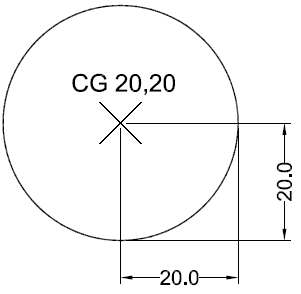
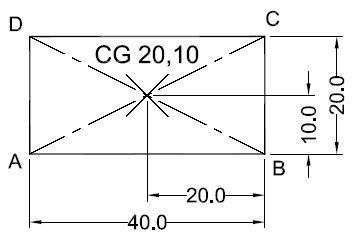
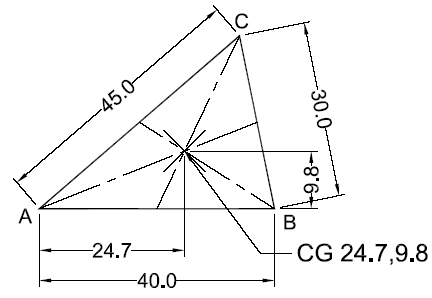
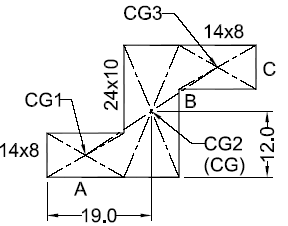
    The Geometric Center option allows your pointer to snap to the Geometrical Center (Centroid of the closed shape) of objects in AutoCAD.

    It doesn’t work with objects that were created with only the Line tool as it needs to be a closed object made with single geometry like a polyline or spline.

    Use the Polygon tool (or Polyline or Spline if you prefer), to create any kind of closed object.

    For simplicity, I created a triangle using the Polyline Tool.

    With the “Geometric Center” snap active on the object snap menu hover your cursor close to the perimeter of the drawing.

    Make sure a draw command like LINE  is active before you hover your cursor over the object.

    You will see an asterisk or white 8-pointed star appear in its center, and you can easily snap to that, this point is the geometric center.

    What if you already made a closed object using only the Line tool, and you want to find its geometric center?

    In this case, you can join the lines together using the JOIN command and the closed geometry will be converted to a single object made with a polyline and now you can snap to its geometric center.

    Node

    In AutoCAD, a Node is a single point made with the POINT Command.

    Use the POINT Command (or use the PO command) then click in the drawing area to make the node.

    You can click as many times as you want to make multiple points, or you can also type in the coordinates if you want the point at a specific location.

    I’ve made my points in a sort of arcing pattern.

    It is a little difficult to see it in the image above and you may have to increase your device’s brightness for improved visibility.

    To make them prominent and clearly visible in the drawing you can also change the point style in AutoCAD.

    To make these points selectable just like every other object snap option in this case too you need to first make sure that the “Node” snap is active from the object snap menu.

    Then start a draw command like LINE and hover your cursor close to a node or point and the cursor will snap to it.

    Quadrant

    Let’s make a circle using the CIRCLE command, make it whatever size you like.

    Now, click on the circumference of the Circle to select it. You will notice 4 blue squares on the circumference and one in the center.

    The 4 blue squares on the circumference of the Circle are called Quadrants.

    The Quadrant option allows your pointer to snap to the quadrant points on the circumference of the circle, arc or an ellipse.

    To select these quadrant points, select the Quadrant option from the object snap menu and you will be able to snap to the quadrants of your geometry.

    Quadrant snaps on the circle, arc and ellipse look like the image shown below.

    Intersection

    If you have Intersection snap active, you will have the ability to snap your cursor to the point of intersection of geometric objects.

    To see it in action make sure the intersection is active in the object snap menu and then activate any Draw command.

    Now move your cursor close to the point of intersection of any two objects.

    A green X marker will show up which is the intersection snap marker, click when the marker highlights and the cursor will snap to the point of intersection.

    If, however, the intersection point also happens to be another point like the midpoint or when another point like midpoint or endpoint is very close to the intersection point you will see those points.

    In this case, you can deactivate the snaps from the object snap menu that you don’t need and only keep the required snaps active like the intersection in this case.

    It can get very difficult if Intersection is turned on with a lot of other Object-Snaps.

    In particular, I would avoid using it with Perpendicular, Insertion or Apparent Intersection.

    It can cause unexpected and inconsistent results.

    [/fusion_text][/fusion_builder_column][/fusion_builder_row][/fusion_builder_container][fusion_builder_container admin_label=”Course CTA” type=”flex” hundred_percent=”no” hundred_percent_height=”no” min_height_medium=”” min_height_small=”” min_height=”” hundred_percent_height_scroll=”no” align_content=”stretch” flex_align_items=”center” flex_justify_content=”center” flex_column_spacing=”” hundred_percent_height_center_content=”yes” equal_height_columns=”no” container_tag=”div” menu_anchor=”” hide_on_mobile=”small-visibility,medium-visibility,large-visibility” status=”published” publish_date=”” class=”” id=”” margin_top_medium=”” margin_bottom_medium=”” margin_top_small=”” margin_bottom_small=”” margin_top=”” margin_bottom=”” padding_top_medium=”” padding_right_medium=”” padding_bottom_medium=”” padding_left_medium=”” padding_top_small=”” padding_right_small=”” padding_bottom_small=”” padding_left_small=”” padding_top=”” padding_right=”” padding_bottom=”” padding_left=”” link_color=”” hue=”” saturation=”” lightness=”” alpha=”” link_hover_color=”” border_sizes_top=”” border_sizes_right=”” border_sizes_bottom=”” border_sizes_left=”” border_color=”” border_style=”solid” border_radius_top_left=”” border_radius_top_right=”” border_radius_bottom_right=”” border_radius_bottom_left=”” box_shadow=”no” box_shadow_vertical=”” box_shadow_horizontal=”” box_shadow_blur=”0″ box_shadow_spread=”0″ box_shadow_color=”” box_shadow_style=”” z_index=”” overflow=”” gradient_start_color=”” gradient_end_color=”” gradient_start_position=”0″ gradient_end_position=”100″ gradient_type=”linear” radial_direction=”center center” linear_angle=”180″ background_color=”” background_image=”” skip_lazy_load=”” background_position=”center center” background_repeat=”no-repeat” fade=”no” background_parallax=”none” enable_mobile=”no” parallax_speed=”0.3″ background_blend_mode=”none” video_mp4=”” video_webm=”” video_ogv=”” video_url=”” video_aspect_ratio=”16:9″ video_loop=”yes” video_mute=”yes” video_preview_image=”” pattern_bg=”none” pattern_custom_bg=”” pattern_bg_color=”” pattern_bg_style=”default” pattern_bg_opacity=”100″ pattern_bg_size=”” pattern_bg_blend_mode=”normal” mask_bg=”none” mask_custom_bg=”” mask_bg_color=”” mask_bg_accent_color=”” mask_bg_style=”default” mask_bg_opacity=”100″ mask_bg_transform=”left” mask_bg_blend_mode=”normal” render_logics=”” absolute=”off” absolute_devices=”small,medium,large” sticky=”off” sticky_devices=”small-visibility,medium-visibility,large-visibility” sticky_background_color=”” sticky_height=”” sticky_offset=”” sticky_transition_offset=”0″ scroll_offset=”0″ animation_type=”” animation_direction=”left” animation_color=”” animation_speed=”0.3″ animation_delay=”0″ animation_offset=”” filter_hue=”0″ filter_saturation=”100″ filter_brightness=”100″ filter_contrast=”100″ filter_invert=”0″ filter_sepia=”0″ filter_opacity=”100″ filter_blur=”0″ filter_hue_hover=”0″ filter_saturation_hover=”100″ filter_brightness_hover=”100″ filter_contrast_hover=”100″ filter_invert_hover=”0″ filter_sepia_hover=”0″ filter_opacity_hover=”100″ filter_blur_hover=”0″ admin_toggled=”yes”][fusion_builder_row][fusion_builder_column type=”1_1″ layout=”1_1″ align_self=”flex-start” content_layout=”column” align_content=”center” valign_content=”flex-start” content_wrap=”wrap” spacing=”” center_content=”no” column_tag=”div” link=”” target=”_self” link_description=”” min_height=”” hide_on_mobile=”small-visibility,medium-visibility,large-visibility” sticky_display=”normal,sticky” class=”” id=”” background_image_id=”” type_medium=”” type_small=”” order_medium=”0″ order_small=”0″ spacing_left_medium=”” spacing_right_medium=”” spacing_left_small=”” spacing_right_small=”” spacing_left=”” spacing_right=”” margin_top_medium=”” margin_bottom_medium=”” margin_top_small=”” margin_bottom_small=”” margin_top=”” margin_bottom=”” padding_top_medium=”” padding_right_medium=”” padding_bottom_medium=”” padding_left_medium=”” padding_top_small=”” padding_right_small=”” padding_bottom_small=”” padding_left_small=”” padding_top=”2%” padding_right=”2%” padding_bottom=”2%” padding_left=”2%” hover_type=”none” border_sizes_top=”” border_sizes_right=”” border_sizes_bottom=”” border_sizes_left=”” border_color=”” hue=”” saturation=”” lightness=”” alpha=”” border_style=”solid” border_radius_top_left=”10″ border_radius_top_right=”10″ border_radius_bottom_right=”10″ border_radius_bottom_left=”10″ box_shadow=”no” box_shadow_vertical=”” box_shadow_horizontal=”” box_shadow_blur=”0″ box_shadow_spread=”0″ box_shadow_color=”” box_shadow_style=”” z_index_subgroup=”regular” z_index=”” z_index_hover=”” overflow=”” background_type=”single” gradient_start_color=”” gradient_end_color=”” gradient_start_position=”0″ gradient_end_position=”100″ gradient_type=”linear” radial_direction=”center center” linear_angle=”180″ background_color=”var(–awb-color5)” background_image=”” lazy_load=”avada” skip_lazy_load=”” background_position=”left top” background_repeat=”no-repeat” background_blend_mode=”none” render_logics=”” sticky=”off” sticky_devices=”small-visibility,medium-visibility,large-visibility” sticky_offset=”” absolute=”off” absolute_top=”” absolute_right=”” absolute_bottom=”” absolute_left=”” filter_type=”regular” filter_hover_element=”self” filter_hue=”0″ filter_saturation=”100″ filter_brightness=”100″ filter_contrast=”100″ filter_invert=”0″ filter_sepia=”0″ filter_opacity=”100″ filter_blur=”0″ filter_hue_hover=”0″ filter_saturation_hover=”100″ filter_brightness_hover=”100″ filter_contrast_hover=”100″ filter_invert_hover=”0″ filter_sepia_hover=”0″ filter_opacity_hover=”100″ filter_blur_hover=”0″ transform_type=”regular” transform_hover_element=”self” transform_scale_x=”1″ transform_scale_y=”1″ transform_translate_x=”0″ transform_translate_y=”0″ transform_rotate=”0″ transform_skew_x=”0″ transform_skew_y=”0″ transform_origin=”” transform_scale_x_hover=”1″ transform_scale_y_hover=”1″ transform_translate_x_hover=”0″ transform_translate_y_hover=”0″ transform_rotate_hover=”0″ transform_skew_x_hover=”0″ transform_skew_y_hover=”0″ transition_duration=”300″ transition_easing=”ease” transition_custom_easing=”” animation_type=”” animation_direction=”left” animation_color=”” animation_speed=”0.3″ animation_delay=”0″ animation_offset=”” last=”true” border_position=”all” first=”true”][fusion_builder_row_inner][fusion_builder_column_inner type=”2_3″ layout=”2_3″ align_self=”center” content_layout=”column” align_content=”center” valign_content=”flex-start” content_wrap=”wrap” spacing=”” center_content=”no” column_tag=”div” link=”” target=”_self” link_description=”” min_height=”” hide_on_mobile=”small-visibility,medium-visibility,large-visibility” sticky_display=”normal,sticky” class=”” id=”” background_image_id=”” type_medium=”” type_small=”” order_medium=”0″ order_small=”0″ spacing_left_medium=”” spacing_right_medium=”” spacing_left_small=”” spacing_right_small=”” spacing_left=”6%” spacing_right=”” margin_top_medium=”” margin_bottom_medium=”” margin_top_small=”” margin_bottom_small=”” margin_top=”4%” margin_bottom=”4%” padding_top_medium=”” padding_right_medium=”” padding_bottom_medium=”” padding_left_medium=”” padding_top_small=”” padding_right_small=”” padding_bottom_small=”” padding_left_small=”” padding_top=”” padding_right=”” padding_bottom=”” padding_left=”2%” hover_type=”none” border_sizes_top=”” border_sizes_right=”” border_sizes_bottom=”” border_sizes_left=”” border_color=”” hue=”” saturation=”” lightness=”” alpha=”” border_style=”solid” border_radius_top_left=”” border_radius_top_right=”” border_radius_bottom_right=”” border_radius_bottom_left=”” box_shadow=”no” box_shadow_vertical=”” box_shadow_horizontal=”” box_shadow_blur=”0″ box_shadow_spread=”0″ box_shadow_color=”” box_shadow_style=”” overflow=”” background_type=”single” gradient_start_color=”” gradient_end_color=”” gradient_start_position=”0″ gradient_end_position=”100″ gradient_type=”linear” radial_direction=”center center” linear_angle=”180″ background_color=”” background_image=”” lazy_load=”avada” skip_lazy_load=”” background_position=”left top” background_repeat=”no-repeat” background_blend_mode=”none” render_logics=”” filter_type=”regular” filter_hue=”0″ filter_saturation=”100″ filter_brightness=”100″ filter_contrast=”100″ filter_invert=”0″ filter_sepia=”0″ filter_opacity=”100″ filter_blur=”0″ filter_hue_hover=”0″ filter_saturation_hover=”100″ filter_brightness_hover=”100″ filter_contrast_hover=”100″ filter_invert_hover=”0″ filter_sepia_hover=”0″ filter_opacity_hover=”100″ filter_blur_hover=”0″ animation_type=”” animation_direction=”left” animation_speed=”0.3″ animation_offset=”” last=”false” border_position=”all” first=”true”][fusion_text columns=”” column_min_width=”” column_spacing=”” rule_style=”” rule_size=”” rule_color=”” hue=”” saturation=”” lightness=”” alpha=”” content_alignment_medium=”” content_alignment_small=”” content_alignment=”” hide_on_mobile=”small-visibility,medium-visibility,large-visibility” sticky_display=”normal,sticky” class=”” id=”” margin_top=”” margin_right=”” margin_bottom=”” margin_left=”” fusion_font_family_text_font=”” fusion_font_variant_text_font=”” font_size=”” line_height=”” letter_spacing=”” text_transform=”none” text_color=”var(–awb-color8)” animation_type=”” animation_direction=”left” animation_color=”” animation_speed=”0.3″ animation_delay=”0″ animation_offset=””]

    Learn AutoCAD right from scratch with video courses by published Authors

    [/fusion_text][fusion_button link=”https://thesourcecad.com/autocad-courses/” title=”” target=”_self” link_attributes=”” alignment_medium=”” alignment_small=”” alignment=”left” modal=”” hide_on_mobile=”small-visibility,medium-visibility,large-visibility” sticky_display=”normal,sticky” class=”” id=”” color=”custom” button_gradient_top_color_hover=”var(–awb-color4)” hue=”” saturation=”” lightness=”” alpha=”” button_gradient_top_color=”var(–awb-color3)” button_gradient_bottom_color_hover=”var(–awb-color4)” button_gradient_bottom_color=”var(–awb-color3)” gradient_start_position=”” gradient_end_position=”” gradient_type=”” radial_direction=”” linear_angle=”180″ accent_hover_color=”” accent_color=”” type=”flat” bevel_color=”” bevel_color_hover=”” border_top=”” border_right=”” border_bottom=”” border_left=”” border_radius_top_left=”” border_radius_top_right=”” border_radius_bottom_right=”” border_radius_bottom_left=”” border_hover_color=”” border_color=”” size=”large” padding_top=”” padding_right=”” padding_bottom=”” padding_left=”” fusion_font_family_button_font=”” fusion_font_variant_button_font=”” font_size=”” line_height=”” letter_spacing=”” text_transform=”” stretch=”no” margin_top=”” margin_right=”” margin_bottom=”” margin_left=”” icon=”” icon_position=”left” icon_divider=”no” hover_transition=”none” animation_type=”” animation_direction=”left” animation_color=”” animation_speed=”0.3″ animation_delay=”0″ animation_offset=””]Check Course Details[/fusion_button][/fusion_builder_column_inner][fusion_builder_column_inner type=”1_3″ layout=”1_3″ align_self=”center” content_layout=”column” align_content=”center” valign_content=”flex-start” content_wrap=”wrap” spacing=”” center_content=”yes” column_tag=”div” link=”” target=”_self” link_description=”” min_height=”” hide_on_mobile=”large-visibility” sticky_display=”normal,sticky” class=”” id=”” background_image_id=”” type_medium=”” type_small=”” order_medium=”0″ order_small=”0″ spacing_left_medium=”” spacing_right_medium=”” spacing_left_small=”” spacing_right_small=”” spacing_left=”” spacing_right=”” margin_top_medium=”” margin_bottom_medium=”” margin_top_small=”” margin_bottom_small=”” margin_top=”” margin_bottom=”” padding_top_medium=”” padding_right_medium=”” padding_bottom_medium=”” padding_left_medium=”” padding_top_small=”” padding_right_small=”” padding_bottom_small=”” padding_left_small=”” padding_top=”” padding_right=”” padding_bottom=”” padding_left=”” hover_type=”none” border_sizes_top=”” border_sizes_right=”” border_sizes_bottom=”” border_sizes_left=”” border_color=”” hue=”” saturation=”” lightness=”” alpha=”” border_style=”solid” border_radius_top_left=”” border_radius_top_right=”” border_radius_bottom_right=”” border_radius_bottom_left=”” box_shadow=”no” box_shadow_vertical=”” box_shadow_horizontal=”” box_shadow_blur=”0″ box_shadow_spread=”0″ box_shadow_color=”” box_shadow_style=”” z_index_subgroup=”regular” z_index=”” z_index_hover=”” overflow=”” background_type=”single” gradient_start_color=”” gradient_end_color=”” gradient_start_position=”0″ gradient_end_position=”100″ gradient_type=”linear” radial_direction=”center center” linear_angle=”180″ background_color=”” background_image=”” lazy_load=”avada” skip_lazy_load=”” background_position=”left top” background_repeat=”no-repeat” background_blend_mode=”none” render_logics=”” sticky=”off” sticky_devices=”small-visibility,medium-visibility,large-visibility” sticky_offset=”” absolute=”off” absolute_top=”” absolute_right=”” absolute_bottom=”” absolute_left=”” filter_type=”regular” filter_hover_element=”self” filter_hue=”0″ filter_saturation=”100″ filter_brightness=”100″ filter_contrast=”100″ filter_invert=”0″ filter_sepia=”0″ filter_opacity=”100″ filter_blur=”0″ filter_hue_hover=”0″ filter_saturation_hover=”100″ filter_brightness_hover=”100″ filter_contrast_hover=”100″ filter_invert_hover=”0″ filter_sepia_hover=”0″ filter_opacity_hover=”100″ filter_blur_hover=”0″ transform_type=”regular” transform_hover_element=”self” transform_scale_x=”1″ transform_scale_y=”1″ transform_translate_x=”0″ transform_translate_y=”0″ transform_rotate=”0″ transform_skew_x=”0″ transform_skew_y=”0″ transform_origin=”” transform_scale_x_hover=”1″ transform_scale_y_hover=”1″ transform_translate_x_hover=”0″ transform_translate_y_hover=”0″ transform_rotate_hover=”0″ transform_skew_x_hover=”0″ transform_skew_y_hover=”0″ transition_duration=”300″ transition_easing=”ease” transition_custom_easing=”” animation_type=”” animation_direction=”left” animation_color=”” animation_speed=”0.3″ animation_delay=”0″ animation_offset=”” last=”true” border_position=”all” first=”false”][fusion_imageframe image_id=”25502|full” aspect_ratio=”” custom_aspect_ratio=”100″ aspect_ratio_position=”” skip_lazy_load=”” lightbox=”no” gallery_id=”” lightbox_image=”” lightbox_image_id=”” alt=”” link=”” linktarget=”_self” hide_on_mobile=”small-visibility,medium-visibility,large-visibility” sticky_display=”normal,sticky” class=”” id=”” max_width=”” sticky_max_width=”” align_medium=”none” align_small=”none” align=”center” mask=”” custom_mask=”” mask_size=”” mask_custom_size=”” mask_position=”” mask_custom_position=”” mask_repeat=”” style_type=”” blur=”” stylecolor=”” hue=”” saturation=”” lightness=”” alpha=”” hover_type=”none” margin_top_medium=”” margin_right_medium=”” margin_bottom_medium=”” margin_left_medium=”” margin_top_small=”” margin_right_small=”” margin_bottom_small=”” margin_left_small=”” margin_top=”” margin_right=”” margin_bottom=”” margin_left=”” bordersize=”” bordercolor=”” borderradius=”” z_index=”” caption_style=”off” caption_align_medium=”none” caption_align_small=”none” caption_align=”none” caption_title=”” caption_text=”” caption_title_tag=”2″ fusion_font_family_caption_title_font=”” fusion_font_variant_caption_title_font=”” caption_title_size=”” caption_title_line_height=”” caption_title_letter_spacing=”” caption_title_transform=”” caption_title_color=”” caption_background_color=”” fusion_font_family_caption_text_font=”” fusion_font_variant_caption_text_font=”” caption_text_size=”” caption_text_line_height=”” caption_text_letter_spacing=”” caption_text_transform=”” caption_text_color=”” caption_border_color=”” caption_overlay_color=”” caption_margin_top=”” caption_margin_right=”” caption_margin_bottom=”” caption_margin_left=”” animation_type=”” animation_direction=”left” animation_color=”” animation_speed=”0.3″ animation_delay=”0″ animation_offset=”” filter_hue=”0″ filter_saturation=”100″ filter_brightness=”100″ filter_contrast=”100″ filter_invert=”0″ filter_sepia=”0″ filter_opacity=”100″ filter_blur=”0″ filter_hue_hover=”0″ filter_saturation_hover=”100″ filter_brightness_hover=”100″ filter_contrast_hover=”100″ filter_invert_hover=”0″ filter_sepia_hover=”0″ filter_opacity_hover=”100″ filter_blur_hover=”0″]https://thesourcecad.com/wp-content/uploads/2014/10/Courses-new.png[/fusion_imageframe][/fusion_builder_column_inner][/fusion_builder_row_inner][/fusion_builder_column][/fusion_builder_row][/fusion_builder_container][fusion_builder_container type=”flex” hundred_percent=”no” hundred_percent_height=”no” min_height_medium=”” min_height_small=”” min_height=”” hundred_percent_height_scroll=”no” align_content=”stretch” flex_align_items=”flex-start” flex_justify_content=”flex-start” flex_wrap_medium=”” flex_wrap_small=”” flex_wrap=”wrap” flex_column_spacing=”” hundred_percent_height_center_content=”yes” equal_height_columns=”no” container_tag=”div” menu_anchor=”” hide_on_mobile=”small-visibility,medium-visibility,large-visibility” status=”published” publish_date=”” class=”” id=”” margin_top_medium=”” margin_bottom_medium=”” margin_top_small=”” margin_bottom_small=”” margin_top=”” margin_bottom=”” padding_top_medium=”” padding_right_medium=”” padding_bottom_medium=”” padding_left_medium=”” padding_top_small=”” padding_right_small=”” padding_bottom_small=”” padding_left_small=”” padding_top=”” padding_right=”” padding_bottom=”” padding_left=”” link_hover_color=”” hue=”” saturation=”” lightness=”” alpha=”” link_color=”var(–awb-color3)” border_sizes_top=”” border_sizes_right=”” border_sizes_bottom=”” border_sizes_left=”” border_color=”” border_style=”solid” border_radius_top_left=”” border_radius_top_right=”” border_radius_bottom_right=”” border_radius_bottom_left=”” box_shadow=”no” box_shadow_vertical=”” box_shadow_horizontal=”” box_shadow_blur=”0″ box_shadow_spread=”0″ box_shadow_color=”” box_shadow_style=”” z_index=”” overflow=”” gradient_start_color=”” gradient_end_color=”” gradient_start_position=”0″ gradient_end_position=”100″ gradient_type=”linear” radial_direction=”center center” linear_angle=”180″ background_color_medium=”” background_color_small=”” background_color=”” background_image_medium=”” background_image_small=”” background_image=”” skip_lazy_load=”” background_position_medium=”” background_position_small=”” background_position=”center center” background_repeat_medium=”” background_repeat_small=”” background_repeat=”no-repeat” background_size_medium=”” background_size_small=”” background_size=”” background_custom_size=”” background_custom_size_medium=”” background_custom_size_small=”” fade=”no” background_parallax=”none” enable_mobile=”no” parallax_speed=”0.3″ background_blend_mode_medium=”” background_blend_mode_small=”” background_blend_mode=”none” video_mp4=”” video_webm=”” video_ogv=”” video_url=”” video_aspect_ratio=”16:9″ video_loop=”yes” video_mute=”yes” video_preview_image=”” pattern_bg=”none” pattern_custom_bg=”” pattern_bg_color=”” pattern_bg_style=”default” pattern_bg_opacity=”100″ pattern_bg_size=”” pattern_bg_blend_mode=”normal” mask_bg=”none” mask_custom_bg=”” mask_bg_color=”” mask_bg_accent_color=”” mask_bg_style=”default” mask_bg_opacity=”100″ mask_bg_transform=”left” mask_bg_blend_mode=”normal” render_logics=”” logics=”” absolute=”off” absolute_devices=”small,medium,large” sticky=”off” sticky_devices=”small-visibility,medium-visibility,large-visibility” sticky_background_color=”” sticky_height=”” sticky_offset=”” sticky_transition_offset=”0″ scroll_offset=”0″ animation_type=”” animation_direction=”left” animation_color=”” animation_speed=”0.3″ animation_delay=”0″ animation_offset=”” filter_hue=”0″ filter_saturation=”100″ filter_brightness=”100″ filter_contrast=”100″ filter_invert=”0″ filter_sepia=”0″ filter_opacity=”100″ filter_blur=”0″ filter_hue_hover=”0″ filter_saturation_hover=”100″ filter_brightness_hover=”100″ filter_contrast_hover=”100″ filter_invert_hover=”0″ filter_sepia_hover=”0″ filter_opacity_hover=”100″ filter_blur_hover=”0″ admin_toggled=”yes”][fusion_builder_row][fusion_builder_column type=”1_1″ layout=”1_1″ background_position=”left top” background_color=”” border_color=”” border_style=”solid” border_position=”all” spacing=”yes” background_image=”” background_repeat=”no-repeat” padding_top=”” padding_right=”” padding_bottom=”” padding_left=”” margin_top=”0px” margin_bottom=”0px” class=”” id=”” animation_type=”” animation_speed=”0.3″ animation_direction=”left” hide_on_mobile=”small-visibility,medium-visibility,large-visibility” center_content=”no” last=”true” min_height=”” hover_type=”none” link=”” border_sizes_top=”” border_sizes_bottom=”” border_sizes_left=”” border_sizes_right=”” first=”true”][fusion_text columns=”” column_min_width=”” column_spacing=”” rule_style=”” rule_size=”” rule_color=”” hue=”” saturation=”” lightness=”” alpha=”” content_alignment_medium=”” content_alignment_small=”” content_alignment=”” hide_on_mobile=”small-visibility,medium-visibility,large-visibility” sticky_display=”normal,sticky” class=”” id=”” margin_top=”” margin_right=”” margin_bottom=”” margin_left=”” fusion_font_family_text_font=”” fusion_font_variant_text_font=”” font_size=”” line_height=”” letter_spacing=”” text_transform=”” text_color=”” animation_type=”” animation_direction=”left” animation_color=”” animation_speed=”0.3″ animation_delay=”0″ animation_offset=”” logics=””]

    Extension

    Extension Snapping will keep things lined up the way that they should be.

    Essentially this option allows you to have your pointer snap to points that are past an endpoint.

    This takes Object Snap to the next level, and it comes in particularly useful when working on wall options, room sizes, and any other sort of speculative design.

    To begin, make sure that your Endpoint, Midpoint, and Extension OSNAP Options are turned on.

    The Extension option is easy to explain even if we start off with one simple line.

    So, let’s do that, notice my line is slightly angled.

    The Extension option allows you to forgo Ortho Snapping in cases of matching angles up.

    Now make another line that snaps to an endpoint of our original line.

    Drag the mouse down (or up) until your tracking line turns green.
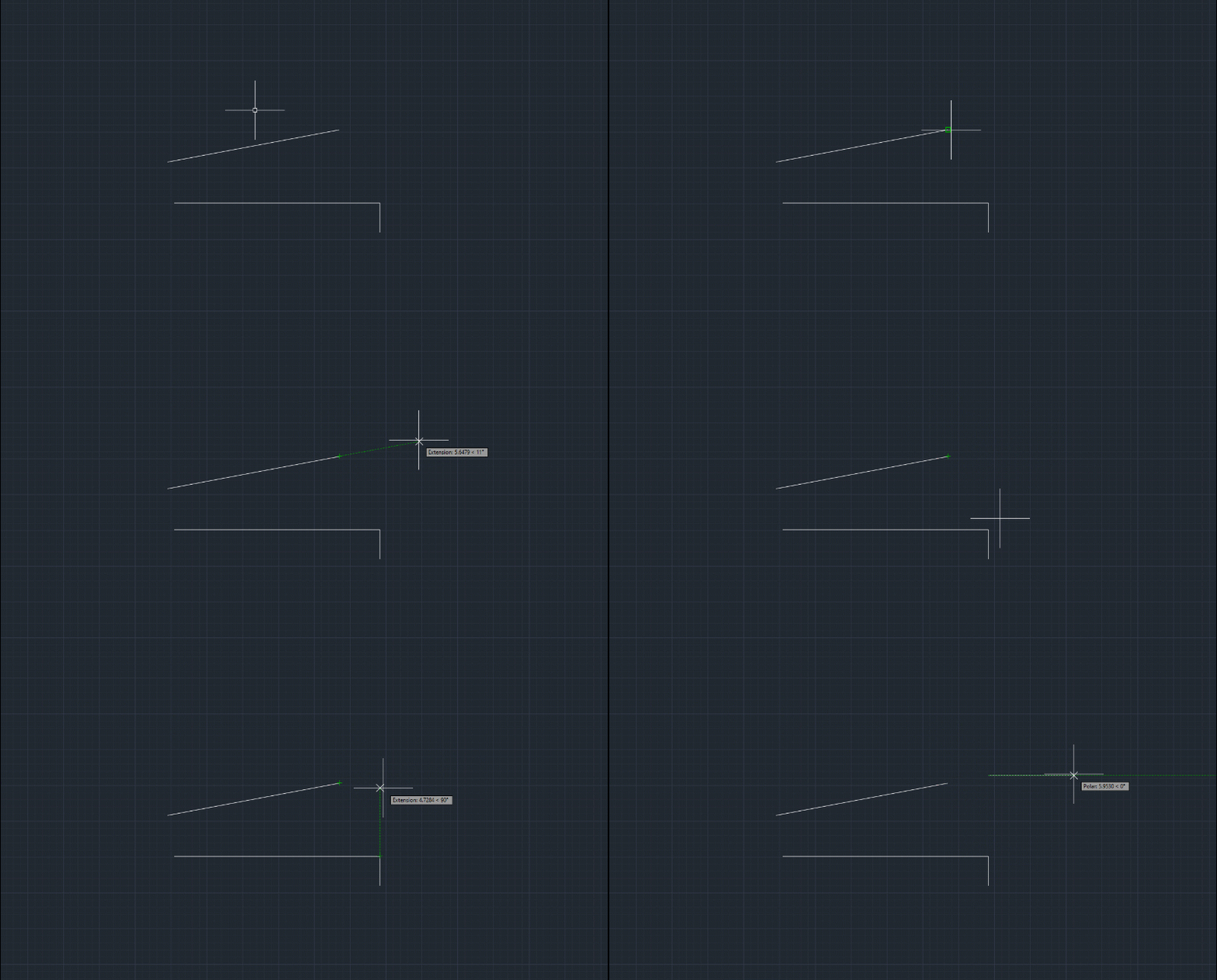
    Do you see? The direction of the line is maintained by the Extension snap.

    What is really amazing is that Extension Object snap works with arcs as well.

    You can see for yourself that if you create an arc, you can create an extension of it if you have Extension Snap turned on.

    You can accomplish this by creating an arc, and then using the LINE command with the Extension Snap Option ON to snap your line’s ending point to an extension of the arc.

    Once you find the arc’s extension, you can move up and down it by slowly dragging your mouse. Notice the green tracking arc in the figure above?

    Use that.

    Insertion

    Insertion snap is related to the blocks and their base point.

    When making a block AutoCAD always prompts you to select a base point, this base point is the insertion point which shows up when the insertion object snap is active.

    In this case, I have a Window block and when you select it only a single grip shows up which happens to be the base point of the block too.

    In the image A below base point is highlighted with a blue grip shown inside the red circle.

    The Insertion point alone won’t show up if it overlaps with other points, like in the example above the insertion point also happens to be the end point of the lines that make the block.

    So, in this case, instead of Insertion point AutoCAD will show Endpoints.

    But if you only want to highlight the Insertion point then deactivate the endpoint snap and then the insertion point will show up when the cursor is moved closer to the lower left corner of the block.

    Perpendicular

    The Perpendicular Snap Option snaps in such a way that it places your selected line perpendicular to another reference line in the drawing.

    To use it make sure you have Perpendicular Snap turned on as shown in the image below.

    Start the LINE Command and click at a point close to the reference line and then move your cursor over the reference line.

    The perpendicular snap will show up at the point of perpendicularity on the reference line as shown in the animated gif below.

    Tangent

    Tangent is a point where two geometries meet at just a single point.

    An example of the tangent is shown in the image below, here the red line is not tangent to the circle as it is not touching it.

    The green line is intersecting the circle at two points so it’s also not tangent, but the blue line is touching the circle at an exactly single point and hence is tangent to the circle.
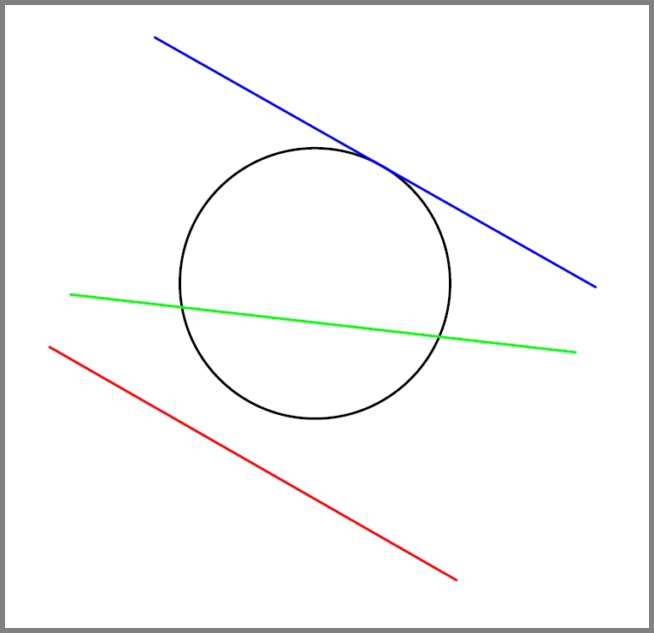
    Just like other snaps, for making tangents too you need to keep it active in the object snap menu.

    Once you have activated it you can then start with a line and then move it close to the circumference of a circle, arc, ellipse or spline and the tangent snap will show up.

    Click to make the tangent line on the curve as shown in the animated image below.

    Nearest

    Nearest is the snap option that works with this simple principle, you want your cursor to snap to the nearest point on the curve from where it is clicked.

    To understand this snap I will start by making a simple circle.

    After you’ve created your circle (or any shape really, it doesn’t matter), make sure Nearest snap is turned on.

    Now create a line and hover over your circle’s circumference until you see the Nearest snap icon.

    Notice you can move all around the circumference, and you will nevertheless remain snapped to the circle.

    Considering this, it is important to note that Nearest Snap does not work very well when it comes to matters of precision, particularly if you are going for a specific point on a circle, line or other curves.

    However, it is very useful when what you need is for your cursor to snap to the nearest point on the drawing.

    This is a good time to note that Intelligent Snap Options like “Nearest” don’t work so well when turned on with Basic Snap Options, and vice versa.

    For instance, what use is Intersection Snap, when your cursor is constantly snapping to the Nearest point?

    Keep this clutter-free and use the minimum number of Snap Options possible.

    This will help guarantee maximum efficiency and the least error in all your drawings.

    [/fusion_text][/fusion_builder_column][/fusion_builder_row][/fusion_builder_container][fusion_builder_container admin_label=”Course CTA” type=”flex” hundred_percent=”no” hundred_percent_height=”no” min_height_medium=”” min_height_small=”” min_height=”” hundred_percent_height_scroll=”no” align_content=”stretch” flex_align_items=”center” flex_justify_content=”center” flex_column_spacing=”” hundred_percent_height_center_content=”yes” equal_height_columns=”no” container_tag=”div” menu_anchor=”” hide_on_mobile=”small-visibility,medium-visibility,large-visibility” status=”published” publish_date=”” class=”” id=”” margin_top_medium=”” margin_bottom_medium=”” margin_top_small=”” margin_bottom_small=”” margin_top=”” margin_bottom=”” padding_top_medium=”” padding_right_medium=”” padding_bottom_medium=”” padding_left_medium=”” padding_top_small=”” padding_right_small=”” padding_bottom_small=”” padding_left_small=”” padding_top=”” padding_right=”” padding_bottom=”” padding_left=”” link_color=”” hue=”” saturation=”” lightness=”” alpha=”” link_hover_color=”” border_sizes_top=”” border_sizes_right=”” border_sizes_bottom=”” border_sizes_left=”” border_color=”” border_style=”solid” border_radius_top_left=”” border_radius_top_right=”” border_radius_bottom_right=”” border_radius_bottom_left=”” box_shadow=”no” box_shadow_vertical=”” box_shadow_horizontal=”” box_shadow_blur=”0″ box_shadow_spread=”0″ box_shadow_color=”” box_shadow_style=”” z_index=”” overflow=”” gradient_start_color=”” gradient_end_color=”” gradient_start_position=”0″ gradient_end_position=”100″ gradient_type=”linear” radial_direction=”center center” linear_angle=”180″ background_color=”” background_image=”” skip_lazy_load=”” background_position=”center center” background_repeat=”no-repeat” fade=”no” background_parallax=”none” enable_mobile=”no” parallax_speed=”0.3″ background_blend_mode=”none” video_mp4=”” video_webm=”” video_ogv=”” video_url=”” video_aspect_ratio=”16:9″ video_loop=”yes” video_mute=”yes” video_preview_image=”” pattern_bg=”none” pattern_custom_bg=”” pattern_bg_color=”” pattern_bg_style=”default” pattern_bg_opacity=”100″ pattern_bg_size=”” pattern_bg_blend_mode=”normal” mask_bg=”none” mask_custom_bg=”” mask_bg_color=”” mask_bg_accent_color=”” mask_bg_style=”default” mask_bg_opacity=”100″ mask_bg_transform=”left” mask_bg_blend_mode=”normal” render_logics=”” absolute=”off” absolute_devices=”small,medium,large” sticky=”off” sticky_devices=”small-visibility,medium-visibility,large-visibility” sticky_background_color=”” sticky_height=”” sticky_offset=”” sticky_transition_offset=”0″ scroll_offset=”0″ animation_type=”” animation_direction=”left” animation_color=”” animation_speed=”0.3″ animation_delay=”0″ animation_offset=”” filter_hue=”0″ filter_saturation=”100″ filter_brightness=”100″ filter_contrast=”100″ filter_invert=”0″ filter_sepia=”0″ filter_opacity=”100″ filter_blur=”0″ filter_hue_hover=”0″ filter_saturation_hover=”100″ filter_brightness_hover=”100″ filter_contrast_hover=”100″ filter_invert_hover=”0″ filter_sepia_hover=”0″ filter_opacity_hover=”100″ filter_blur_hover=”0″ admin_toggled=”yes”][fusion_builder_row][fusion_builder_column type=”1_1″ layout=”1_1″ align_self=”flex-start” content_layout=”column” align_content=”center” valign_content=”flex-start” content_wrap=”wrap” spacing=”” center_content=”no” column_tag=”div” link=”” target=”_self” link_description=”” min_height=”” hide_on_mobile=”small-visibility,medium-visibility,large-visibility” sticky_display=”normal,sticky” class=”” id=”” background_image_id=”” type_medium=”” type_small=”” order_medium=”0″ order_small=”0″ spacing_left_medium=”” spacing_right_medium=”” spacing_left_small=”” spacing_right_small=”” spacing_left=”” spacing_right=”” margin_top_medium=”” margin_bottom_medium=”” margin_top_small=”” margin_bottom_small=”” margin_top=”” margin_bottom=”” padding_top_medium=”” padding_right_medium=”” padding_bottom_medium=”” padding_left_medium=”” padding_top_small=”” padding_right_small=”” padding_bottom_small=”” padding_left_small=”” padding_top=”2%” padding_right=”2%” padding_bottom=”2%” padding_left=”2%” hover_type=”none” border_sizes_top=”” border_sizes_right=”” border_sizes_bottom=”” border_sizes_left=”” border_color=”” hue=”” saturation=”” lightness=”” alpha=”” border_style=”solid” border_radius_top_left=”10″ border_radius_top_right=”10″ border_radius_bottom_right=”10″ border_radius_bottom_left=”10″ box_shadow=”no” box_shadow_vertical=”” box_shadow_horizontal=”” box_shadow_blur=”0″ box_shadow_spread=”0″ box_shadow_color=”” box_shadow_style=”” z_index_subgroup=”regular” z_index=”” z_index_hover=”” overflow=”” background_type=”single” gradient_start_color=”” gradient_end_color=”” gradient_start_position=”0″ gradient_end_position=”100″ gradient_type=”linear” radial_direction=”center center” linear_angle=”180″ background_color=”var(–awb-color5)” background_image=”” lazy_load=”avada” skip_lazy_load=”” background_position=”left top” background_repeat=”no-repeat” background_blend_mode=”none” render_logics=”” sticky=”off” sticky_devices=”small-visibility,medium-visibility,large-visibility” sticky_offset=”” absolute=”off” absolute_top=”” absolute_right=”” absolute_bottom=”” absolute_left=”” filter_type=”regular” filter_hover_element=”self” filter_hue=”0″ filter_saturation=”100″ filter_brightness=”100″ filter_contrast=”100″ filter_invert=”0″ filter_sepia=”0″ filter_opacity=”100″ filter_blur=”0″ filter_hue_hover=”0″ filter_saturation_hover=”100″ filter_brightness_hover=”100″ filter_contrast_hover=”100″ filter_invert_hover=”0″ filter_sepia_hover=”0″ filter_opacity_hover=”100″ filter_blur_hover=”0″ transform_type=”regular” transform_hover_element=”self” transform_scale_x=”1″ transform_scale_y=”1″ transform_translate_x=”0″ transform_translate_y=”0″ transform_rotate=”0″ transform_skew_x=”0″ transform_skew_y=”0″ transform_origin=”” transform_scale_x_hover=”1″ transform_scale_y_hover=”1″ transform_translate_x_hover=”0″ transform_translate_y_hover=”0″ transform_rotate_hover=”0″ transform_skew_x_hover=”0″ transform_skew_y_hover=”0″ transition_duration=”300″ transition_easing=”ease” transition_custom_easing=”” animation_type=”” animation_direction=”left” animation_color=”” animation_speed=”0.3″ animation_delay=”0″ animation_offset=”” last=”true” border_position=”all” first=”true”][fusion_builder_row_inner][fusion_builder_column_inner type=”2_3″ layout=”2_3″ align_self=”center” content_layout=”column” align_content=”center” valign_content=”flex-start” content_wrap=”wrap” spacing=”” center_content=”no” column_tag=”div” link=”” target=”_self” link_description=”” min_height=”” hide_on_mobile=”small-visibility,medium-visibility,large-visibility” sticky_display=”normal,sticky” class=”” id=”” background_image_id=”” type_medium=”” type_small=”” order_medium=”0″ order_small=”0″ spacing_left_medium=”” spacing_right_medium=”” spacing_left_small=”” spacing_right_small=”” spacing_left=”6%” spacing_right=”” margin_top_medium=”” margin_bottom_medium=”” margin_top_small=”” margin_bottom_small=”” margin_top=”4%” margin_bottom=”4%” padding_top_medium=”” padding_right_medium=”” padding_bottom_medium=”” padding_left_medium=”” padding_top_small=”” padding_right_small=”” padding_bottom_small=”” padding_left_small=”” padding_top=”” padding_right=”” padding_bottom=”” padding_left=”2%” hover_type=”none” border_sizes_top=”” border_sizes_right=”” border_sizes_bottom=”” border_sizes_left=”” border_color=”” hue=”” saturation=”” lightness=”” alpha=”” border_style=”solid” border_radius_top_left=”” border_radius_top_right=”” border_radius_bottom_right=”” border_radius_bottom_left=”” box_shadow=”no” box_shadow_vertical=”” box_shadow_horizontal=”” box_shadow_blur=”0″ box_shadow_spread=”0″ box_shadow_color=”” box_shadow_style=”” overflow=”” background_type=”single” gradient_start_color=”” gradient_end_color=”” gradient_start_position=”0″ gradient_end_position=”100″ gradient_type=”linear” radial_direction=”center center” linear_angle=”180″ background_color=”” background_image=”” lazy_load=”avada” skip_lazy_load=”” background_position=”left top” background_repeat=”no-repeat” background_blend_mode=”none” render_logics=”” filter_type=”regular” filter_hue=”0″ filter_saturation=”100″ filter_brightness=”100″ filter_contrast=”100″ filter_invert=”0″ filter_sepia=”0″ filter_opacity=”100″ filter_blur=”0″ filter_hue_hover=”0″ filter_saturation_hover=”100″ filter_brightness_hover=”100″ filter_contrast_hover=”100″ filter_invert_hover=”0″ filter_sepia_hover=”0″ filter_opacity_hover=”100″ filter_blur_hover=”0″ animation_type=”” animation_direction=”left” animation_speed=”0.3″ animation_offset=”” last=”false” border_position=”all” first=”true”][fusion_text columns=”” column_min_width=”” column_spacing=”” rule_style=”” rule_size=”” rule_color=”” hue=”” saturation=”” lightness=”” alpha=”” content_alignment_medium=”” content_alignment_small=”” content_alignment=”” hide_on_mobile=”small-visibility,medium-visibility,large-visibility” sticky_display=”normal,sticky” class=”” id=”” margin_top=”” margin_right=”” margin_bottom=”” margin_left=”” fusion_font_family_text_font=”” fusion_font_variant_text_font=”” font_size=”” line_height=”” letter_spacing=”” text_transform=”none” text_color=”var(–awb-color8)” animation_type=”” animation_direction=”left” animation_color=”” animation_speed=”0.3″ animation_delay=”0″ animation_offset=””]

    Learn AutoCAD right from scratch with video courses by published Authors

    [/fusion_text][fusion_button link=”https://thesourcecad.com/autocad-courses/” title=”” target=”_self” link_attributes=”” alignment_medium=”” alignment_small=”” alignment=”left” modal=”” hide_on_mobile=”small-visibility,medium-visibility,large-visibility” sticky_display=”normal,sticky” class=”” id=”” color=”custom” button_gradient_top_color_hover=”var(–awb-color4)” hue=”” saturation=”” lightness=”” alpha=”” button_gradient_top_color=”var(–awb-color3)” button_gradient_bottom_color_hover=”var(–awb-color4)” button_gradient_bottom_color=”var(–awb-color3)” gradient_start_position=”” gradient_end_position=”” gradient_type=”” radial_direction=”” linear_angle=”180″ accent_hover_color=”” accent_color=”” type=”flat” bevel_color=”” bevel_color_hover=”” border_top=”” border_right=”” border_bottom=”” border_left=”” border_radius_top_left=”” border_radius_top_right=”” border_radius_bottom_right=”” border_radius_bottom_left=”” border_hover_color=”” border_color=”” size=”large” padding_top=”” padding_right=”” padding_bottom=”” padding_left=”” fusion_font_family_button_font=”” fusion_font_variant_button_font=”” font_size=”” line_height=”” letter_spacing=”” text_transform=”” stretch=”no” margin_top=”” margin_right=”” margin_bottom=”” margin_left=”” icon=”” icon_position=”left” icon_divider=”no” hover_transition=”none” animation_type=”” animation_direction=”left” animation_color=”” animation_speed=”0.3″ animation_delay=”0″ animation_offset=””]Check Course Details[/fusion_button][/fusion_builder_column_inner][fusion_builder_column_inner type=”1_3″ layout=”1_3″ align_self=”center” content_layout=”column” align_content=”center” valign_content=”flex-start” content_wrap=”wrap” spacing=”” center_content=”yes” column_tag=”div” link=”” target=”_self” link_description=”” min_height=”” hide_on_mobile=”large-visibility” sticky_display=”normal,sticky” class=”” id=”” background_image_id=”” type_medium=”” type_small=”” order_medium=”0″ order_small=”0″ spacing_left_medium=”” spacing_right_medium=”” spacing_left_small=”” spacing_right_small=”” spacing_left=”” spacing_right=”” margin_top_medium=”” margin_bottom_medium=”” margin_top_small=”” margin_bottom_small=”” margin_top=”” margin_bottom=”” padding_top_medium=”” padding_right_medium=”” padding_bottom_medium=”” padding_left_medium=”” padding_top_small=”” padding_right_small=”” padding_bottom_small=”” padding_left_small=”” padding_top=”” padding_right=”” padding_bottom=”” padding_left=”” hover_type=”none” border_sizes_top=”” border_sizes_right=”” border_sizes_bottom=”” border_sizes_left=”” border_color=”” hue=”” saturation=”” lightness=”” alpha=”” border_style=”solid” border_radius_top_left=”” border_radius_top_right=”” border_radius_bottom_right=”” border_radius_bottom_left=”” box_shadow=”no” box_shadow_vertical=”” box_shadow_horizontal=”” box_shadow_blur=”0″ box_shadow_spread=”0″ box_shadow_color=”” box_shadow_style=”” z_index_subgroup=”regular” z_index=”” z_index_hover=”” overflow=”” background_type=”single” gradient_start_color=”” gradient_end_color=”” gradient_start_position=”0″ gradient_end_position=”100″ gradient_type=”linear” radial_direction=”center center” linear_angle=”180″ background_color=”” background_image=”” lazy_load=”avada” skip_lazy_load=”” background_position=”left top” background_repeat=”no-repeat” background_blend_mode=”none” render_logics=”” sticky=”off” sticky_devices=”small-visibility,medium-visibility,large-visibility” sticky_offset=”” absolute=”off” absolute_top=”” absolute_right=”” absolute_bottom=”” absolute_left=”” filter_type=”regular” filter_hover_element=”self” filter_hue=”0″ filter_saturation=”100″ filter_brightness=”100″ filter_contrast=”100″ filter_invert=”0″ filter_sepia=”0″ filter_opacity=”100″ filter_blur=”0″ filter_hue_hover=”0″ filter_saturation_hover=”100″ filter_brightness_hover=”100″ filter_contrast_hover=”100″ filter_invert_hover=”0″ filter_sepia_hover=”0″ filter_opacity_hover=”100″ filter_blur_hover=”0″ transform_type=”regular” transform_hover_element=”self” transform_scale_x=”1″ transform_scale_y=”1″ transform_translate_x=”0″ transform_translate_y=”0″ transform_rotate=”0″ transform_skew_x=”0″ transform_skew_y=”0″ transform_origin=”” transform_scale_x_hover=”1″ transform_scale_y_hover=”1″ transform_translate_x_hover=”0″ transform_translate_y_hover=”0″ transform_rotate_hover=”0″ transform_skew_x_hover=”0″ transform_skew_y_hover=”0″ transition_duration=”300″ transition_easing=”ease” transition_custom_easing=”” animation_type=”” animation_direction=”left” animation_color=”” animation_speed=”0.3″ animation_delay=”0″ animation_offset=”” last=”true” border_position=”all” first=”false”][fusion_imageframe image_id=”25502|full” aspect_ratio=”” custom_aspect_ratio=”100″ aspect_ratio_position=”” skip_lazy_load=”” lightbox=”no” gallery_id=”” lightbox_image=”” lightbox_image_id=”” alt=”” link=”” linktarget=”_self” hide_on_mobile=”small-visibility,medium-visibility,large-visibility” sticky_display=”normal,sticky” class=”” id=”” max_width=”” sticky_max_width=”” align_medium=”none” align_small=”none” align=”center” mask=”” custom_mask=”” mask_size=”” mask_custom_size=”” mask_position=”” mask_custom_position=”” mask_repeat=”” style_type=”” blur=”” stylecolor=”” hue=”” saturation=”” lightness=”” alpha=”” hover_type=”none” margin_top_medium=”” margin_right_medium=”” margin_bottom_medium=”” margin_left_medium=”” margin_top_small=”” margin_right_small=”” margin_bottom_small=”” margin_left_small=”” margin_top=”” margin_right=”” margin_bottom=”” margin_left=”” bordersize=”” bordercolor=”” borderradius=”” z_index=”” caption_style=”off” caption_align_medium=”none” caption_align_small=”none” caption_align=”none” caption_title=”” caption_text=”” caption_title_tag=”2″ fusion_font_family_caption_title_font=”” fusion_font_variant_caption_title_font=”” caption_title_size=”” caption_title_line_height=”” caption_title_letter_spacing=”” caption_title_transform=”” caption_title_color=”” caption_background_color=”” fusion_font_family_caption_text_font=”” fusion_font_variant_caption_text_font=”” caption_text_size=”” caption_text_line_height=”” caption_text_letter_spacing=”” caption_text_transform=”” caption_text_color=”” caption_border_color=”” caption_overlay_color=”” caption_margin_top=”” caption_margin_right=”” caption_margin_bottom=”” caption_margin_left=”” animation_type=”” animation_direction=”left” animation_color=”” animation_speed=”0.3″ animation_delay=”0″ animation_offset=”” filter_hue=”0″ filter_saturation=”100″ filter_brightness=”100″ filter_contrast=”100″ filter_invert=”0″ filter_sepia=”0″ filter_opacity=”100″ filter_blur=”0″ filter_hue_hover=”0″ filter_saturation_hover=”100″ filter_brightness_hover=”100″ filter_contrast_hover=”100″ filter_invert_hover=”0″ filter_sepia_hover=”0″ filter_opacity_hover=”100″ filter_blur_hover=”0″]https://thesourcecad.com/wp-content/uploads/2014/10/Courses-new.png[/fusion_imageframe][/fusion_builder_column_inner][/fusion_builder_row_inner][/fusion_builder_column][/fusion_builder_row][/fusion_builder_container][fusion_builder_container type=”flex” hundred_percent=”no” hundred_percent_height=”no” min_height_medium=”” min_height_small=”” min_height=”” hundred_percent_height_scroll=”no” align_content=”stretch” flex_align_items=”flex-start” flex_justify_content=”flex-start” flex_wrap_medium=”” flex_wrap_small=”” flex_wrap=”wrap” flex_column_spacing=”” hundred_percent_height_center_content=”yes” equal_height_columns=”no” container_tag=”div” menu_anchor=”” hide_on_mobile=”small-visibility,medium-visibility,large-visibility” status=”published” publish_date=”” class=”” id=”” margin_top_medium=”” margin_bottom_medium=”” margin_top_small=”” margin_bottom_small=”” margin_top=”” margin_bottom=”” padding_top_medium=”” padding_right_medium=”” padding_bottom_medium=”” padding_left_medium=”” padding_top_small=”” padding_right_small=”” padding_bottom_small=”” padding_left_small=”” padding_top=”” padding_right=”” padding_bottom=”” padding_left=”” link_hover_color=”” hue=”” saturation=”” lightness=”” alpha=”” link_color=”var(–awb-color3)” border_sizes_top=”” border_sizes_right=”” border_sizes_bottom=”” border_sizes_left=”” border_color=”” border_style=”solid” border_radius_top_left=”” border_radius_top_right=”” border_radius_bottom_right=”” border_radius_bottom_left=”” box_shadow=”no” box_shadow_vertical=”” box_shadow_horizontal=”” box_shadow_blur=”0″ box_shadow_spread=”0″ box_shadow_color=”” box_shadow_style=”” z_index=”” overflow=”” gradient_start_color=”” gradient_end_color=”” gradient_start_position=”0″ gradient_end_position=”100″ gradient_type=”linear” radial_direction=”center center” linear_angle=”180″ background_color_medium=”” background_color_small=”” background_color=”” background_image_medium=”” background_image_small=”” background_image=”” skip_lazy_load=”” background_position_medium=”” background_position_small=”” background_position=”center center” background_repeat_medium=”” background_repeat_small=”” background_repeat=”no-repeat” background_size_medium=”” background_size_small=”” background_size=”” background_custom_size=”” background_custom_size_medium=”” background_custom_size_small=”” fade=”no” background_parallax=”none” enable_mobile=”no” parallax_speed=”0.3″ background_blend_mode_medium=”” background_blend_mode_small=”” background_blend_mode=”none” video_mp4=”” video_webm=”” video_ogv=”” video_url=”” video_aspect_ratio=”16:9″ video_loop=”yes” video_mute=”yes” video_preview_image=”” pattern_bg=”none” pattern_custom_bg=”” pattern_bg_color=”” pattern_bg_style=”default” pattern_bg_opacity=”100″ pattern_bg_size=”” pattern_bg_blend_mode=”normal” mask_bg=”none” mask_custom_bg=”” mask_bg_color=”” mask_bg_accent_color=”” mask_bg_style=”default” mask_bg_opacity=”100″ mask_bg_transform=”left” mask_bg_blend_mode=”normal” render_logics=”” logics=”” absolute=”off” absolute_devices=”small,medium,large” sticky=”off” sticky_devices=”small-visibility,medium-visibility,large-visibility” sticky_background_color=”” sticky_height=”” sticky_offset=”” sticky_transition_offset=”0″ scroll_offset=”0″ animation_type=”” animation_direction=”left” animation_color=”” animation_speed=”0.3″ animation_delay=”0″ animation_offset=”” filter_hue=”0″ filter_saturation=”100″ filter_brightness=”100″ filter_contrast=”100″ filter_invert=”0″ filter_sepia=”0″ filter_opacity=”100″ filter_blur=”0″ filter_hue_hover=”0″ filter_saturation_hover=”100″ filter_brightness_hover=”100″ filter_contrast_hover=”100″ filter_invert_hover=”0″ filter_sepia_hover=”0″ filter_opacity_hover=”100″ filter_blur_hover=”0″ admin_toggled=”yes”][fusion_builder_row][fusion_builder_column type=”1_1″ layout=”1_1″ background_position=”left top” background_color=”” border_color=”” border_style=”solid” border_position=”all” spacing=”yes” background_image=”” background_repeat=”no-repeat” padding_top=”” padding_right=”” padding_bottom=”” padding_left=”” margin_top=”0px” margin_bottom=”0px” class=”” id=”” animation_type=”” animation_speed=”0.3″ animation_direction=”left” hide_on_mobile=”small-visibility,medium-visibility,large-visibility” center_content=”no” last=”true” min_height=”” hover_type=”none” link=”” border_sizes_top=”” border_sizes_bottom=”” border_sizes_left=”” border_sizes_right=”” first=”true”][fusion_text columns=”” column_min_width=”” column_spacing=”” rule_style=”” rule_size=”” rule_color=”” hue=”” saturation=”” lightness=”” alpha=”” content_alignment_medium=”” content_alignment_small=”” content_alignment=”” hide_on_mobile=”small-visibility,medium-visibility,large-visibility” sticky_display=”normal,sticky” class=”” id=”” margin_top=”” margin_right=”” margin_bottom=”” margin_left=”” fusion_font_family_text_font=”” fusion_font_variant_text_font=”” font_size=”” line_height=”” letter_spacing=”” text_transform=”” text_color=”” animation_type=”” animation_direction=”left” animation_color=”” animation_speed=”0.3″ animation_delay=”0″ animation_offset=”” logics=””]

    Apparent Intersection

    Apparent Intersection is a tricky Snap Option to work with, but it can be useful when used properly.

    Apparent Intersection snaps your cursor to a point where 2 objects technically don’t intersect, but because of the View, they appear to.

    This kind of situation arises in the 3D plane when you have drawing in X, Y and Z axis.

    [fusion_tagline_box content_alignment=”left” link=”” button=”” linktarget=”_self” modal=”” button_size=”” button_type=”” buttoncolor=”default” title=”” description=”” hide_on_mobile=”small-visibility,medium-visibility,large-visibility” class=”” id=”” fusion_font_family_title_font=”” fusion_font_variant_title_font=”” title_font_size=”” title_line_height=”” title_letter_spacing=”” title_text_transform=”” title_color=”var(–awb-color2)” hue=”” saturation=”” lightness=”” alpha=”” description_font_size=”” content_font_size=”” backgroundcolor=”” shadow=”no” shadowopacity=”0.7″ border=”1″ bordercolor=”” highlightposition=”left” button_border_radius_top_left=”” button_border_radius_top_right=”” button_border_radius_bottom_right=”” button_border_radius_bottom_left=”” padding_top=”” padding_right=”” padding_bottom=”” padding_left=”” margin_top=”” margin_bottom=”” animation_type=”” animation_direction=”left” animation_color=”” animation_speed=”0.3″ animation_delay=”0″ animation_offset=””]

    NOTE: Don’t keep Intersection and Apparent Intersection active simultaneously as it can lead to unintended results.

    [/fusion_tagline_box]

    Here is an example of how the geometries with apparent intersection points will look.
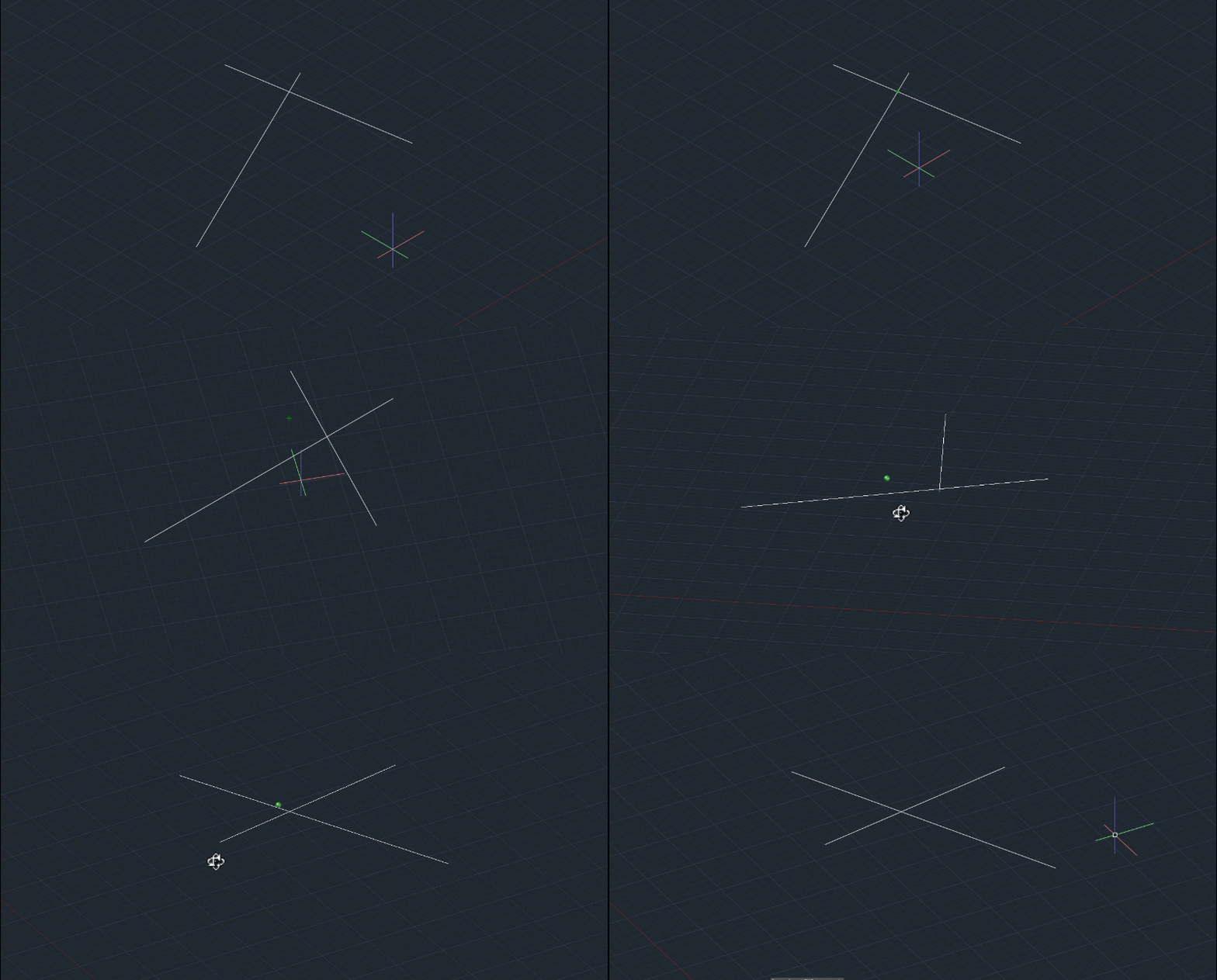
    In the animated image above the lines don’t actually intersect but from different perspectives, they may appear intersecting which is what the apparent intersection snap will show.

    For our purposes, it is best to turn off all Object Snaps except for Apparent Intersections.

    From then on, things are simple.

    Simply run the LINE command, or a similar command, and hover over the apparent intersection, and the “Apparent Intersection” icon, which is a green square with an X in the middle, will appear over it.

    Parallel

    Parallel Object Snap is really fun to use, before using it, make sure you have your Ortho Snap turned off.

    The Ortho Snap icon looks like the image shown above and is visible on the status bar of AutoCAD.

    After making sure Ortho Snap is turned off, make a line aligned to any random angle.

    Subsequently, turn off every Snap Option except for Parallel.

    Start the line command again then click at a point near the reference line you created earlier.

    Then hover your cursor over the existing line till the parallel snap shows up.

    Then move your cursor out and a tracking line will show when the line is parallel to the existing reference line as shown in the animated image below.

    Parallel Object Snap is great for situations where you are using angles too precise for Ortho Snap, or for creating similar objects and matching them up to each other. 

    Suppressing Running Object Snaps

    This feature in AutoCAD allows you to temporarily override object snaps using a key combination on your keyboard.

    This is useful in the event that your cursor keeps snapping to an Object Snap point that you want to be ignored specifically for that instance.

    To bring Object snap suppression in action, select the line command (or any other draw command if you prefer) and press the Shift key and don’t let it go.

    Then right-click on your mouse and you will see a temporary object snap override menu.

    Select the object snap that you want to activate from this list and then AutoCAD will only snap to the point selected in the override menu.

    Once you select your snap point the override will deactivate and all points selected in the object snap menu will become selectable again.

    This method is faster and more efficient than deactivating all the snaps that you don’t need and keeping only the required one active from the object snap menu.

    Summary

    Objects snaps are indispensable tools and you can’t make precise drawings without using them.

    I hope this article explained everything you needed to know about object snaps.

    If you have questions feel free to let me know in the comments below.

    [/fusion_text][/fusion_builder_column][/fusion_builder_row][/fusion_builder_container]

  • How to make custom hatch patterns in AutoCAD

    How to make custom hatch patterns in AutoCAD

    [fusion_builder_container type=”flex” hundred_percent=”no” hundred_percent_height=”no” min_height_medium=”” min_height_small=”” min_height=”” hundred_percent_height_scroll=”no” align_content=”stretch” flex_align_items=”flex-start” flex_justify_content=”flex-start” flex_wrap_medium=”” flex_wrap_small=”” flex_wrap=”wrap” flex_column_spacing=”” hundred_percent_height_center_content=”yes” equal_height_columns=”no” container_tag=”div” menu_anchor=”” hide_on_mobile=”small-visibility,medium-visibility,large-visibility” status=”published” publish_date=”” class=”” id=”” margin_top_medium=”” margin_bottom_medium=”” margin_top_small=”” margin_bottom_small=”” margin_top=”” margin_bottom=”” padding_top_medium=”” padding_right_medium=”” padding_bottom_medium=”” padding_left_medium=”” padding_top_small=”” padding_right_small=”” padding_bottom_small=”” padding_left_small=”” padding_top=”” padding_right=”” padding_bottom=”” padding_left=”” link_hover_color=”” hue=”” saturation=”” lightness=”” alpha=”” link_color=”var(–awb-color3)” border_sizes_top=”” border_sizes_right=”” border_sizes_bottom=”” border_sizes_left=”” border_color=”” border_style=”solid” border_radius_top_left=”” border_radius_top_right=”” border_radius_bottom_right=”” border_radius_bottom_left=”” box_shadow=”no” box_shadow_vertical=”” box_shadow_horizontal=”” box_shadow_blur=”0″ box_shadow_spread=”0″ box_shadow_color=”” box_shadow_style=”” z_index=”” overflow=”” gradient_start_color=”” gradient_end_color=”” gradient_start_position=”0″ gradient_end_position=”100″ gradient_type=”linear” radial_direction=”center center” linear_angle=”180″ background_color_medium=”” background_color_small=”” background_color=”” background_image_medium=”” background_image_small=”” background_image=”” skip_lazy_load=”” background_position_medium=”” background_position_small=”” background_position=”center center” background_repeat_medium=”” background_repeat_small=”” background_repeat=”no-repeat” background_size_medium=”” background_size_small=”” background_size=”” background_custom_size=”” background_custom_size_medium=”” background_custom_size_small=”” fade=”no” background_parallax=”none” enable_mobile=”no” parallax_speed=”0.3″ background_blend_mode_medium=”” background_blend_mode_small=”” background_blend_mode=”none” video_mp4=”” video_webm=”” video_ogv=”” video_url=”” video_aspect_ratio=”16:9″ video_loop=”yes” video_mute=”yes” video_preview_image=”” pattern_bg=”none” pattern_custom_bg=”” pattern_bg_color=”” pattern_bg_style=”default” pattern_bg_opacity=”100″ pattern_bg_size=”” pattern_bg_blend_mode=”normal” mask_bg=”none” mask_custom_bg=”” mask_bg_color=”” mask_bg_accent_color=”” mask_bg_style=”default” mask_bg_opacity=”100″ mask_bg_transform=”left” mask_bg_blend_mode=”normal” render_logics=”” logics=”” absolute=”off” absolute_devices=”small,medium,large” sticky=”off” sticky_devices=”small-visibility,medium-visibility,large-visibility” sticky_background_color=”” sticky_height=”” sticky_offset=”” sticky_transition_offset=”0″ scroll_offset=”0″ animation_type=”” animation_direction=”left” animation_color=”” animation_speed=”0.3″ animation_delay=”0″ animation_offset=”” filter_hue=”0″ filter_saturation=”100″ filter_brightness=”100″ filter_contrast=”100″ filter_invert=”0″ filter_sepia=”0″ filter_opacity=”100″ filter_blur=”0″ filter_hue_hover=”0″ filter_saturation_hover=”100″ filter_brightness_hover=”100″ filter_contrast_hover=”100″ filter_invert_hover=”0″ filter_sepia_hover=”0″ filter_opacity_hover=”100″ filter_blur_hover=”0″ admin_toggled=”yes”][fusion_builder_row][fusion_builder_column type=”1_1″ layout=”1_1″ background_position=”left top” background_color=”” border_color=”” border_style=”solid” border_position=”all” spacing=”yes” background_image=”” background_repeat=”no-repeat” padding_top=”” padding_right=”” padding_bottom=”” padding_left=”” margin_top=”0px” margin_bottom=”0px” class=”” id=”” animation_type=”” animation_speed=”0.3″ animation_direction=”left” hide_on_mobile=”small-visibility,medium-visibility,large-visibility” center_content=”no” last=”true” min_height=”” hover_type=”none” link=”” border_sizes_top=”” border_sizes_bottom=”” border_sizes_left=”” border_sizes_right=”” first=”true”][fusion_text columns=”” column_min_width=”” column_spacing=”” rule_style=”” rule_size=”” rule_color=”” hue=”” saturation=”” lightness=”” alpha=”” content_alignment_medium=”” content_alignment_small=”” content_alignment=”” hide_on_mobile=”small-visibility,medium-visibility,large-visibility” sticky_display=”normal,sticky” class=”” id=”” margin_top=”” margin_right=”” margin_bottom=”” margin_left=”” fusion_font_family_text_font=”” fusion_font_variant_text_font=”” font_size=”” line_height=”” letter_spacing=”” text_transform=”” text_color=”” animation_type=”” animation_direction=”left” animation_color=”” animation_speed=”0.3″ animation_delay=”0″ animation_offset=”” logics=””]

    AutoCAD has a comprehensive library of hatch patterns but if you are wondering how to make custom hatch patterns in AutoCAD then I have two methods explained in this article.

    The first one is a simple code method and the second one is a no-code method using AutoCAD express tool called Superhatch.

    In this article, I have also explained the process of transferring hatch patterns from one drawing to another.

    Before we start I also want to mention that making hatches using Superhatch is pretty easy and it does not need any kind of code but you won’t be able to transfer these custom hatches from one drawing to another which might be very limiting for most of the uses.

    On the other hand, you can easily transfer hatches made with “hatch code”.

    So, I will start with making custom hatch patterns using hatch codes and then about the Superhatch tool.

    But if you don’t feel like reading the article you can watch this video as well which explains both the methods.

    [/fusion_text][fusion_youtube id=”NYjgWuiD8oc” alignment=”center” width=”” height=”” autoplay=”false” api_params=”” hide_on_mobile=”small-visibility,medium-visibility,large-visibility” class=”” css_id=”” /][fusion_text columns=”” column_min_width=”” column_spacing=”” rule_style=”” rule_size=”” rule_color=”” hue=”” saturation=”” lightness=”” alpha=”” content_alignment_medium=”” content_alignment_small=”” content_alignment=”” hide_on_mobile=”small-visibility,medium-visibility,large-visibility” sticky_display=”normal,sticky” class=”” id=”” margin_top=”” margin_right=”” margin_bottom=”” margin_left=”” fusion_font_family_text_font=”” fusion_font_variant_text_font=”” font_size=”” line_height=”” letter_spacing=”” text_transform=”” text_color=”” animation_type=”” animation_direction=”left” animation_color=”” animation_speed=”0.3″ animation_delay=”0″ animation_offset=”” logics=””]

    Making Hatches using “Hatch Code”

    In this case, I will make this simple stair-type hatch pattern using the “hatch code”.

    So, to do this open Notepad (or any other Unicode text editor if you want) and type the following lines.

    [/fusion_text][fusion_tagline_box content_alignment=”left” link=”” button=”” linktarget=”_self” modal=”” button_size=”” button_type=”” buttoncolor=”default” title=”” description=”” hide_on_mobile=”small-visibility,medium-visibility,large-visibility” class=”” id=”” fusion_font_family_title_font=”” fusion_font_variant_title_font=”” title_font_size=”” title_line_height=”” title_letter_spacing=”” title_text_transform=”” title_color=”var(–awb-color2)” hue=”” saturation=”” lightness=”” alpha=”” description_font_size=”” content_font_size=”” backgroundcolor=”” shadow=”no” shadowopacity=”0.70″ border=”1″ bordercolor=”” highlightposition=”left” button_border_radius_top_left=”” button_border_radius_top_right=”” button_border_radius_bottom_right=”” button_border_radius_bottom_left=”” padding_top=”” padding_right=”” padding_bottom=”” padding_left=”” margin_top=”” margin_bottom=”” animation_type=”” animation_direction=”left” animation_color=”” animation_speed=”0.3″ animation_delay=”0″ animation_offset=””]

    *TESTHATCH, Our test hatch with the staircase effect

    0, 0,0, .2,.2, .2,-.2

    90, .2,0, .2,.2, .2,-.2

    [/fusion_tagline_box][fusion_text columns=”” column_min_width=”” column_spacing=”” rule_style=”” rule_size=”” rule_color=”” hue=”” saturation=”” lightness=”” alpha=”” content_alignment_medium=”” content_alignment_small=”” content_alignment=”” hide_on_mobile=”small-visibility,medium-visibility,large-visibility” sticky_display=”normal,sticky” class=”” id=”” margin_top=”” margin_right=”” margin_bottom=”” margin_left=”” fusion_font_family_text_font=”” fusion_font_variant_text_font=”” font_size=”” line_height=”” letter_spacing=”” text_transform=”” text_color=”” animation_type=”” animation_direction=”left” animation_color=”” animation_speed=”0.3″ animation_delay=”0″ animation_offset=”” logics=””]

    These lines will actually make the pattern which you see in the image above. After adding these lines in the text editor save it as a PAT file using the same name defined in line 1 of this code.

    In this case, you need to save the file as TESTHATCH.PAT, if you keep a different name for the PAT file then the custom hatch pattern will not work.

    Let’s deconstruct these lines and to simplify this I have colored the horizontal segment Red and the vertical one Green.

    Now, let’s move back to the Hatch code which I just showed you above. The complete code has three lines with characters in each line separated with commas.

    Every set of characters inside a comma has its own meaning and all of these lines will add up to make the complete pattern.

    In this case, line 1 will determine the name and description of the hatch pattern, line 2 is for the horizontal segment of the hatch and line 3 is for the vertical segment.

    Line 1: *TESTHATCH, Our test hatch with the staircase effect

    In this line, the hatch code starts with a star sign followed by the name of the hatch in uppercase.

    Then we have a description for the hatch separated by a comma.

    So, essentially the hatch code should start with a star sign then a name and then a description all separated by a comma.

    Line 2: 0, 0,0, .2,.2, .2,-.2

    Line 2 is for the Red line shown in this image.

    Here the first character 0 is for the angle which is 0 degrees which makes the line horizontal.

    The second and third characters 0,0 are the coordinates of the starting points of the horizontal line.

    In this case, 0,0 is not the absolute coordinate rather its an origin assigned by the hatch pattern for that particular pattern only.

    The next characters .2,.2 are for the starting point on the next set of the horizontal line with respect to the origin set for the first point.

    The last two characters .2,-.2 are for the length of the line segment and gap length.

    The length of the segment is shown as .2 (positive value) and the gap is shown as -.2 (negative value) unit.

    If you are familiar with making custom linetypes in AutoCAD then you will notice that this hatch code is quite similar to the linetype code for custom AutoCAD linetypes.

    Line 3: 90, .2,0, .2,.2, .2,-.2

    Line three is for the green lines as shown in the image below.

    Here the first character 90 is for the angle of the line which you can see that, in this case, is vertical or at an angle of 90 degrees.

    The second set of characters .2,0 are the coordinates of the starting point of the first green line towards the lower left column and this coordinate point is with respect to the origin defined in line 2 of the hatch code, which for this case is the starting point of the first red line as shown in the image 3 above.

    The third set of characters .2,.2 is once again the offset value of the 90-degree line along the X and Y axis or the displacement of the next set of the vertical line along the X and Y axis and its in this case again 0.2 units.

    The last set of characters .2,-.2 are once again the length of the vertical segment and the gap of the segment.

    The positive value is for the length and the negative value is for the gap.

    Getting the complete hatch pattern

    As you just now saw that each line has its own role in making the complete hatch pattern and you can add even more lines in this code that will eventually add up to make a complete pattern.

    So, in a nutshell, each line of the hatch pattern code will make a set of similar parallel lines which end up giving a pattern shape.

    There are also some finer details related to making a hatch pattern that you need to take care of like you need to add at least one blank line at the end of the hatch code in order to make the hatch code work.

    Also, you need to ensure that the hatch pattern name defined in the code and the name of the PAT file should be the same.

    More can be seen in this Autodesk knowledge network article.

    Using and Transferring Hatch Patterns

    To use this hatch pattern in the drawing you need to copy the PAT file in the support folder.

    To find the location of the support folder type OP and press enter.

    Then select the file tab and expand the “Support File Search Patch” tree and there you will see the location of the support folder.

    I have marked the support folder for my PC in this image in the red box.

    To transfer the hatch pattern to another PC all you need to do is just copy and paste this custom PAT file into the support folder of the PC where you want it to transfer.

    Alternatively, you can also add a location to this list of support files and then save all your custom hatch patterns in that folder.

    This method has been explained in the video above.

    [/fusion_text][/fusion_builder_column][/fusion_builder_row][/fusion_builder_container][fusion_builder_container admin_label=”Course CTA” type=”flex” hundred_percent=”no” hundred_percent_height=”no” min_height_medium=”” min_height_small=”” min_height=”” hundred_percent_height_scroll=”no” align_content=”stretch” flex_align_items=”center” flex_justify_content=”center” flex_column_spacing=”” hundred_percent_height_center_content=”yes” equal_height_columns=”no” container_tag=”div” menu_anchor=”” hide_on_mobile=”small-visibility,medium-visibility,large-visibility” status=”published” publish_date=”” class=”” id=”” margin_top_medium=”” margin_bottom_medium=”” margin_top_small=”” margin_bottom_small=”” margin_top=”” margin_bottom=”” padding_top_medium=”” padding_right_medium=”” padding_bottom_medium=”” padding_left_medium=”” padding_top_small=”” padding_right_small=”” padding_bottom_small=”” padding_left_small=”” padding_top=”” padding_right=”” padding_bottom=”” padding_left=”” link_color=”” hue=”” saturation=”” lightness=”” alpha=”” link_hover_color=”” border_sizes_top=”” border_sizes_right=”” border_sizes_bottom=”” border_sizes_left=”” border_color=”” border_style=”solid” border_radius_top_left=”” border_radius_top_right=”” border_radius_bottom_right=”” border_radius_bottom_left=”” box_shadow=”no” box_shadow_vertical=”” box_shadow_horizontal=”” box_shadow_blur=”0″ box_shadow_spread=”0″ box_shadow_color=”” box_shadow_style=”” z_index=”” overflow=”” gradient_start_color=”” gradient_end_color=”” gradient_start_position=”0″ gradient_end_position=”100″ gradient_type=”linear” radial_direction=”center center” linear_angle=”180″ background_color=”” background_image=”” skip_lazy_load=”” background_position=”center center” background_repeat=”no-repeat” fade=”no” background_parallax=”none” enable_mobile=”no” parallax_speed=”0.3″ background_blend_mode=”none” video_mp4=”” video_webm=”” video_ogv=”” video_url=”” video_aspect_ratio=”16:9″ video_loop=”yes” video_mute=”yes” video_preview_image=”” pattern_bg=”none” pattern_custom_bg=”” pattern_bg_color=”” pattern_bg_style=”default” pattern_bg_opacity=”100″ pattern_bg_size=”” pattern_bg_blend_mode=”normal” mask_bg=”none” mask_custom_bg=”” mask_bg_color=”” mask_bg_accent_color=”” mask_bg_style=”default” mask_bg_opacity=”100″ mask_bg_transform=”left” mask_bg_blend_mode=”normal” render_logics=”” absolute=”off” absolute_devices=”small,medium,large” sticky=”off” sticky_devices=”small-visibility,medium-visibility,large-visibility” sticky_background_color=”” sticky_height=”” sticky_offset=”” sticky_transition_offset=”0″ scroll_offset=”0″ animation_type=”” animation_direction=”left” animation_color=”” animation_speed=”0.3″ animation_delay=”0″ animation_offset=”” filter_hue=”0″ filter_saturation=”100″ filter_brightness=”100″ filter_contrast=”100″ filter_invert=”0″ filter_sepia=”0″ filter_opacity=”100″ filter_blur=”0″ filter_hue_hover=”0″ filter_saturation_hover=”100″ filter_brightness_hover=”100″ filter_contrast_hover=”100″ filter_invert_hover=”0″ filter_sepia_hover=”0″ filter_opacity_hover=”100″ filter_blur_hover=”0″ admin_toggled=”yes”][fusion_builder_row][fusion_builder_column type=”1_1″ layout=”1_1″ align_self=”flex-start” content_layout=”column” align_content=”center” valign_content=”flex-start” content_wrap=”wrap” spacing=”” center_content=”no” column_tag=”div” link=”” target=”_self” link_description=”” min_height=”” hide_on_mobile=”small-visibility,medium-visibility,large-visibility” sticky_display=”normal,sticky” class=”” id=”” background_image_id=”” type_medium=”” type_small=”” order_medium=”0″ order_small=”0″ spacing_left_medium=”” spacing_right_medium=”” spacing_left_small=”” spacing_right_small=”” spacing_left=”” spacing_right=”” margin_top_medium=”” margin_bottom_medium=”” margin_top_small=”” margin_bottom_small=”” margin_top=”” margin_bottom=”” padding_top_medium=”” padding_right_medium=”” padding_bottom_medium=”” padding_left_medium=”” padding_top_small=”” padding_right_small=”” padding_bottom_small=”” padding_left_small=”” padding_top=”2%” padding_right=”2%” padding_bottom=”2%” padding_left=”2%” hover_type=”none” border_sizes_top=”” border_sizes_right=”” border_sizes_bottom=”” border_sizes_left=”” border_color=”” hue=”” saturation=”” lightness=”” alpha=”” border_style=”solid” border_radius_top_left=”10″ border_radius_top_right=”10″ border_radius_bottom_right=”10″ border_radius_bottom_left=”10″ box_shadow=”no” box_shadow_vertical=”” box_shadow_horizontal=”” box_shadow_blur=”0″ box_shadow_spread=”0″ box_shadow_color=”” box_shadow_style=”” z_index_subgroup=”regular” z_index=”” z_index_hover=”” overflow=”” background_type=”single” gradient_start_color=”” gradient_end_color=”” gradient_start_position=”0″ gradient_end_position=”100″ gradient_type=”linear” radial_direction=”center center” linear_angle=”180″ background_color=”var(–awb-color5)” background_image=”” lazy_load=”avada” skip_lazy_load=”” background_position=”left top” background_repeat=”no-repeat” background_blend_mode=”none” render_logics=”” sticky=”off” sticky_devices=”small-visibility,medium-visibility,large-visibility” sticky_offset=”” absolute=”off” absolute_top=”” absolute_right=”” absolute_bottom=”” absolute_left=”” filter_type=”regular” filter_hover_element=”self” filter_hue=”0″ filter_saturation=”100″ filter_brightness=”100″ filter_contrast=”100″ filter_invert=”0″ filter_sepia=”0″ filter_opacity=”100″ filter_blur=”0″ filter_hue_hover=”0″ filter_saturation_hover=”100″ filter_brightness_hover=”100″ filter_contrast_hover=”100″ filter_invert_hover=”0″ filter_sepia_hover=”0″ filter_opacity_hover=”100″ filter_blur_hover=”0″ transform_type=”regular” transform_hover_element=”self” transform_scale_x=”1″ transform_scale_y=”1″ transform_translate_x=”0″ transform_translate_y=”0″ transform_rotate=”0″ transform_skew_x=”0″ transform_skew_y=”0″ transform_origin=”” transform_scale_x_hover=”1″ transform_scale_y_hover=”1″ transform_translate_x_hover=”0″ transform_translate_y_hover=”0″ transform_rotate_hover=”0″ transform_skew_x_hover=”0″ transform_skew_y_hover=”0″ transition_duration=”300″ transition_easing=”ease” transition_custom_easing=”” animation_type=”” animation_direction=”left” animation_color=”” animation_speed=”0.3″ animation_delay=”0″ animation_offset=”” last=”true” border_position=”all” first=”true”][fusion_builder_row_inner][fusion_builder_column_inner type=”2_3″ layout=”2_3″ align_self=”center” content_layout=”column” align_content=”center” valign_content=”flex-start” content_wrap=”wrap” spacing=”” center_content=”no” column_tag=”div” link=”” target=”_self” link_description=”” min_height=”” hide_on_mobile=”small-visibility,medium-visibility,large-visibility” sticky_display=”normal,sticky” class=”” id=”” background_image_id=”” type_medium=”” type_small=”” order_medium=”0″ order_small=”0″ spacing_left_medium=”” spacing_right_medium=”” spacing_left_small=”” spacing_right_small=”” spacing_left=”6%” spacing_right=”” margin_top_medium=”” margin_bottom_medium=”” margin_top_small=”” margin_bottom_small=”” margin_top=”4%” margin_bottom=”4%” padding_top_medium=”” padding_right_medium=”” padding_bottom_medium=”” padding_left_medium=”” padding_top_small=”” padding_right_small=”” padding_bottom_small=”” padding_left_small=”” padding_top=”” padding_right=”” padding_bottom=”” padding_left=”2%” hover_type=”none” border_sizes_top=”” border_sizes_right=”” border_sizes_bottom=”” border_sizes_left=”” border_color=”” hue=”” saturation=”” lightness=”” alpha=”” border_style=”solid” border_radius_top_left=”” border_radius_top_right=”” border_radius_bottom_right=”” border_radius_bottom_left=”” box_shadow=”no” box_shadow_vertical=”” box_shadow_horizontal=”” box_shadow_blur=”0″ box_shadow_spread=”0″ box_shadow_color=”” box_shadow_style=”” overflow=”” background_type=”single” gradient_start_color=”” gradient_end_color=”” gradient_start_position=”0″ gradient_end_position=”100″ gradient_type=”linear” radial_direction=”center center” linear_angle=”180″ background_color=”” background_image=”” lazy_load=”avada” skip_lazy_load=”” background_position=”left top” background_repeat=”no-repeat” background_blend_mode=”none” render_logics=”” filter_type=”regular” filter_hue=”0″ filter_saturation=”100″ filter_brightness=”100″ filter_contrast=”100″ filter_invert=”0″ filter_sepia=”0″ filter_opacity=”100″ filter_blur=”0″ filter_hue_hover=”0″ filter_saturation_hover=”100″ filter_brightness_hover=”100″ filter_contrast_hover=”100″ filter_invert_hover=”0″ filter_sepia_hover=”0″ filter_opacity_hover=”100″ filter_blur_hover=”0″ animation_type=”” animation_direction=”left” animation_speed=”0.3″ animation_offset=”” last=”false” border_position=”all” first=”true”][fusion_text columns=”” column_min_width=”” column_spacing=”” rule_style=”” rule_size=”” rule_color=”” hue=”” saturation=”” lightness=”” alpha=”” content_alignment_medium=”” content_alignment_small=”” content_alignment=”” hide_on_mobile=”small-visibility,medium-visibility,large-visibility” sticky_display=”normal,sticky” class=”” id=”” margin_top=”” margin_right=”” margin_bottom=”” margin_left=”” fusion_font_family_text_font=”” fusion_font_variant_text_font=”” font_size=”” line_height=”” letter_spacing=”” text_transform=”none” text_color=”var(–awb-color8)” animation_type=”” animation_direction=”left” animation_color=”” animation_speed=”0.3″ animation_delay=”0″ animation_offset=””]

    Learn AutoCAD right from scratch with video courses by published Authors

    [/fusion_text][fusion_button link=”https://thesourcecad.com/autocad-courses/” title=”” target=”_self” link_attributes=”” alignment_medium=”” alignment_small=”” alignment=”left” modal=”” hide_on_mobile=”small-visibility,medium-visibility,large-visibility” sticky_display=”normal,sticky” class=”” id=”” color=”custom” button_gradient_top_color_hover=”var(–awb-color4)” hue=”” saturation=”” lightness=”” alpha=”” button_gradient_top_color=”var(–awb-color3)” button_gradient_bottom_color_hover=”var(–awb-color4)” button_gradient_bottom_color=”var(–awb-color3)” gradient_start_position=”” gradient_end_position=”” gradient_type=”” radial_direction=”” linear_angle=”180″ accent_hover_color=”” accent_color=”” type=”flat” bevel_color=”” bevel_color_hover=”” border_top=”” border_right=”” border_bottom=”” border_left=”” border_radius_top_left=”” border_radius_top_right=”” border_radius_bottom_right=”” border_radius_bottom_left=”” border_hover_color=”” border_color=”” size=”large” padding_top=”” padding_right=”” padding_bottom=”” padding_left=”” fusion_font_family_button_font=”” fusion_font_variant_button_font=”” font_size=”” line_height=”” letter_spacing=”” text_transform=”” stretch=”no” margin_top=”” margin_right=”” margin_bottom=”” margin_left=”” icon=”” icon_position=”left” icon_divider=”no” hover_transition=”none” animation_type=”” animation_direction=”left” animation_color=”” animation_speed=”0.3″ animation_delay=”0″ animation_offset=””]Check Course Details[/fusion_button][/fusion_builder_column_inner][fusion_builder_column_inner type=”1_3″ layout=”1_3″ align_self=”center” content_layout=”column” align_content=”center” valign_content=”flex-start” content_wrap=”wrap” spacing=”” center_content=”yes” column_tag=”div” link=”” target=”_self” link_description=”” min_height=”” hide_on_mobile=”large-visibility” sticky_display=”normal,sticky” class=”” id=”” background_image_id=”” type_medium=”” type_small=”” order_medium=”0″ order_small=”0″ spacing_left_medium=”” spacing_right_medium=”” spacing_left_small=”” spacing_right_small=”” spacing_left=”” spacing_right=”” margin_top_medium=”” margin_bottom_medium=”” margin_top_small=”” margin_bottom_small=”” margin_top=”” margin_bottom=”” padding_top_medium=”” padding_right_medium=”” padding_bottom_medium=”” padding_left_medium=”” padding_top_small=”” padding_right_small=”” padding_bottom_small=”” padding_left_small=”” padding_top=”” padding_right=”” padding_bottom=”” padding_left=”” hover_type=”none” border_sizes_top=”” border_sizes_right=”” border_sizes_bottom=”” border_sizes_left=”” border_color=”” hue=”” saturation=”” lightness=”” alpha=”” border_style=”solid” border_radius_top_left=”” border_radius_top_right=”” border_radius_bottom_right=”” border_radius_bottom_left=”” box_shadow=”no” box_shadow_vertical=”” box_shadow_horizontal=”” box_shadow_blur=”0″ box_shadow_spread=”0″ box_shadow_color=”” box_shadow_style=”” z_index_subgroup=”regular” z_index=”” z_index_hover=”” overflow=”” background_type=”single” gradient_start_color=”” gradient_end_color=”” gradient_start_position=”0″ gradient_end_position=”100″ gradient_type=”linear” radial_direction=”center center” linear_angle=”180″ background_color=”” background_image=”” lazy_load=”avada” skip_lazy_load=”” background_position=”left top” background_repeat=”no-repeat” background_blend_mode=”none” render_logics=”” sticky=”off” sticky_devices=”small-visibility,medium-visibility,large-visibility” sticky_offset=”” absolute=”off” absolute_top=”” absolute_right=”” absolute_bottom=”” absolute_left=”” filter_type=”regular” filter_hover_element=”self” filter_hue=”0″ filter_saturation=”100″ filter_brightness=”100″ filter_contrast=”100″ filter_invert=”0″ filter_sepia=”0″ filter_opacity=”100″ filter_blur=”0″ filter_hue_hover=”0″ filter_saturation_hover=”100″ filter_brightness_hover=”100″ filter_contrast_hover=”100″ filter_invert_hover=”0″ filter_sepia_hover=”0″ filter_opacity_hover=”100″ filter_blur_hover=”0″ transform_type=”regular” transform_hover_element=”self” transform_scale_x=”1″ transform_scale_y=”1″ transform_translate_x=”0″ transform_translate_y=”0″ transform_rotate=”0″ transform_skew_x=”0″ transform_skew_y=”0″ transform_origin=”” transform_scale_x_hover=”1″ transform_scale_y_hover=”1″ transform_translate_x_hover=”0″ transform_translate_y_hover=”0″ transform_rotate_hover=”0″ transform_skew_x_hover=”0″ transform_skew_y_hover=”0″ transition_duration=”300″ transition_easing=”ease” transition_custom_easing=”” animation_type=”” animation_direction=”left” animation_color=”” animation_speed=”0.3″ animation_delay=”0″ animation_offset=”” last=”true” border_position=”all” first=”false”][fusion_imageframe image_id=”25502|full” aspect_ratio=”” custom_aspect_ratio=”100″ aspect_ratio_position=”” skip_lazy_load=”” lightbox=”no” gallery_id=”” lightbox_image=”” lightbox_image_id=”” alt=”” link=”” linktarget=”_self” hide_on_mobile=”small-visibility,medium-visibility,large-visibility” sticky_display=”normal,sticky” class=”” id=”” max_width=”” sticky_max_width=”” align_medium=”none” align_small=”none” align=”center” mask=”” custom_mask=”” mask_size=”” mask_custom_size=”” mask_position=”” mask_custom_position=”” mask_repeat=”” style_type=”” blur=”” stylecolor=”” hue=”” saturation=”” lightness=”” alpha=”” hover_type=”none” margin_top_medium=”” margin_right_medium=”” margin_bottom_medium=”” margin_left_medium=”” margin_top_small=”” margin_right_small=”” margin_bottom_small=”” margin_left_small=”” margin_top=”” margin_right=”” margin_bottom=”” margin_left=”” bordersize=”” bordercolor=”” borderradius=”” z_index=”” caption_style=”off” caption_align_medium=”none” caption_align_small=”none” caption_align=”none” caption_title=”” caption_text=”” caption_title_tag=”2″ fusion_font_family_caption_title_font=”” fusion_font_variant_caption_title_font=”” caption_title_size=”” caption_title_line_height=”” caption_title_letter_spacing=”” caption_title_transform=”” caption_title_color=”” caption_background_color=”” fusion_font_family_caption_text_font=”” fusion_font_variant_caption_text_font=”” caption_text_size=”” caption_text_line_height=”” caption_text_letter_spacing=”” caption_text_transform=”” caption_text_color=”” caption_border_color=”” caption_overlay_color=”” caption_margin_top=”” caption_margin_right=”” caption_margin_bottom=”” caption_margin_left=”” animation_type=”” animation_direction=”left” animation_color=”” animation_speed=”0.3″ animation_delay=”0″ animation_offset=”” filter_hue=”0″ filter_saturation=”100″ filter_brightness=”100″ filter_contrast=”100″ filter_invert=”0″ filter_sepia=”0″ filter_opacity=”100″ filter_blur=”0″ filter_hue_hover=”0″ filter_saturation_hover=”100″ filter_brightness_hover=”100″ filter_contrast_hover=”100″ filter_invert_hover=”0″ filter_sepia_hover=”0″ filter_opacity_hover=”100″ filter_blur_hover=”0″]https://thesourcecad.com/wp-content/uploads/2014/10/Courses-new.png[/fusion_imageframe][/fusion_builder_column_inner][/fusion_builder_row_inner][/fusion_builder_column][/fusion_builder_row][/fusion_builder_container][fusion_builder_container type=”flex” hundred_percent=”no” hundred_percent_height=”no” min_height_medium=”” min_height_small=”” min_height=”” hundred_percent_height_scroll=”no” align_content=”stretch” flex_align_items=”flex-start” flex_justify_content=”flex-start” flex_wrap_medium=”” flex_wrap_small=”” flex_wrap=”wrap” flex_column_spacing=”” hundred_percent_height_center_content=”yes” equal_height_columns=”no” container_tag=”div” menu_anchor=”” hide_on_mobile=”small-visibility,medium-visibility,large-visibility” status=”published” publish_date=”” class=”” id=”” margin_top_medium=”” margin_bottom_medium=”” margin_top_small=”” margin_bottom_small=”” margin_top=”” margin_bottom=”” padding_top_medium=”” padding_right_medium=”” padding_bottom_medium=”” padding_left_medium=”” padding_top_small=”” padding_right_small=”” padding_bottom_small=”” padding_left_small=”” padding_top=”” padding_right=”” padding_bottom=”” padding_left=”” link_hover_color=”” hue=”” saturation=”” lightness=”” alpha=”” link_color=”var(–awb-color3)” border_sizes_top=”” border_sizes_right=”” border_sizes_bottom=”” border_sizes_left=”” border_color=”” border_style=”solid” border_radius_top_left=”” border_radius_top_right=”” border_radius_bottom_right=”” border_radius_bottom_left=”” box_shadow=”no” box_shadow_vertical=”” box_shadow_horizontal=”” box_shadow_blur=”0″ box_shadow_spread=”0″ box_shadow_color=”” box_shadow_style=”” z_index=”” overflow=”” gradient_start_color=”” gradient_end_color=”” gradient_start_position=”0″ gradient_end_position=”100″ gradient_type=”linear” radial_direction=”center center” linear_angle=”180″ background_color_medium=”” background_color_small=”” background_color=”” background_image_medium=”” background_image_small=”” background_image=”” skip_lazy_load=”” background_position_medium=”” background_position_small=”” background_position=”center center” background_repeat_medium=”” background_repeat_small=”” background_repeat=”no-repeat” background_size_medium=”” background_size_small=”” background_size=”” background_custom_size=”” background_custom_size_medium=”” background_custom_size_small=”” fade=”no” background_parallax=”none” enable_mobile=”no” parallax_speed=”0.3″ background_blend_mode_medium=”” background_blend_mode_small=”” background_blend_mode=”none” video_mp4=”” video_webm=”” video_ogv=”” video_url=”” video_aspect_ratio=”16:9″ video_loop=”yes” video_mute=”yes” video_preview_image=”” pattern_bg=”none” pattern_custom_bg=”” pattern_bg_color=”” pattern_bg_style=”default” pattern_bg_opacity=”100″ pattern_bg_size=”” pattern_bg_blend_mode=”normal” mask_bg=”none” mask_custom_bg=”” mask_bg_color=”” mask_bg_accent_color=”” mask_bg_style=”default” mask_bg_opacity=”100″ mask_bg_transform=”left” mask_bg_blend_mode=”normal” render_logics=”” logics=”” absolute=”off” absolute_devices=”small,medium,large” sticky=”off” sticky_devices=”small-visibility,medium-visibility,large-visibility” sticky_background_color=”” sticky_height=”” sticky_offset=”” sticky_transition_offset=”0″ scroll_offset=”0″ animation_type=”” animation_direction=”left” animation_color=”” animation_speed=”0.3″ animation_delay=”0″ animation_offset=”” filter_hue=”0″ filter_saturation=”100″ filter_brightness=”100″ filter_contrast=”100″ filter_invert=”0″ filter_sepia=”0″ filter_opacity=”100″ filter_blur=”0″ filter_hue_hover=”0″ filter_saturation_hover=”100″ filter_brightness_hover=”100″ filter_contrast_hover=”100″ filter_invert_hover=”0″ filter_sepia_hover=”0″ filter_opacity_hover=”100″ filter_blur_hover=”0″ admin_toggled=”yes”][fusion_builder_row][fusion_builder_column type=”1_1″ layout=”1_1″ background_position=”left top” background_color=”” border_color=”” border_style=”solid” border_position=”all” spacing=”yes” background_image=”” background_repeat=”no-repeat” padding_top=”” padding_right=”” padding_bottom=”” padding_left=”” margin_top=”0px” margin_bottom=”0px” class=”” id=”” animation_type=”” animation_speed=”0.3″ animation_direction=”left” hide_on_mobile=”small-visibility,medium-visibility,large-visibility” center_content=”no” last=”true” min_height=”” hover_type=”none” link=”” border_sizes_top=”” border_sizes_bottom=”” border_sizes_left=”” border_sizes_right=”” first=”true”][fusion_text columns=”” column_min_width=”” column_spacing=”” rule_style=”” rule_size=”” rule_color=”” hue=”” saturation=”” lightness=”” alpha=”” content_alignment_medium=”” content_alignment_small=”” content_alignment=”” hide_on_mobile=”small-visibility,medium-visibility,large-visibility” sticky_display=”normal,sticky” class=”” id=”” margin_top=”” margin_right=”” margin_bottom=”” margin_left=”” fusion_font_family_text_font=”” fusion_font_variant_text_font=”” font_size=”” line_height=”” letter_spacing=”” text_transform=”” text_color=”” animation_type=”” animation_direction=”left” animation_color=”” animation_speed=”0.3″ animation_delay=”0″ animation_offset=”” logics=””]

    Making Hatches using Superhatch

    Hatches work the way that fonts do, as vector images.

    Under normal circumstances, you cannot upload image files and identify them as a Hatch.

    Instead, you must make a text file with specific coding but with Superhatch, you can even make hatches with images.

    Super Hatches, as the name would imply, allow you to go above and beyond when creating hatches.

    In the SUPERHATCH command, there are 5 options, we will learn how to use the first three.

    From Block Option

    We are going to make a Hatch Pattern from an AutoCAD block.

    This can be done with any 2D block in AutoCAD.

    Make a Pattern within the circle that’s in our AutoCAD drawing, it can be any sort of Pattern, I made one like this.

    The next step is to make a rectangle in which we will apply the hatch.

    For this next part, there are a lot of steps involved, so pay close attention.

    First, type BLOCK in the Command Line, and hit ENTER to open up the Block Window.

    In the Block Window, click “Pick point” and then click the bottom-most point of our circle marked in the red oval in the image below.

    Where it says “Name” in the Block Window, give your Block a name.

    It can be anything you like, as long as you can remember it, I’m naming mine “Pattern for Hatch Tutorial”.

    Next, in the Block Window, click “Select objects” and highlight the entirety of our circle pattern.

    Following that, you can click OK at the bottom of the Window to close it.

    Those steps were pretty standard, we were just making our pattern into Block.

    The following steps are where we make our Block into a Hatch.

    If you have Express Tools, you can go to the Express Tools Tab in the Ribbon and click the Super Hatch icon.

    If you don’t have Express Tools, you can just type SUPERHATCH instead in the Command line and then hit ENTER.

    Express tools or SUPERHATCH command is not available in AutoCAD LT.

    In the Super Hatch Window, Click “Block…”.

    After that, Click “OK” in the next Window.

    The next step is to click anywhere within the now-empty rectangle at the centre of our drawing.

    The command dialogue will ask about x-scale.

    Type 0.5 and hit ENTER.

    Hit ENTER once again to apply the same scale to the Y-axis.

    Hit ENTER repeatedly until you get to the part about “Specify Block [Extents]”

    Inside our rectangle will be a smaller version of our Block, with a magenta rectangle bordering that block.

    Click the bottom-left point of that magenta rectangle.

    After that, click the top-right point of that magenta rectangle.

    Then, hit ENTER and click again anywhere inside the rectangle where you want to make the hatch and hit ENTER one final time.

    Your final result should look something along these lines.

    From Image Option

    Making an image into a Hatch isn’t always so practical, but if necessary, it is possible.

    We will be using this image wrinkled paper image.

    You can download this image by right-clicking and selecting the “save image as” option from the contextual menu.

    Save it to your computer as WrinkledPaper.jpg.

    Back in AutoCAD, make a rectangle with a line passing vertically through its midpoint.

    We will be Super Hatching that rectangle with our image.

    Load up the SUPERHATCH Command and Select “Image..” from the Super Hatch Window.

    In the Windows Explorer Window that pops up, locate the image you saved of the Wrinkled paper, select it, and click “Open”.

    Click “OK” in the following window.

    Following that, the AutoCAD command line will ask you to select an insertion point.

    Click the bottom-left corner of the left rectangle in our drawing.

    Next, AutoCAD will want you to pick a Scale Factor for the insertion.

    It usually takes a couple of tries to figure out the best size.

    Through trial and error, I found that it was best to use a scale factor of 50.0 in my case, in your case, it could be different.

    Type 50.0 in the command line and press ENTER.

    Hit ENTER once again to agree that you find the placement acceptable.

    Next, the dialogue will ask you to pick internal points.

    Click the border of the rectangle.

    Half will be selected, it will be highlighted and your rectangle should look similar to the Figure below.

    Hit ENTER one final time, your rectangle should now look like the Figure below.

    What is really special about Image Hatches is you can individually select each tile and delete it or resize it if you like.

    Updating a Hatch

    Create an ordinary Hatch on the opposite side of the rectangle and then delete the vertical line separating the Image Hatch from the Pattern Hatch.

    Now, if you delete Image Tiles bordering the Pattern Hatch, and then Hatch the empty spaces, it will update our previous Pattern Hatch to encompass the new area.

    You will notice white lines bordering the Image Tiles.

    If you want to get rid of these, doing so is quite simple.

    Just type IMGFRAME into the Command Line and hit ENTER, then type 0, and again, hit ENTER.

    The image attached to this hatch will behave like an Xref and if you delete the original image then the hatch will also disappear leaving only rectangular boundaries instead of image grids.

    From Xref Attach

    Xrefs are External References.

    To make an External Reference into a Hatch, you simply make a Hatch design in another drawing and then save the drawing.

    Following that, use the SUPERHATCH command, and pick “Xref Attach…” from the Super Hatch Window.

    In the Windows Explorer Window that appears, pick the Hatch drawing you created.

    All you have to do after that is pick an insertion point and hit ENTER.

    Conclusion

    As you just saw that AutoCAD is quite flexible to allow you to make hatch patterns directly using Superhatch and also with hatch code.

    Both methods can be used to make hatches but the hatch code offers you more flexibility as the patterns can be transferred easily and can be customized by changing just a few lines in the hatch code.

    Which of the methods did you use often or planning to use for making custom hatches?

    Don’t forget to let me know in the comments below.

    [/fusion_text][/fusion_builder_column][/fusion_builder_row][/fusion_builder_container]

  • How to use Map in AutoCAD drawings

    How to use Map in AutoCAD drawings

    [fusion_builder_container hundred_percent=”no” equal_height_columns=”no” menu_anchor=”” hide_on_mobile=”small-visibility,medium-visibility,large-visibility” class=”” id=”” background_color=”” background_image=”” background_position=”center center” background_repeat=”no-repeat” fade=”no” background_parallax=”none” parallax_speed=”0.3″ video_mp4=”” video_webm=”” video_ogv=”” video_url=”” video_aspect_ratio=”16:9″ video_loop=”yes” video_mute=”yes” overlay_color=”” video_preview_image=”” border_color=”” border_style=”solid” padding_top=”” padding_bottom=”” padding_left=”” padding_right=”” admin_toggled=”yes” type=”legacy”][fusion_builder_row][fusion_builder_column type=”1_1″ layout=”1_1″ background_position=”left top” background_color=”” border_color=”” border_style=”solid” border_position=”all” spacing=”yes” background_image=”” background_repeat=”no-repeat” padding_top=”” padding_right=”” padding_bottom=”” padding_left=”” margin_top=”0px” margin_bottom=”0px” class=”” id=”” animation_type=”” animation_speed=”0.3″ animation_direction=”left” hide_on_mobile=”small-visibility,medium-visibility,large-visibility” center_content=”no” last=”true” min_height=”” hover_type=”none” link=”” border_sizes_top=”” border_sizes_bottom=”” border_sizes_left=”” border_sizes_right=”” first=”true”][fusion_text]

    Overtime, integration between GPS Map technology and CAD Software has become increasingly advanced.  People use these integrations for a wide variety of reasons.

    Sometimes they wish to have their location on their Title Block. In other instances, specifying a location can be helpful when it comes to automated lighting and elevation.

    Whatever the case, the sky (literally) is the limit when it comes to bringing these maps onto AutoCAD. In this tutorial, we will learn to integrate maps in AutoCAD and work with it.

    Things you’ll need for this tutorial:

    • AutoCAD 2017 or higher
    • Internet Connection
    • An Autodesk 360 account

    The current AutoCAD has two main forms of location setting. The first one is called “From Map”, and the second one is called “From File”.

    “From File” used to be more practical (and still is if using Google Earth) but for our purposes, “From Map” is better suited to our needs. Google Maps and Bing Maps are frequently changing their UI, removing or adding features, and currently, there is no easy method to do the conversion to KML or KMZ from either of these web apps.

    [/fusion_text][fusion_tagline_box backgroundcolor=”” shadow=”no” shadowopacity=”0.7″ border=”1″ bordercolor=”#ff9800″ highlightposition=”left” content_alignment=”left” link=”” button=”” linktarget=”_self” modal=”” button_size=”” button_type=”” buttoncolor=”default” title=”” description=”” margin_top=”” margin_bottom=”” hide_on_mobile=”small-visibility,medium-visibility,large-visibility” class=”” id=”” animation_type=”” animation_direction=”left” animation_speed=”0.3″ animation_offset=””]

    Note: It was once possible to do a Google Maps conversion to KML but it has become more complicated and involves the use of Google My Maps, a service which allows you to create custom location-based maps. This process in itself would require a whole tutorial.

    [/fusion_tagline_box][fusion_text columns=”” column_min_width=”” column_spacing=”” rule_style=”default” rule_size=”” rule_color=”” hide_on_mobile=”small-visibility,medium-visibility,large-visibility” class=”” id=”” animation_type=”” animation_direction=”left” animation_speed=”0.3″ animation_offset=””]

    For simplicity, throughout the tutorial we are going to be working with one area, the center building (Student Union) of the University of Central Florida, and its surrounding features.

    Using Bing Maps

    Because of the removal of the Bing Maps integration into Windows (details here), this feature won’t even work properly without the hotfix that is available for download here.

    Before installing the hotfix, make sure that AutoCAD isn’t open, then download and install the hotfix. After the installation is complete, open AutoCAD.

    Click on the Insert Tab in the Ribbon and then in the “Set Location” Panel, click the icon that looks like a globe. A drop-down will open.

    Click From Map. (In the future, a quicker way to accomplish this same task is to type GEO into the command line and hit ENTER twice.)

    Fig 2. From Map option on the insert tab

    A Window will open. Unless you are already signed in to Autodesk 360, you will have to go ahead and do that. After, this is what the window should look like:

    Fig 3. Geographical location window with Bing map

    Type in the address bar “University ofCentrall Florida student union” and hit ENTER. Then, click the option circled in Figure 4.

    Fig 4. Drop marker on the map

    You can see the campus has a circular layout, with a building in the innermost circle. Zoom in on it, and then click “Drop Marker Here.” After that, you can hit the “Next” button, which is at the bottom of the Geographic Location window.

    The window will now show a list of “Coordinate Systems” you can choose from. Select FL-E, and keep going. The window will close and a dialogue will follow your cursor. Click anywhere.

    Fig 5. Marker location in drawing and north direction

    Another dialogue will appear in reference to compass directions. Click again to specify north direction.

    Your entire AutoCAD window should now be a map. You can zoom and pan on this map as if you were on any ordinary web map service.

    Fig 6. Map inserted in AutoCAD drawing area

    You will also notice the addition of a temporary tab in the Ribbon, the Geolocation Tab.

    Feel free to play around with it. A feature that’s terrific is the ability to turn on the road map, satellite, hybrid, or to turn the entire map off.

    Fig 7. Map type drop-down menu

    The beauty of the Bing Maps integration is anything you add to the drawing will be scalable to the map, and unlike adding a still-image, the map zooms, pans, and in some cases even orbits with your drawing.

    On our Map, behind the Student Union, circled in Figure 8, there is a plot of grass. Let’s say the University was considering adding a classroom building in that location. What would that look like? Well now, we can get a good idea of exactly how.

    Fig 8. The empty plot in the map

    Create a rectangle that is 125’ x 150’ and then rotate that rectangle so it is parallel to the sidewalks on either side of the grass. It doesn’t have to be perfect! This is just so we can have an idea.

    Fig 9. Buiding area on the empty plot

    From here you would be able to figure out how further logistics, like building heights, sidewalk access, etc look. You can even make a 3D building if you want. If you did make a 3D building, you’d even be able to import it into the Google Earth of the University and see what the building would look like next to the others.

    For now, though, we’ll stay in the realms of 2D AutoCAD. I’m going to add a simple hatch to the rectangle and then create potential sidewalks that could be used in the future. These are pretty big sidewalks too, 18 feet in width.

    These are the hatch settings I used for the building:

    Fig 10. Hatch setting for the building

    And these are the hatch settings I used for the sidewalk:

    Fig 11. Hatch setting for the sidewalk

    And this is how it turned out.

    Fig 12. Final drawing after adding hatches

    Of course, it is up to you to decide where you think the sidewalks should be placed, or what kinds of hatches to use.

    Lighting and Shadows

    You can change how light reflects off a 3D building in AutoCAD based on customizable time, date, and location properties. Continuing off the building we created previously, let’s make it 3D. Extrude it, giving it 48 feet of height (about 4 floors).

    Fig 13. 3D building in the map

    Change view mode to Realistic then give the walls a Brick material and the roof any  Material you like.

    Fig 14. Adding materials to the sidewalk and building

    In the Render tab of the Ribbon, there is a Panel called “Sun & Location”. Click on the “Sun Status” Icon, and then in the following window, select the option circled in Figure 15.

    Fig 15. Lighting settings

    Click again the first option in the window that follows.

    After that, you will have access to the window shown in Figure 16. Turn the Environment Switch on.

    Fig 16. Render environment and exposure window

    By altering the Date and Time in the Sun & Location Panel, you will see the lighting on the building change.

    Fig 17. Location and date time settings

    There’s a lot more that can be done with Google Maps and Bing Maps in AutoCAD but this tutorial should lay the foundation for it all. This tutorial is also available in video form here.

    [fusion_youtube id=”UVJHDLCeRxk” alignment=”center” width=”” height=”” autoplay=”false” api_params=”” hide_on_mobile=”small-visibility,medium-visibility,large-visibility” class=”” css_id=””][/fusion_youtube]

    Other Alternatives

    Apart from Bing maps, there are a few other alternatives too which can be used to import the maps in AutoCAD.

    Google Maps

    Google maps integration was removed from AutoCAD in favor of Bing Maps. In the future, this may change. However, for now, as a workaround, we can highlight coordinates from a Google Maps URL and bring it over to the From Maps in AutoCAD.

    This is pretty simple. On Google Maps (maps.google.com), type in Student Union Ucf, hit ENTER, and then copy-paste the text from the address bar as selected in Figure 13. (Figure 13)

    Back in AutoCAD, type GEO into the command line and then hit ENTER twice to bring up the Geographic Location window. Paste the coordinates into the address bar, and repeat the steps we initially did to integrate a map.

    Fig 18. Pulling info from google maps

    Map Info

    For even more customization and specificity, you should consider getting Desktop Program “Map Info” as well as the AutoCAD Map 3D toolset. Additionally, it should be noted that AutoCAD Civil 3D is better equipped for dealing with things such as bridges, roads, and other location-specific entities.

    So, these are the basics of using the map in AutoCAD. If you have questions related to this article let me know in the comments below.

    [/fusion_text][/fusion_builder_column][/fusion_builder_row][/fusion_builder_container]

  • Making Title Block in AutoCAD and Using it in Template

    Making Title Block in AutoCAD and Using it in Template

    [fusion_builder_container hundred_percent=”no” equal_height_columns=”no” menu_anchor=”” hide_on_mobile=”small-visibility,medium-visibility,large-visibility” class=”” id=”” background_color=”” background_image=”” background_position=”center center” background_repeat=”no-repeat” fade=”no” background_parallax=”none” parallax_speed=”0.3″ video_mp4=”” video_webm=”” video_ogv=”” video_url=”” video_aspect_ratio=”16:9″ video_loop=”yes” video_mute=”yes” overlay_color=”” video_preview_image=”” border_color=”” border_style=”solid” padding_top=”” padding_bottom=”” padding_left=”” padding_right=”” admin_toggled=”yes” type=”legacy”][fusion_builder_row][fusion_builder_column type=”1_1″ layout=”1_1″ background_position=”left top” background_color=”” border_color=”” border_style=”solid” border_position=”all” spacing=”yes” background_image=”” background_repeat=”no-repeat” padding_top=”” padding_right=”” padding_bottom=”” padding_left=”” margin_top=”0px” margin_bottom=”0px” class=”” id=”” animation_type=”” animation_speed=”0.3″ animation_direction=”left” hide_on_mobile=”small-visibility,medium-visibility,large-visibility” center_content=”no” last=”true” min_height=”” hover_type=”none” link=”” border_sizes_top=”” border_sizes_bottom=”” border_sizes_left=”” border_sizes_right=”” first=”true”][fusion_text]

    You can make your own title block in AutoCAD for your drawings and save it as a template or use any preexisting template available with AutoCAD or you can even download drawing templates online. It completely depends on your preference.

    In this article, I have explained methods of creating your own title block right from scratch and I have also explained the method of using any preexisting title block template and using it in your drawings. Let’s start with creating your own title block in AutoCAD.

    Making Title Block in AutoCAD

    All the steps and workflow of making a title block and then converting them into a template which can be reused on different drawings is explained in this two-part Youtube video.

    [/fusion_text][fusion_youtube id=”ZwPfFZpSK7g” alignment=”center” width=”” height=”” autoplay=”false” api_params=”” hide_on_mobile=”small-visibility,medium-visibility,large-visibility” class=”” /][fusion_separator style_type=”none” hide_on_mobile=”small-visibility,medium-visibility,large-visibility” class=”” id=”” sep_color=”” top_margin=”30″ bottom_margin=”” border_size=”” icon=”” icon_circle=”” icon_circle_color=”” width=”” alignment=”center” /][fusion_text]

    Following are the contents of the part 1 video.

    • Making title block in AutoCAD from scratch
    • Adding font style for title block text

    [/fusion_text][fusion_youtube id=”pqYNpqPHSww” alignment=”center” width=”” height=”” autoplay=”false” api_params=”” hide_on_mobile=”small-visibility,medium-visibility,large-visibility” class=”” /][fusion_separator style_type=”none” hide_on_mobile=”small-visibility,medium-visibility,large-visibility” class=”” id=”” sep_color=”” top_margin=”30″ bottom_margin=”” border_size=”” icon=”” icon_circle=”” icon_circle_color=”” width=”” alignment=”center” /][fusion_text columns=”” column_min_width=”” column_spacing=”” rule_style=”default” rule_size=”” rule_color=”” hide_on_mobile=”small-visibility,medium-visibility,large-visibility” class=”” id=”” animation_type=”” animation_direction=”left” animation_speed=”0.3″ animation_offset=””]

    Following are the contents of part 2 video

    • Adding text to the title block
    • Adding field text style
    • Adding fields in the title block
    • Adding title block in the layout
    • Making AutoCAD template with the title block
    • Adding Title block template to a new drawing

    Using Title block template

    Inserting a Title Block into your drawing is simple but inflexible. The challenge comes when you want to use fields.

    In this section, we’ll cover choosing title block templates and also how to set up fields. Fields are variables such as your name or a drawing scale. Sometimes these variables change, and when they do your title blocks will automatically update if you have used fields.

    Click the AutoCAD logo in the top left corner of your screen. A drop-down menu will open. Click on New.

    Figure 1

    After clicking New, a box will open in the center of the screen titled Select Template.

    Figure 2

    For this example, I will be opening the SheetSets Sub-folder and selecting the Architectural Imperial.dwt template. You can also use Architectural Metric if you so wish.

    This is what comes up:

    Figure 3

    To give some perspective to this tutorial I’m going to create a quick, simple drawing in the Model Tab.

    If you want to work on your own drawing, go over to the Model Tab by clicking the Model tab at the bottom left corner of the screen.

    Figure 4

    Figure 5 shows what I created. Nothing special but it’s all we’ll need for this article.

    Figure 5

    If you are creating your own drawing, once you’ve finished making your drawing in model tab go to your Layout view and open the Layout Tab in the Ribbon, and in the Layout Viewports Panel, click Rectangular.

    Figure 7

    Click and drag to create a Viewport. Having done that, you should see something like Figure 8. Pan and Zoom your Model as necessary.

    Figure 8

    Getting rid of the grid is easy, simply press F7 key on your keyboard.

    We now have our model and our title block so we’re ready to get started.

    For fields to work, certain properties have to be pre-established, such as your name. To establish these variables, click the AutoCAD logo at the top-left of your screen, then Drawing Utilities, and finally, Drawing Properties.

    Figure 9

    You now need to complete the properties that are relevant to you and your drawing.

    Figure 10

    You’ll notice there is a Custom Tab, which is great. There is a whole host of options in there. We’ll get to that later.

    When everything from the Summary Tab is how you want it, click OK to exit the Drawing Properties window.

    In the bottom left corner of your Title Block, you will notice 4 grey dashes. In the Command Line, type REA and hit ENTER. The 4 dashes will be replaced with your name.

    Figure 11

    A little above your name, you will notice a date. This will not show the current date.

    To rectify this, double-click the date. A new Tab called Text Editor will open in the Ribbon. Click on the Field icon in the Insert panel to open the Field Window.

    Figure 12

    Under Field names, click SystemVariable. Next click date from the options showing in the middle column and finally select the date format that you would like from the right-hand column. Finally, click OK.

    Figure 13

    This won’t remove the incorrect date. To remove that highlight it and hit backspace key to delete it.

    Leave the text dialogue. You may have to use the REA command for the new date to show, but from now on, anytime you run the REA command, that Date field we have created will update to show the correct date.

    Figure 14

    You will notice the Date on the bottom right of the Title Block is just 4 dashes. Double-clicking on that will cause a window called the Enhanced Attribute Editor to appear. Don’t worry about that. Double-click the two blocks circled in red in Figure 15 and the Field Window will open again. Now you can insert the date field using the same technique as we used above.

    Figure 15

    Leave the dialogue, and you will have the date there.

    For the Scale Field to update, we have to designate a Viewport Scale. So click on your Viewport Boundary, and in the Properties Box, designate a Viewport Scale. I’m choosing 1:30.

    Figure 16

    Now, using MTEXT, choose where you want your Scale to be shown (It should be near but outside the Viewport), type “SCALE=” and click the FIELD icon. The Field window will open up, but it will look a little different this time. Click the icon circled in red in Figure 17, and then click the border of the Viewport.

    Figure 17

    Now there are options under Property. Click Standard Scale, choose your Format preference and then click OK.

    Figure 18

    You now have a Scale Field that will also be updated automatically with the REA command.

    Figure 19

    You will notice the grey boxes that highlight fields. Don’t worry they do not appear when your drawing is printed.

    For multipage plans, we would use sheet set manager for page numbers. However, since we are only dealing with one sheet we will insert the Sheet Number manually.

    NB: The next few instructions need to be followed very carefully to avoid the numbers looking very strange.

    Click ONCE on the 2 octothorps (##) underneath the word “Sheet” in the title block.

    Next, double-click the borderline where it is circled in Figure 20 below. Be as precise as you can. The click needs to be on the right edge of the borderline.

    Figure 20

    The box shown in Figure 21 will appear. You can alter the Sheet Number. You can also alter other variables here as well if you would like.

    Figure 21
    Figure 22

    Now, what if you want to create a field not identified in the Field window?

    Remember the Custom Tab we talked about in the beginning of the tutorial? Well, let’s go back in there.

    Open up the Drawing Properties window, click the Custom tab, click Add, and type as shown in Figure 23.

    Figure 23

    Click OK in both dialogue boxes.

    Now go back to the bottom left of the Title Block, where we’ve edited our name and today’s date. Above those 2 fields, there is a Field with the File Name of the drawing.

    For this example, we want this to show the Drawing Number instead. All you have to do is double-click that text, erase it, type Drawing No. and click Field. Select the options in the Field window that are shown in Figure 24, click OK, and then leave the text dialogue box.

    Figure 24

    Now you have a custom property (Drawing No.) that you can use across future drawings as well.

    You might be thinking that typing in fields manually is faster than using fields. It is in the very short-term, however, as time passes things like the room area, scale, date etc will all change. This way you don’t need to do that manually as it will automatically update if added using fields instead of simple text.

    Before we close this tutorial a couple of tips:

    1. With every new drawing, the Drawing Properties starts blank. Save a template with your name set up in Drawing Properties so you do not need to go in and type it in every time you start a new drawing.
    2. Remember you can create MTEXT or DTEXT pretty much anywhere in your drawing and assign fields within that text.
    3. If the fields aren’t updating, or you’re seeing four dashes, try the REA or REGEN command. Bear in mind commands such as REGENALL and UPDATEFIELD as well.
    4. There are dozens of free Title Block templates online that may suit your needs. A good place to start is: http://www.yourspreadsheets.co.uk/title-blocks-for-cad.html
    5. If you are using a Preset Title Block but finding one or two of them frustrating to remember then you can click on the fields and explode them with the EXPLODE command. You can then alter them individually.

    There we have it, a good introduction to Creating Title blocks with Fields. If you have questions related to this article let me know in the comments below.

    [/fusion_text][/fusion_builder_column][/fusion_builder_row][/fusion_builder_container]

  • Finding centre of gravity using AutoCAD

    Finding centre of gravity using AutoCAD

    [fusion_builder_container hundred_percent=”no” equal_height_columns=”no” menu_anchor=”” hide_on_mobile=”small-visibility,medium-visibility,large-visibility” class=”” id=”” background_color=”” background_image=”” background_position=”center center” background_repeat=”no-repeat” fade=”no” background_parallax=”none” parallax_speed=”0.3″ video_mp4=”” video_webm=”” video_ogv=”” video_url=”” video_aspect_ratio=”16:9″ video_loop=”yes” video_mute=”yes” overlay_color=”” video_preview_image=”” border_size=”” border_color=”” border_style=”solid” padding_top=”” padding_bottom=”” padding_left=”” padding_right=”” admin_toggled=”yes”][fusion_builder_row][fusion_builder_column type=”1_1″ layout=”1_1″ background_position=”left top” background_color=”” border_size=”” border_color=”” border_style=”solid” border_position=”all” spacing=”yes” background_image=”” background_repeat=”no-repeat” padding_top=”” padding_right=”” padding_bottom=”” padding_left=”” margin_top=”0px” margin_bottom=”0px” class=”” id=”” animation_type=”” animation_speed=”0.3″ animation_direction=”left” hide_on_mobile=”small-visibility,medium-visibility,large-visibility” center_content=”no” last=”no” min_height=”” hover_type=”none” link=””][fusion_text columns=”” column_min_width=”” column_spacing=”” rule_style=”default” rule_size=”” rule_color=”” hide_on_mobile=”small-visibility,medium-visibility,large-visibility” class=”” id=”” animation_type=”” animation_direction=”left” animation_speed=”0.3″ animation_offset=””]

    An object’s Centre of Gravity or CG is its balancing point, if an object was supported at this point then it would be in equilibrium and not move.

    Another way to think of centre of gravity is that it’s the point from which you can consider all of an object’s mass to act for the purposes of mechanical calculations.

    Centre of gravity is widely used in engineering. It is particularly useful for designing objects (bridges, buildings etc) and also in predicting how an object will move when acted on by a force, whether that is gravity or another force.

    How Do We Measure CG in AutoCAD 2D?

    In the AutoCAD 2D we can measure it in the following ways:

    • In the case of a regular shape, we can find it by locating its centre
    • In the case of a composite shape, we can find it either by locating it’s centres or by using AutoCAD commands.
    • In the case of an irregular shape, we can find it using AutoCAD commands

    We will mainly use the following commands in addition to the other AutoCAD commands.

    • Pdmode
    • UCS
    • Point
    • ‘Cal
    • Region
    • Massprop etc.

    Finding A Regular Shape’s Centre of Gravity

    I will start this with the easiest of all the geometries, circle.

    Circle

    The above is a 40 mm diameter circular object, it’s centre of gravity is it’s geometric centre so at 20,20.

    Rectangle

    To find the CG of a rectangular object we need to again find it’s centre. We do this by, drawing the diagonals AC & BD then measuring the intersecting point of the diagonals from A and B. This gives us the CG of the rectangle as 20, 10.

    Triangle

    We can find out the CG of a triangular object by drawing lines from A to the midpoint of BC, from B to midpoint of AC, and from the C to the midpoint of AB. Then, finding the intersecting point of the three diagonals and measuring its displacement from point A. The CG of the triangle is 24.7, 9.8

    Finding A Composite Shape’s Centre Of Gravity

    Type A

    The object above is a symmetrical composite object, which is effectively composed of three rectangular objects. Two (A and C) have the dimensions 14 x 8 and one central object (B) has dimensions 24 x 10.

    To find out its CG, we need to draw the diagonals for each of part A, B, and C then find the intersecting points of the above diagonals which gives us the centres of gravity of each of the three ‘pieces’ of the shape. These are shown by CG1, CG2, CG3 on the diagram. Connect CG1and CG3 and you will find that it also intersects with CG2.

    Now, the CG of the above composite object is CG2. Measure the CG from point A, it is 19, 12

    Type B

    To find out the CG of the above asymmetrical composite object, we need to perform following operations;

    • Draw the diagonals for ‘pieces A, B, and C as is shown in the 1st figure
    • Finding the intersecting points of the diagonals i.e. CG1, CG2, CG3
    • Connecting CG1and CG3. As it doesn’t intersect with CG2 we have not yet found the object’s centre of gravity.
    • Keep the line CG1CG3
    • Change the way that we choose to split up the object. As you can see in figure 2 we now have two sections that are 14 x 18 and one that is 8 x 10.
    • Draw the diagonals of new ‘pieces’ A, B, and C as you can see in figure 2.
    • Find the intersecting points of the above diagonals i.e. CG4, CG5, CG6
    • Connect the CG4 and CG6. Again it doesn’t not intersect with CG 5 and so we have not found the CG yet.
    • However as the line CG4CG6 intersects with line CG1CG3 (see the 3rd figure) we have now found the centre of gravity, it is where the two lines cross.
    • Measure the CG from the lower-left corner of part A, i.e. 19.5, 12

    Finding The Centre of Gravity of An Irregular Shape

    Type A

    We found the CG for the above object above. To illustrate our new method clearly we’ll first show it on this shape. We will convert the above geometry into a region.

    • Command: region (press Enter)

    Select objects: At this prompt, select the closed geometry and press enter.

    1 loop extracted.

    1 Region created.

    • Command: UCS (press Enter)

    Specify origin of UCS or [Face/NAmed/OBject/Previous/View/World/X/Y/Z/ZAxis] :

    At this prompt, select the lower left corner point of part A (from where we will measure the CG); see, the UCS moves instantly from its original position to this corner point.

    Specify point on X-axis or : At this prompt, press Enter to accept it.

    • Command: MASSPROP (press Enter)

    Select objects: At this prompt, select the above region and press enter.

    AutoCAD will now give us a list of parameters of above object in a window as below:

    In above window, we can find the Centroid or CG (marked red area) in terms of X & Y values i.e. 19.6667 & 12.2667.

    Write analysis to a file? [Yes/No] : At this prompt, press Enter for No. (Or, if you need the data, press F2 and copy the data then paste it in any word doc.). Now, dimension the above centroid (CG) from the lower left corner of part A.

    Types B and C

    centre of gravity using AutoCAD

    Geometrically finding the CG of complex or irregular shapes is either extremely time-consuming or not practically possible. Using AutoCAD we can find CG of irregular shapes shown above very quickly, using following steps:

    • Convert the area into a region
    • Set the UCS at the lower left corner point of the object
    • Find the Centroid (CG) through the ‘Massprop’ command (i.e. 17.4, 17.0 or 15.8, 13.1 ) which gives the dimensions of the CG from the lower left corner of the object.

    [/fusion_text][/fusion_builder_column][/fusion_builder_row][/fusion_builder_container]

  • Increase Productivity by Modifying Quick Properties in AutoCAD

    Increase Productivity by Modifying Quick Properties in AutoCAD

    Whether or not you are a regular user of AutoCAD it is most likely that you have come across the Quick Properties palette at some point. Over the years it has developed a name for being that “annoying box”. In earlier versions of AutoCAD, it tended to inconveniently pop out next to the cursor when you selected an object in your drawing, in more recent versions it has been criticized for being hard to find.

    Sadly many users now completely avoid the Quick Properties palette. However, this could be at the cost of productivity as the highly customizable Quick Properties palette offers a number of benefits over its much more trusted though less smart counterpart the Properties palette.

    For example, the Quick Properties palette, unlike the Properties palette, can be modified to.

    • Alter its location and appearance.
    • Show only the properties you are interested in.
    • Appear only in certain given circumstances.

    This article aims to cover each of these examples. So if you are tired of repeatedly navigating the plethora of ribbons and menus AutoCAD offers only to edit the same old property, or find it tiresome to look through the entire surplus properties included in the standard Properties palette, this article could increase your knowledge and appreciation of the much maligned Quick Properties palette and make life easier.

    Modify the Location of Quick Properties

    As mentioned the Quick Properties palette is often criticized, either for being hard to find and not appearing or for inconveniently appearing when it is not needed. This most likely depends on the version of AutoCAD you are using; earlier versions of the software tend to attract the former criticisms while recent versions tend to attract the latter.

    To enable or disable the Quick Properties palette, enter command QPMODE within the command line and hit enter or use shortcut CTRL + SHIFT + P. In the command line you will be prompted to enter a new value.

    Quick properties autocad 01

    Note the value you enter dictates whether the Quick Properties palette appears or not when an object is selected. Enter 0 to disable the Quick Properties palette, or 1 to enable the Quick Properties palette. By default within more recent versions of AutoCAD, this will be set to an initial value of -1, meaning the feature is turned off but values are kept.

    Quick properties autocad (2)

    Note there is also an additional option to enter a value of 2, which enables the Quick Properties palette to appear but only when the object selected is supported within CUI editor. This is something we will explore in the final section of this article.

    Assuming you are reading this article because you wanted to enable the Quick Properties palette, and unlock some of its mystical features you should have now entered a value of 1 when prompted by the QPMODE command. Meaning when you select an object within drawing mode the Quick Properties palette appears.

    To change the location of where the Quick Properties palette appears, click the Options button (located beneath the Close button of the Quick Properties palette) and select Settings from the drop-down menu.

    Quick properties in autocad

    This will open the Drafting Settings window.

    Within the Palette Location panel of the Drafting Settings window, there is the option to set the location as Cursor-dependant or Static. Note in recent versions of AutoCAD this will be set by default to Cursor-dependant with the Quadrant option set to Top-Right and a Distance in Pixels value of 50.

    You can change the location where the Quick Properties palette appears relative to the cursor using the cursor-dependant option or select Static meaning the location of Quick Properties palette will always remain in the same place no matter which object is selected just like standard Properties palette which can be placed anywhere in the drawing area. Make a selection based on your needs and click the OK button to apply changes.

    Modifying Quick Properties in AutoCAD
    Quick property palette docked to top right of drawing area

    To change the location of quick properties palette click and hold the handle at the top left of the palette and drag and drop at the required location.

    Choose What Quick Properties to Display

    The Quick Properties palette is perhaps one of the most customizable menus within AutoCAD, the ability to make modifications to it extends much farther than simply modifying how its location settings perform. To truly increase productivity by modifying its settings you must also understand how to have it show or hide the properties you want it to.

    To turn on/off properties displayed within the Quick Properties palette first click on the Customize button (located alongside the Close button of the Quick Properties palette).

    Quick Properties palette
    Customize button on Quick Properties palette

    Note if you cannot find the Customize button enter CUI on the command line. Be sure that the Quick Properties palette is open when you do so. This should open the Customize User Interface (CUI) window aka CUI editor.

    From the CUI editor, you can select the properties you want to appear in the Quick Properties palette these properties are organized by object type. To turn on/off a single property click the checkbox of the required property, or to turn on/off a group of properties click the checkbox of the category.

    Modifying Quick Properties in AutoCAD
    Customize user interface window

    An example of a group of properties that you may want to turn on is the Lines & Arrows properties of the Rotated Dimensions object type as shown in the image below. This makes properties related to the selected dimension visible in the Quick Properties palette.

    Make sure not to include too many properties to the quick property palette else it will lose its importance and it may become overcrowded like the standard properties palette.

    Modifying Quick Properties in AutoCADWhen you have finished selecting the properties you want to display within the Quick Properties palette, click the Apply button to apply the changes then select the OK button to exit the CUI editor.

    Choose the Circumstances for Quick Properties to Appear

    As touched upon in the previous section of this article it is possible to have the Quick Properties palette appear only when certain types of objects are selected. To select what circumstances the Quick Properties palette should appear in or more specifically what object type should prompt the Quick Properties palette to appear change the value of QPMODE system variable to 2.

    To do this type the command QPMODE and hit enter or use shortcut CTRL+SHIFT+P then enter a value of 2 as prompted. As explained previously, entering a value of 2 enables the Quick Properties palette to appear when object types enabled within the CUI editor are selected.

    To turn on/off object types within the CUI editor, click the Customize button next to the Close button of the Quick Properties palette. Alternatively enter the command CUI, with the Quick Properties palette open.

    In the Customize User Interface (CUI) window aka CUI editor, click the Edit Object Type List button and check the box of the object types you would like to trigger the Quick Properties palette.

    Modifying Quick Properties in AutoCAD
    Edit Object Type List button in CUI

    Apply the changes by clicking OK in the Edit Object Type List and remember to click the Apply button before exiting the CUI editor.

    An example of why you may want to modify your Quick Properties palette to react like this could be at times when you only want to have Quick Properties show when you click, for example, a Rotated Dimension. You could have QPMODE 2 set up to react in this way, and if you want to change back simply go back to QPMODE 1.

    Summary

    The Quick Properties feature of AutoCAD has received a lot of negative comments over the years. However, it is highly customizable and when customized to suit your needs a number of efficiencies can be achieved in the drawing process.

    Do you have questions related to this article? let me know in the comments below.