[fusion_builder_container type=”flex” hundred_percent=”yes” hundred_percent_height=”no” min_height_medium=”” min_height_small=”” min_height=”” hundred_percent_height_scroll=”no” align_content=”stretch” flex_align_items=”flex-start” flex_justify_content=”flex-start” flex_column_spacing=”” hundred_percent_height_center_content=”yes” equal_height_columns=”no” container_tag=”div” menu_anchor=”” hide_on_mobile=”small-visibility,medium-visibility,large-visibility” status=”published” publish_date=”” class=”” id=”” margin_top_medium=”” margin_bottom_medium=”” margin_top_small=”” margin_bottom_small=”” margin_top=”” margin_bottom=”” padding_top_medium=”” padding_right_medium=”” padding_bottom_medium=”” padding_left_medium=”” padding_top_small=”” padding_right_small=”” padding_bottom_small=”” padding_left_small=”” padding_top=”” padding_right=”” padding_bottom=”” padding_left=”” link_color=”var(–awb-color3)” hue=”” saturation=”” lightness=”” alpha=”” link_hover_color=”var(–awb-color4)” border_sizes_top=”” border_sizes_right=”” border_sizes_bottom=”” border_sizes_left=”” border_color=”” border_style=”solid” border_radius_top_left=”” border_radius_top_right=”” border_radius_bottom_right=”” border_radius_bottom_left=”” box_shadow=”no” box_shadow_vertical=”” box_shadow_horizontal=”” box_shadow_blur=”0″ box_shadow_spread=”0″ box_shadow_color=”” box_shadow_style=”” z_index=”” overflow=”” gradient_start_color=”” gradient_end_color=”” gradient_start_position=”0″ gradient_end_position=”100″ gradient_type=”linear” radial_direction=”center center” linear_angle=”180″ background_color=”” background_image=”” skip_lazy_load=”” background_position=”center center” background_repeat=”no-repeat” fade=”no” background_parallax=”none” enable_mobile=”no” parallax_speed=”0.3″ background_blend_mode=”none” video_mp4=”” video_webm=”” video_ogv=”” video_url=”” video_aspect_ratio=”16:9″ video_loop=”yes” video_mute=”yes” video_preview_image=”” pattern_bg=”none” pattern_custom_bg=”” pattern_bg_color=”” pattern_bg_style=”default” pattern_bg_opacity=”100″ pattern_bg_size=”” pattern_bg_blend_mode=”normal” mask_bg=”none” mask_custom_bg=”” mask_bg_color=”” mask_bg_accent_color=”” mask_bg_style=”default” mask_bg_opacity=”100″ mask_bg_transform=”left” mask_bg_blend_mode=”normal” render_logics=”” absolute=”off” absolute_devices=”small,medium,large” sticky=”off” sticky_devices=”small-visibility,medium-visibility,large-visibility” sticky_background_color=”” sticky_height=”” sticky_offset=”” sticky_transition_offset=”0″ scroll_offset=”0″ animation_type=”” animation_direction=”left” animation_color=”” animation_speed=”0.3″ animation_delay=”0″ animation_offset=”” filter_hue=”0″ filter_saturation=”100″ filter_brightness=”100″ filter_contrast=”100″ filter_invert=”0″ filter_sepia=”0″ filter_opacity=”100″ filter_blur=”0″ filter_hue_hover=”0″ filter_saturation_hover=”100″ filter_brightness_hover=”100″ filter_contrast_hover=”100″ filter_invert_hover=”0″ filter_sepia_hover=”0″ filter_opacity_hover=”100″ filter_blur_hover=”0″ admin_toggled=”yes”][fusion_builder_row][fusion_builder_column type=”1_1″ layout=”1_1″ align_self=”auto” content_layout=”column” align_content=”flex-start” valign_content=”flex-start” content_wrap=”wrap” spacing=”” center_content=”no” column_tag=”div” link=”” target=”_self” link_description=”” min_height=”” hide_on_mobile=”small-visibility,medium-visibility,large-visibility” sticky_display=”normal,sticky” class=”” id=”” type_medium=”” type_small=”” order_medium=”0″ order_small=”0″ dimension_spacing_medium=”” dimension_spacing_small=”” dimension_spacing=”” dimension_margin_medium=”” dimension_margin_small=”” margin_top=”” margin_bottom=”” padding_medium=”” padding_small=”” padding_top=”” padding_right=”” padding_bottom=”” padding_left=”” hover_type=”none” border_sizes=”” border_color=”” border_style=”solid” border_radius=”” box_shadow=”no” dimension_box_shadow=”” box_shadow_blur=”0″ box_shadow_spread=”0″ box_shadow_color=”” box_shadow_style=”” z_index_subgroup=”regular” z_index=”” z_index_hover=”” overflow=”” background_type=”single” gradient_start_color=”” gradient_end_color=”” gradient_start_position=”0″ gradient_end_position=”100″ gradient_type=”linear” radial_direction=”center center” linear_angle=”180″ background_color=”” background_image=”” background_image_id=”” lazy_load=”avada” skip_lazy_load=”” background_position=”left top” background_repeat=”no-repeat” background_blend_mode=”none” render_logics=”” sticky=”off” sticky_devices=”small-visibility,medium-visibility,large-visibility” sticky_offset=”” absolute=”off” absolute_props=”” filter_type=”regular” filter_hover_element=”self” filter_hue=”0″ filter_saturation=”100″ filter_brightness=”100″ filter_contrast=”100″ filter_invert=”0″ filter_sepia=”0″ filter_opacity=”100″ filter_blur=”0″ filter_hue_hover=”0″ filter_saturation_hover=”100″ filter_brightness_hover=”100″ filter_contrast_hover=”100″ filter_invert_hover=”0″ filter_sepia_hover=”0″ filter_opacity_hover=”100″ filter_blur_hover=”0″ transform_type=”regular” transform_hover_element=”self” transform_scale_x=”1″ transform_scale_y=”1″ transform_translate_x=”0″ transform_translate_y=”0″ transform_rotate=”0″ transform_skew_x=”0″ transform_skew_y=”0″ transform_scale_x_hover=”1″ transform_scale_y_hover=”1″ transform_translate_x_hover=”0″ transform_translate_y_hover=”0″ transform_rotate_hover=”0″ transform_skew_x_hover=”0″ transform_skew_y_hover=”0″ transform_origin=”” transition_duration=”300″ transition_easing=”ease” transition_custom_easing=”” animation_type=”” animation_direction=”left” animation_color=”” animation_speed=”0.3″ animation_delay=”0″ animation_offset=”” last=”true” border_position=”all” first=”true”][fusion_text columns=”” column_min_width=”” column_spacing=”” rule_style=”” rule_size=”” rule_color=”” hue=”” saturation=”” lightness=”” alpha=”” content_alignment_medium=”” content_alignment_small=”” content_alignment=”” hide_on_mobile=”small-visibility,medium-visibility,large-visibility” sticky_display=”normal,sticky” class=”” id=”” margin_top=”” margin_right=”” margin_bottom=”” margin_left=”” fusion_font_family_text_font=”” fusion_font_variant_text_font=”” font_size=”” line_height=”” letter_spacing=”” text_transform=”” text_color=”” animation_type=”” animation_direction=”left” animation_color=”” animation_speed=”0.3″ animation_delay=”0″ animation_offset=””]
This article will help you repair AutoCAD file that is corrupted to an extent that it does not even open or if it opens, it either makes your system very slow or crashes it completely.
Also, if your AutoCAD drawing file size has increased unexpectedly or you are constantly getting error messages like “drawing file is not valid” then you can use the methods mentioned in this article to fix the errors.
So, let’s start with the most serious problem which is the file not opening at all.
AutoCAD file does not open:
You can try the following methods to open the file that is not opening normally or not opening at all.
Recover Command
Open a new blank drawing and type RECOVER on the command line and press enter key.
A new “browse” window will open up, locate your file which is not opening and click the Open button.

AutoCAD will perform an audit and the file should now open in the current window, save it as a new DWG file.
Insert file as a block
If the above method does not work then try inserting the corrupted AutoCAD file as a block.
Type INSERT on the command line, press enter, and the Blocks palette will show up.
Click the “Libraries” tab and then click the file navigation icon as shown in the following image.

Locate the corrupted AutoCAD drawing that is not opening and then click the Open button.
If the file opens up in the blocks palette simply drag and drop it from the “libraries” tab to the current drawing.
Clean the AutoCAD drawing you just added and then save it as a new file.
Insert the file as Xref
If none of the methods above worked then try inserting the drawing as an Xref.
Type ATTACH and press enter key, from the browse window that shows up.
Select the DWG file in the file type option and then locate your corrupted AutoCAD file and click the Open button.

Select the default option in the “Attach External Reference” window and click OK.
The drawing should attach as an Xref in the current blank drawing.
Type XREF and then select the attached Xref from the palette, then right-click on it and select the bind option as shown in the following image.

After binding the drawing explode it all using the X command and then save it as a new file.
Remove DWL files
AutoCAD creates some temporary files that are required to work with your drawing and if the software crashes unexpectedly these files are removed which can create problems.
These files are DWL and DWL2 files and they are created in the same folder as your main drawing.
So you can delete these temporary files that might still be present in your folder containing the corrupt file.
To delete these files close AutoCAD completely then go to windows explorer and activate the hidden file view as shown in the following image.

Now go to the folder containing the corrupted AutoCAD drawing and delete the DWL and DWL2 files with the same name.
As an example here my corrupted drawing is named FP but I have FP.dwl and Fp.dwl2 files that I will delete.

Now try opening the files again and see if it works.
Recover using backup files
AutoCAD creates two types of backup files. One is the BAK file which is the simple backup created in the same folder as the main file and it contains the last saved configuration of your drawing.
The second one is the backup created automatically as per AutoCAD’s automatic backup setting which is usually set to 10 minutes and this file is in the temporary folder and its file type is SV$.
If you happen to have a BAK file with the same name as the corrupted file then try renaming the BAK file to DWG.
As an example, if the file name is FP.bak then rename it to FP-1.dwg and then open the file and see if it works.
To restore the backup from the temporary folder type OP then press enter key.
Now go to the files tab and click the + sign next to the “Automatic save file location” and then go to the location shown in the file path.

Locate the file with the same name as your corrupted file with SV$ extension and then rename that file DWG as shown in the previous example of the BAK file.
Try opening this recovered file and see if it works.
Use other software
If AutoCAD is not able to open the file then try opening it in other AutoCAD verticals like AutoCAD electrical, mechanical, architecture or even other software like Fusion 360 or Solidworks that supports DWG files.
You can also try software that is similar to AutoCAD like BricsCAD and Zwcad to open these files.
If the files open in any software then save them as a new DXF or DWG and then try opening these files again in AutoCAD.
[/fusion_text][/fusion_builder_column][/fusion_builder_row][/fusion_builder_container][fusion_builder_container admin_label=”Course CTA” type=”flex” hundred_percent=”no” hundred_percent_height=”no” min_height_medium=”” min_height_small=”” min_height=”” hundred_percent_height_scroll=”no” align_content=”stretch” flex_align_items=”center” flex_justify_content=”center” flex_column_spacing=”” hundred_percent_height_center_content=”yes” equal_height_columns=”no” container_tag=”div” menu_anchor=”” hide_on_mobile=”small-visibility,medium-visibility,large-visibility” status=”published” publish_date=”” class=”” id=”” margin_top_medium=”” margin_bottom_medium=”” margin_top_small=”” margin_bottom_small=”” margin_top=”” margin_bottom=”” padding_top_medium=”” padding_right_medium=”” padding_bottom_medium=”” padding_left_medium=”” padding_top_small=”” padding_right_small=”” padding_bottom_small=”” padding_left_small=”” padding_top=”” padding_right=”” padding_bottom=”” padding_left=”” link_color=”” hue=”” saturation=”” lightness=”” alpha=”” link_hover_color=”” border_sizes_top=”” border_sizes_right=”” border_sizes_bottom=”” border_sizes_left=”” border_color=”” border_style=”solid” border_radius_top_left=”” border_radius_top_right=”” border_radius_bottom_right=”” border_radius_bottom_left=”” box_shadow=”no” box_shadow_vertical=”” box_shadow_horizontal=”” box_shadow_blur=”0″ box_shadow_spread=”0″ box_shadow_color=”” box_shadow_style=”” z_index=”” overflow=”” gradient_start_color=”” gradient_end_color=”” gradient_start_position=”0″ gradient_end_position=”100″ gradient_type=”linear” radial_direction=”center center” linear_angle=”180″ background_color=”” background_image=”” skip_lazy_load=”” background_position=”center center” background_repeat=”no-repeat” fade=”no” background_parallax=”none” enable_mobile=”no” parallax_speed=”0.3″ background_blend_mode=”none” video_mp4=”” video_webm=”” video_ogv=”” video_url=”” video_aspect_ratio=”16:9″ video_loop=”yes” video_mute=”yes” video_preview_image=”” pattern_bg=”none” pattern_custom_bg=”” pattern_bg_color=”” pattern_bg_style=”default” pattern_bg_opacity=”100″ pattern_bg_size=”” pattern_bg_blend_mode=”normal” mask_bg=”none” mask_custom_bg=”” mask_bg_color=”” mask_bg_accent_color=”” mask_bg_style=”default” mask_bg_opacity=”100″ mask_bg_transform=”left” mask_bg_blend_mode=”normal” render_logics=”” absolute=”off” absolute_devices=”small,medium,large” sticky=”off” sticky_devices=”small-visibility,medium-visibility,large-visibility” sticky_background_color=”” sticky_height=”” sticky_offset=”” sticky_transition_offset=”0″ scroll_offset=”0″ animation_type=”” animation_direction=”left” animation_color=”” animation_speed=”0.3″ animation_delay=”0″ animation_offset=”” filter_hue=”0″ filter_saturation=”100″ filter_brightness=”100″ filter_contrast=”100″ filter_invert=”0″ filter_sepia=”0″ filter_opacity=”100″ filter_blur=”0″ filter_hue_hover=”0″ filter_saturation_hover=”100″ filter_brightness_hover=”100″ filter_contrast_hover=”100″ filter_invert_hover=”0″ filter_sepia_hover=”0″ filter_opacity_hover=”100″ filter_blur_hover=”0″ admin_toggled=”yes”][fusion_builder_row][fusion_builder_column type=”1_1″ layout=”1_1″ align_self=”flex-start” content_layout=”column” align_content=”center” valign_content=”flex-start” content_wrap=”wrap” spacing=”” center_content=”no” column_tag=”div” link=”” target=”_self” link_description=”” min_height=”” hide_on_mobile=”small-visibility,medium-visibility,large-visibility” sticky_display=”normal,sticky” class=”” id=”” background_image_id=”” type_medium=”” type_small=”” order_medium=”0″ order_small=”0″ spacing_left_medium=”” spacing_right_medium=”” spacing_left_small=”” spacing_right_small=”” spacing_left=”” spacing_right=”” margin_top_medium=”” margin_bottom_medium=”” margin_top_small=”” margin_bottom_small=”” margin_top=”” margin_bottom=”” padding_top_medium=”” padding_right_medium=”” padding_bottom_medium=”” padding_left_medium=”” padding_top_small=”” padding_right_small=”” padding_bottom_small=”” padding_left_small=”” padding_top=”2%” padding_right=”2%” padding_bottom=”2%” padding_left=”2%” hover_type=”none” border_sizes_top=”” border_sizes_right=”” border_sizes_bottom=”” border_sizes_left=”” border_color=”” hue=”” saturation=”” lightness=”” alpha=”” border_style=”solid” border_radius_top_left=”10″ border_radius_top_right=”10″ border_radius_bottom_right=”10″ border_radius_bottom_left=”10″ box_shadow=”no” box_shadow_vertical=”” box_shadow_horizontal=”” box_shadow_blur=”0″ box_shadow_spread=”0″ box_shadow_color=”” box_shadow_style=”” z_index_subgroup=”regular” z_index=”” z_index_hover=”” overflow=”” background_type=”single” gradient_start_color=”” gradient_end_color=”” gradient_start_position=”0″ gradient_end_position=”100″ gradient_type=”linear” radial_direction=”center center” linear_angle=”180″ background_color=”var(–awb-color5)” background_image=”” lazy_load=”avada” skip_lazy_load=”” background_position=”left top” background_repeat=”no-repeat” background_blend_mode=”none” render_logics=”” sticky=”off” sticky_devices=”small-visibility,medium-visibility,large-visibility” sticky_offset=”” absolute=”off” absolute_top=”” absolute_right=”” absolute_bottom=”” absolute_left=”” filter_type=”regular” filter_hover_element=”self” filter_hue=”0″ filter_saturation=”100″ filter_brightness=”100″ filter_contrast=”100″ filter_invert=”0″ filter_sepia=”0″ filter_opacity=”100″ filter_blur=”0″ filter_hue_hover=”0″ filter_saturation_hover=”100″ filter_brightness_hover=”100″ filter_contrast_hover=”100″ filter_invert_hover=”0″ filter_sepia_hover=”0″ filter_opacity_hover=”100″ filter_blur_hover=”0″ transform_type=”regular” transform_hover_element=”self” transform_scale_x=”1″ transform_scale_y=”1″ transform_translate_x=”0″ transform_translate_y=”0″ transform_rotate=”0″ transform_skew_x=”0″ transform_skew_y=”0″ transform_origin=”” transform_scale_x_hover=”1″ transform_scale_y_hover=”1″ transform_translate_x_hover=”0″ transform_translate_y_hover=”0″ transform_rotate_hover=”0″ transform_skew_x_hover=”0″ transform_skew_y_hover=”0″ transition_duration=”300″ transition_easing=”ease” transition_custom_easing=”” animation_type=”” animation_direction=”left” animation_color=”” animation_speed=”0.3″ animation_delay=”0″ animation_offset=”” last=”true” border_position=”all” first=”true”][fusion_builder_row_inner][fusion_builder_column_inner type=”2_3″ layout=”2_3″ align_self=”center” content_layout=”column” align_content=”center” valign_content=”flex-start” content_wrap=”wrap” spacing=”” center_content=”no” column_tag=”div” link=”” target=”_self” link_description=”” min_height=”” hide_on_mobile=”small-visibility,medium-visibility,large-visibility” sticky_display=”normal,sticky” class=”” id=”” background_image_id=”” type_medium=”” type_small=”” order_medium=”0″ order_small=”0″ spacing_left_medium=”” spacing_right_medium=”” spacing_left_small=”” spacing_right_small=”” spacing_left=”6%” spacing_right=”” margin_top_medium=”” margin_bottom_medium=”” margin_top_small=”” margin_bottom_small=”” margin_top=”4%” margin_bottom=”4%” padding_top_medium=”” padding_right_medium=”” padding_bottom_medium=”” padding_left_medium=”” padding_top_small=”” padding_right_small=”” padding_bottom_small=”” padding_left_small=”” padding_top=”” padding_right=”” padding_bottom=”” padding_left=”2%” hover_type=”none” border_sizes_top=”” border_sizes_right=”” border_sizes_bottom=”” border_sizes_left=”” border_color=”” hue=”” saturation=”” lightness=”” alpha=”” border_style=”solid” border_radius_top_left=”” border_radius_top_right=”” border_radius_bottom_right=”” border_radius_bottom_left=”” box_shadow=”no” box_shadow_vertical=”” box_shadow_horizontal=”” box_shadow_blur=”0″ box_shadow_spread=”0″ box_shadow_color=”” box_shadow_style=”” overflow=”” background_type=”single” gradient_start_color=”” gradient_end_color=”” gradient_start_position=”0″ gradient_end_position=”100″ gradient_type=”linear” radial_direction=”center center” linear_angle=”180″ background_color=”” background_image=”” lazy_load=”avada” skip_lazy_load=”” background_position=”left top” background_repeat=”no-repeat” background_blend_mode=”none” render_logics=”” filter_type=”regular” filter_hue=”0″ filter_saturation=”100″ filter_brightness=”100″ filter_contrast=”100″ filter_invert=”0″ filter_sepia=”0″ filter_opacity=”100″ filter_blur=”0″ filter_hue_hover=”0″ filter_saturation_hover=”100″ filter_brightness_hover=”100″ filter_contrast_hover=”100″ filter_invert_hover=”0″ filter_sepia_hover=”0″ filter_opacity_hover=”100″ filter_blur_hover=”0″ animation_type=”” animation_direction=”left” animation_speed=”0.3″ animation_offset=”” last=”false” border_position=”all” first=”true”][fusion_text columns=”” column_min_width=”” column_spacing=”” rule_style=”” rule_size=”” rule_color=”” hue=”” saturation=”” lightness=”” alpha=”” content_alignment_medium=”” content_alignment_small=”” content_alignment=”” hide_on_mobile=”small-visibility,medium-visibility,large-visibility” sticky_display=”normal,sticky” class=”” id=”” margin_top=”” margin_right=”” margin_bottom=”” margin_left=”” fusion_font_family_text_font=”” fusion_font_variant_text_font=”” font_size=”” line_height=”” letter_spacing=”” text_transform=”none” text_color=”var(–awb-color8)” animation_type=”” animation_direction=”left” animation_color=”” animation_speed=”0.3″ animation_delay=”0″ animation_offset=””]
Learn AutoCAD right from scratch to a pro-level with these project-based courses
[/fusion_text][fusion_button link=”https://thesourcecad.com/autocad-courses/” title=”” target=”_self” link_attributes=”” alignment_medium=”” alignment_small=”” alignment=”left” modal=”” hide_on_mobile=”small-visibility,medium-visibility,large-visibility” sticky_display=”normal,sticky” class=”” id=”” color=”custom” button_gradient_top_color=”var(–awb-color3)” hue=”” saturation=”” lightness=”” alpha=”” button_gradient_bottom_color=”var(–awb-color3)” button_gradient_top_color_hover=”var(–awb-color4)” button_gradient_bottom_color_hover=”var(–awb-color4)” gradient_start_position=”” gradient_end_position=”” gradient_type=”” radial_direction=”” linear_angle=”180″ accent_color=”” accent_hover_color=”” type=”flat” bevel_color=”” bevel_color_hover=”” border_top=”” border_right=”” border_bottom=”” border_left=”” border_radius_top_left=”” border_radius_top_right=”” border_radius_bottom_right=”” border_radius_bottom_left=”” border_color=”” border_hover_color=”” size=”large” padding_top=”” padding_right=”” padding_bottom=”” padding_left=”” fusion_font_family_button_font=”” fusion_font_variant_button_font=”” font_size=”” line_height=”” letter_spacing=”” text_transform=”” stretch=”no” margin_top=”” margin_right=”” margin_bottom=”” margin_left=”” icon=”” icon_position=”left” icon_divider=”no” hover_transition=”none” animation_type=”” animation_direction=”left” animation_color=”” animation_speed=”0.3″ animation_delay=”0″ animation_offset=””]Check Course Details[/fusion_button][/fusion_builder_column_inner][fusion_builder_column_inner type=”1_3″ layout=”1_3″ align_self=”center” content_layout=”column” align_content=”center” valign_content=”flex-start” content_wrap=”wrap” spacing=”” center_content=”yes” column_tag=”div” link=”” target=”_self” link_description=”” min_height=”” hide_on_mobile=”large-visibility” sticky_display=”normal,sticky” class=”” id=”” background_image_id=”” type_medium=”” type_small=”” order_medium=”0″ order_small=”0″ spacing_left_medium=”” spacing_right_medium=”” spacing_left_small=”” spacing_right_small=”” spacing_left=”” spacing_right=”” margin_top_medium=”” margin_bottom_medium=”” margin_top_small=”” margin_bottom_small=”” margin_top=”” margin_bottom=”” padding_top_medium=”” padding_right_medium=”” padding_bottom_medium=”” padding_left_medium=”” padding_top_small=”” padding_right_small=”” padding_bottom_small=”” padding_left_small=”” padding_top=”” padding_right=”” padding_bottom=”” padding_left=”” hover_type=”none” border_sizes_top=”” border_sizes_right=”” border_sizes_bottom=”” border_sizes_left=”” border_color=”” hue=”” saturation=”” lightness=”” alpha=”” border_style=”solid” border_radius_top_left=”” border_radius_top_right=”” border_radius_bottom_right=”” border_radius_bottom_left=”” box_shadow=”no” box_shadow_vertical=”” box_shadow_horizontal=”” box_shadow_blur=”0″ box_shadow_spread=”0″ box_shadow_color=”” box_shadow_style=”” z_index_subgroup=”regular” z_index=”” z_index_hover=”” overflow=”” background_type=”single” gradient_start_color=”” gradient_end_color=”” gradient_start_position=”0″ gradient_end_position=”100″ gradient_type=”linear” radial_direction=”center center” linear_angle=”180″ background_color=”” background_image=”” lazy_load=”avada” skip_lazy_load=”” background_position=”left top” background_repeat=”no-repeat” background_blend_mode=”none” render_logics=”” sticky=”off” sticky_devices=”small-visibility,medium-visibility,large-visibility” sticky_offset=”” absolute=”off” absolute_top=”” absolute_right=”” absolute_bottom=”” absolute_left=”” filter_type=”regular” filter_hover_element=”self” filter_hue=”0″ filter_saturation=”100″ filter_brightness=”100″ filter_contrast=”100″ filter_invert=”0″ filter_sepia=”0″ filter_opacity=”100″ filter_blur=”0″ filter_hue_hover=”0″ filter_saturation_hover=”100″ filter_brightness_hover=”100″ filter_contrast_hover=”100″ filter_invert_hover=”0″ filter_sepia_hover=”0″ filter_opacity_hover=”100″ filter_blur_hover=”0″ transform_type=”regular” transform_hover_element=”self” transform_scale_x=”1″ transform_scale_y=”1″ transform_translate_x=”0″ transform_translate_y=”0″ transform_rotate=”0″ transform_skew_x=”0″ transform_skew_y=”0″ transform_origin=”” transform_scale_x_hover=”1″ transform_scale_y_hover=”1″ transform_translate_x_hover=”0″ transform_translate_y_hover=”0″ transform_rotate_hover=”0″ transform_skew_x_hover=”0″ transform_skew_y_hover=”0″ transition_duration=”300″ transition_easing=”ease” transition_custom_easing=”” animation_type=”” animation_direction=”left” animation_color=”” animation_speed=”0.3″ animation_delay=”0″ animation_offset=”” last=”true” border_position=”all” first=”false”][fusion_imageframe image_id=”25502|full” aspect_ratio=”” custom_aspect_ratio=”100″ aspect_ratio_position=”” skip_lazy_load=”” lightbox=”no” gallery_id=”” lightbox_image=”” lightbox_image_id=”” alt=”” link=”” linktarget=”_self” hide_on_mobile=”small-visibility,medium-visibility,large-visibility” sticky_display=”normal,sticky” class=”” id=”” max_width=”” sticky_max_width=”” align_medium=”none” align_small=”none” align=”center” mask=”” custom_mask=”” mask_size=”” mask_custom_size=”” mask_position=”” mask_custom_position=”” mask_repeat=”” style_type=”” blur=”” stylecolor=”” hue=”” saturation=”” lightness=”” alpha=”” hover_type=”none” margin_top_medium=”” margin_right_medium=”” margin_bottom_medium=”” margin_left_medium=”” margin_top_small=”” margin_right_small=”” margin_bottom_small=”” margin_left_small=”” margin_top=”” margin_right=”” margin_bottom=”” margin_left=”” bordersize=”” bordercolor=”” borderradius=”” z_index=”” caption_style=”off” caption_align_medium=”none” caption_align_small=”none” caption_align=”none” caption_title=”” caption_text=”” caption_title_tag=”2″ fusion_font_family_caption_title_font=”” fusion_font_variant_caption_title_font=”” caption_title_size=”” caption_title_line_height=”” caption_title_letter_spacing=”” caption_title_transform=”” caption_title_color=”” caption_background_color=”” fusion_font_family_caption_text_font=”” fusion_font_variant_caption_text_font=”” caption_text_size=”” caption_text_line_height=”” caption_text_letter_spacing=”” caption_text_transform=”” caption_text_color=”” caption_border_color=”” caption_overlay_color=”” caption_margin_top=”” caption_margin_right=”” caption_margin_bottom=”” caption_margin_left=”” animation_type=”” animation_direction=”left” animation_color=”” animation_speed=”0.3″ animation_delay=”0″ animation_offset=”” filter_hue=”0″ filter_saturation=”100″ filter_brightness=”100″ filter_contrast=”100″ filter_invert=”0″ filter_sepia=”0″ filter_opacity=”100″ filter_blur=”0″ filter_hue_hover=”0″ filter_saturation_hover=”100″ filter_brightness_hover=”100″ filter_contrast_hover=”100″ filter_invert_hover=”0″ filter_sepia_hover=”0″ filter_opacity_hover=”100″ filter_blur_hover=”0″]https://thesourcecad.com/wp-content/uploads/2014/10/Courses-new.png[/fusion_imageframe][/fusion_builder_column_inner][/fusion_builder_row_inner][/fusion_builder_column][/fusion_builder_row][/fusion_builder_container][fusion_builder_container type=”flex” hundred_percent=”yes” hundred_percent_height=”no” min_height_medium=”” min_height_small=”” min_height=”” hundred_percent_height_scroll=”no” align_content=”stretch” flex_align_items=”flex-start” flex_justify_content=”flex-start” flex_column_spacing=”” hundred_percent_height_center_content=”yes” equal_height_columns=”no” container_tag=”div” menu_anchor=”” hide_on_mobile=”small-visibility,medium-visibility,large-visibility” status=”published” publish_date=”” class=”” id=”” margin_top_medium=”” margin_bottom_medium=”” margin_top_small=”” margin_bottom_small=”” margin_top=”” margin_bottom=”” padding_top_medium=”” padding_right_medium=”” padding_bottom_medium=”” padding_left_medium=”” padding_top_small=”” padding_right_small=”” padding_bottom_small=”” padding_left_small=”” padding_top=”” padding_right=”” padding_bottom=”” padding_left=”” link_color=”var(–awb-color3)” hue=”” saturation=”” lightness=”” alpha=”” link_hover_color=”var(–awb-color4)” border_sizes_top=”” border_sizes_right=”” border_sizes_bottom=”” border_sizes_left=”” border_color=”” border_style=”solid” border_radius_top_left=”” border_radius_top_right=”” border_radius_bottom_right=”” border_radius_bottom_left=”” box_shadow=”no” box_shadow_vertical=”” box_shadow_horizontal=”” box_shadow_blur=”0″ box_shadow_spread=”0″ box_shadow_color=”” box_shadow_style=”” z_index=”” overflow=”” gradient_start_color=”” gradient_end_color=”” gradient_start_position=”0″ gradient_end_position=”100″ gradient_type=”linear” radial_direction=”center center” linear_angle=”180″ background_color=”” background_image=”” skip_lazy_load=”” background_position=”center center” background_repeat=”no-repeat” fade=”no” background_parallax=”none” enable_mobile=”no” parallax_speed=”0.3″ background_blend_mode=”none” video_mp4=”” video_webm=”” video_ogv=”” video_url=”” video_aspect_ratio=”16:9″ video_loop=”yes” video_mute=”yes” video_preview_image=”” pattern_bg=”none” pattern_custom_bg=”” pattern_bg_color=”” pattern_bg_style=”default” pattern_bg_opacity=”100″ pattern_bg_size=”” pattern_bg_blend_mode=”normal” mask_bg=”none” mask_custom_bg=”” mask_bg_color=”” mask_bg_accent_color=”” mask_bg_style=”default” mask_bg_opacity=”100″ mask_bg_transform=”left” mask_bg_blend_mode=”normal” render_logics=”” absolute=”off” absolute_devices=”small,medium,large” sticky=”off” sticky_devices=”small-visibility,medium-visibility,large-visibility” sticky_background_color=”” sticky_height=”” sticky_offset=”” sticky_transition_offset=”0″ scroll_offset=”0″ animation_type=”” animation_direction=”left” animation_color=”” animation_speed=”0.3″ animation_delay=”0″ animation_offset=”” filter_hue=”0″ filter_saturation=”100″ filter_brightness=”100″ filter_contrast=”100″ filter_invert=”0″ filter_sepia=”0″ filter_opacity=”100″ filter_blur=”0″ filter_hue_hover=”0″ filter_saturation_hover=”100″ filter_brightness_hover=”100″ filter_contrast_hover=”100″ filter_invert_hover=”0″ filter_sepia_hover=”0″ filter_opacity_hover=”100″ filter_blur_hover=”0″ admin_toggled=”yes”][fusion_builder_row][fusion_builder_column type=”1_1″ layout=”1_1″ align_self=”auto” content_layout=”column” align_content=”flex-start” valign_content=”flex-start” content_wrap=”wrap” spacing=”” center_content=”no” column_tag=”div” link=”” target=”_self” link_description=”” min_height=”” hide_on_mobile=”small-visibility,medium-visibility,large-visibility” sticky_display=”normal,sticky” class=”” id=”” type_medium=”” type_small=”” order_medium=”0″ order_small=”0″ dimension_spacing_medium=”” dimension_spacing_small=”” dimension_spacing=”” dimension_margin_medium=”” dimension_margin_small=”” margin_top=”” margin_bottom=”” padding_medium=”” padding_small=”” padding_top=”” padding_right=”” padding_bottom=”” padding_left=”” hover_type=”none” border_sizes=”” border_color=”” border_style=”solid” border_radius=”” box_shadow=”no” dimension_box_shadow=”” box_shadow_blur=”0″ box_shadow_spread=”0″ box_shadow_color=”” box_shadow_style=”” z_index_subgroup=”regular” z_index=”” z_index_hover=”” overflow=”” background_type=”single” gradient_start_color=”” gradient_end_color=”” gradient_start_position=”0″ gradient_end_position=”100″ gradient_type=”linear” radial_direction=”center center” linear_angle=”180″ background_color=”” background_image=”” background_image_id=”” lazy_load=”avada” skip_lazy_load=”” background_position=”left top” background_repeat=”no-repeat” background_blend_mode=”none” render_logics=”” sticky=”off” sticky_devices=”small-visibility,medium-visibility,large-visibility” sticky_offset=”” absolute=”off” absolute_props=”” filter_type=”regular” filter_hover_element=”self” filter_hue=”0″ filter_saturation=”100″ filter_brightness=”100″ filter_contrast=”100″ filter_invert=”0″ filter_sepia=”0″ filter_opacity=”100″ filter_blur=”0″ filter_hue_hover=”0″ filter_saturation_hover=”100″ filter_brightness_hover=”100″ filter_contrast_hover=”100″ filter_invert_hover=”0″ filter_sepia_hover=”0″ filter_opacity_hover=”100″ filter_blur_hover=”0″ transform_type=”regular” transform_hover_element=”self” transform_scale_x=”1″ transform_scale_y=”1″ transform_translate_x=”0″ transform_translate_y=”0″ transform_rotate=”0″ transform_skew_x=”0″ transform_skew_y=”0″ transform_scale_x_hover=”1″ transform_scale_y_hover=”1″ transform_translate_x_hover=”0″ transform_translate_y_hover=”0″ transform_rotate_hover=”0″ transform_skew_x_hover=”0″ transform_skew_y_hover=”0″ transform_origin=”” transition_duration=”300″ transition_easing=”ease” transition_custom_easing=”” animation_type=”” animation_direction=”left” animation_color=”” animation_speed=”0.3″ animation_delay=”0″ animation_offset=”” last=”true” border_position=”all” first=”true”][fusion_text columns=”” column_min_width=”” column_spacing=”” rule_style=”” rule_size=”” rule_color=”” hue=”” saturation=”” lightness=”” alpha=”” content_alignment_medium=”” content_alignment_small=”” content_alignment=”” hide_on_mobile=”small-visibility,medium-visibility,large-visibility” sticky_display=”normal,sticky” class=”” id=”” margin_top=”” margin_right=”” margin_bottom=”” margin_left=”” fusion_font_family_text_font=”” fusion_font_variant_text_font=”” font_size=”” line_height=”” letter_spacing=”” text_transform=”” text_color=”” animation_type=”” animation_direction=”left” animation_color=”” animation_speed=”0.3″ animation_delay=”0″ animation_offset=””]
AutoCAD file opens with errors
If your drawing is opening but still showing errors then you can fix those errors using the suggestions mentioned here.
Perform AUDIT
This command will check for simple errors in the AutoCAD file and it will attempt to fix those errors.
To use this command type AUDIT on the command line and press enter, then select Yes from the command line options or type Yes and press enter.
AutoCAD will automatically look for errors in the file and it will fix those errors.
The number of errors found and repaired will show up on the command line as shown in the image below.

If you want to see the list of errors repaired as an external file then change the value of the AUDITCTL system variable to 1.
An ADT file will be created in the same location where the AutoCAD file is saved and you can open this file using notepad to see the list of all errors.
Use EXPORTTOAUTOCAD
Many DWG files created with other products like Civil 3D and other software contain intelligent AEC objects that are not directly translated to AutoCAD and eventually will show errors when opened in AutoCAD.
Also, some plugins and third-party tools can create smart objects that can down the road create issues in the drawing if not converted properly.
So, using the EXPORTTOAUTOCAD command you can convert all these AEC and other objects into simple AutoCAD format.
To use this tool type -EXPORTTOAUTOCAD (don’t forget to add the dash) and press enter key.
Now press the enter key twice and the file will be exported to the same location as the source file with the ACAD prefix.
Clean your drawing with PURGE
The purge command is now supercharged with several new features that were available in stand-alone plugins.
Essentially you can clean your drawings thoroughly using the purge command from version 2021 onwards.
Type PURGE and press enter key then select all the checkboxes in the “options” panel including “Zero length geometry” and “Orphaned data” and click the “Purge All” button.
Orphaned data includes the “DGN linetypes” which usually bloats up the drawing, so, selecting that option will automatically ensure that DGN linetypes are also purged from your drawing.
You may need to click the Purge All button a few times, as long as it is active, to clean your drawing completely.
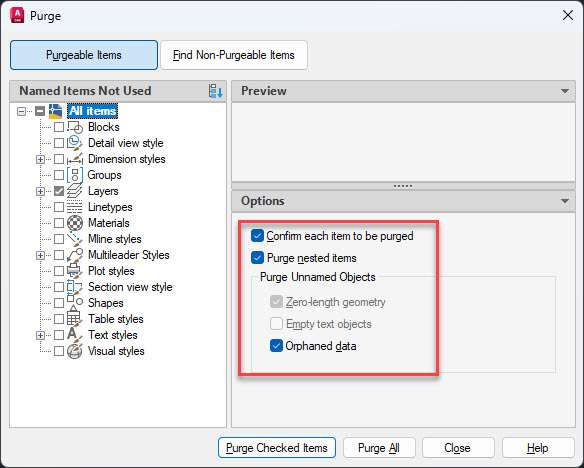
Save it as a new file and you should be good to go.
Clean Registered Applications (REGAPPS)
AutoCAD associates extended entity data XData to different objects in the drawing and this data is stored in the XData table.
When the associated data is deleted these linked tables become unreferenced that still remain in the drawing which can negatively impact the performance over time.
To remove the Reg Apps type -PURGE and press enter key (don’t forget to add the dash before the purge command).
Now select Regapps from the command line and press enter key.
On the next prompt “Verify each name to be prompted” select No and press enter and it will clean all the Regapps from your drawings.
Use Write Block
You can use the write block command to export the necessary parts from the drawing leaving all the clutter behind that might be creating the issues.
To use it type WBLOCK and press enter key.
In the “Source” panel of the “Write Block” window select “objects” and then click on the pick point box and select any point in the drawing as a pick point.
Then click the “Select objects” box and select all the objects from the drawing you want to export by making a window selection.

Don’t press CTRL + A to select everything in the drawing instead only select the objects that you want to export manually.
Now in the destination select a path and then click OK to export this drawing.
This should create a new file with only the objects that you need leaving behind all the clutter that might be creating the problem in your drawing.
[/fusion_text][/fusion_builder_column][/fusion_builder_row][/fusion_builder_container][fusion_builder_container admin_label=”Course CTA” type=”flex” hundred_percent=”no” hundred_percent_height=”no” min_height_medium=”” min_height_small=”” min_height=”” hundred_percent_height_scroll=”no” align_content=”stretch” flex_align_items=”center” flex_justify_content=”center” flex_column_spacing=”” hundred_percent_height_center_content=”yes” equal_height_columns=”no” container_tag=”div” menu_anchor=”” hide_on_mobile=”small-visibility,medium-visibility,large-visibility” status=”published” publish_date=”” class=”” id=”” margin_top_medium=”” margin_bottom_medium=”” margin_top_small=”” margin_bottom_small=”” margin_top=”” margin_bottom=”” padding_top_medium=”” padding_right_medium=”” padding_bottom_medium=”” padding_left_medium=”” padding_top_small=”” padding_right_small=”” padding_bottom_small=”” padding_left_small=”” padding_top=”” padding_right=”” padding_bottom=”” padding_left=”” link_color=”” hue=”” saturation=”” lightness=”” alpha=”” link_hover_color=”” border_sizes_top=”” border_sizes_right=”” border_sizes_bottom=”” border_sizes_left=”” border_color=”” border_style=”solid” border_radius_top_left=”” border_radius_top_right=”” border_radius_bottom_right=”” border_radius_bottom_left=”” box_shadow=”no” box_shadow_vertical=”” box_shadow_horizontal=”” box_shadow_blur=”0″ box_shadow_spread=”0″ box_shadow_color=”” box_shadow_style=”” z_index=”” overflow=”” gradient_start_color=”” gradient_end_color=”” gradient_start_position=”0″ gradient_end_position=”100″ gradient_type=”linear” radial_direction=”center center” linear_angle=”180″ background_color=”” background_image=”” skip_lazy_load=”” background_position=”center center” background_repeat=”no-repeat” fade=”no” background_parallax=”none” enable_mobile=”no” parallax_speed=”0.3″ background_blend_mode=”none” video_mp4=”” video_webm=”” video_ogv=”” video_url=”” video_aspect_ratio=”16:9″ video_loop=”yes” video_mute=”yes” video_preview_image=”” pattern_bg=”none” pattern_custom_bg=”” pattern_bg_color=”” pattern_bg_style=”default” pattern_bg_opacity=”100″ pattern_bg_size=”” pattern_bg_blend_mode=”normal” mask_bg=”none” mask_custom_bg=”” mask_bg_color=”” mask_bg_accent_color=”” mask_bg_style=”default” mask_bg_opacity=”100″ mask_bg_transform=”left” mask_bg_blend_mode=”normal” render_logics=”” absolute=”off” absolute_devices=”small,medium,large” sticky=”off” sticky_devices=”small-visibility,medium-visibility,large-visibility” sticky_background_color=”” sticky_height=”” sticky_offset=”” sticky_transition_offset=”0″ scroll_offset=”0″ animation_type=”” animation_direction=”left” animation_color=”” animation_speed=”0.3″ animation_delay=”0″ animation_offset=”” filter_hue=”0″ filter_saturation=”100″ filter_brightness=”100″ filter_contrast=”100″ filter_invert=”0″ filter_sepia=”0″ filter_opacity=”100″ filter_blur=”0″ filter_hue_hover=”0″ filter_saturation_hover=”100″ filter_brightness_hover=”100″ filter_contrast_hover=”100″ filter_invert_hover=”0″ filter_sepia_hover=”0″ filter_opacity_hover=”100″ filter_blur_hover=”0″ admin_toggled=”yes”][fusion_builder_row][fusion_builder_column type=”1_1″ layout=”1_1″ align_self=”flex-start” content_layout=”column” align_content=”center” valign_content=”flex-start” content_wrap=”wrap” spacing=”” center_content=”no” column_tag=”div” link=”” target=”_self” link_description=”” min_height=”” hide_on_mobile=”small-visibility,medium-visibility,large-visibility” sticky_display=”normal,sticky” class=”” id=”” background_image_id=”” type_medium=”” type_small=”” order_medium=”0″ order_small=”0″ spacing_left_medium=”” spacing_right_medium=”” spacing_left_small=”” spacing_right_small=”” spacing_left=”” spacing_right=”” margin_top_medium=”” margin_bottom_medium=”” margin_top_small=”” margin_bottom_small=”” margin_top=”” margin_bottom=”” padding_top_medium=”” padding_right_medium=”” padding_bottom_medium=”” padding_left_medium=”” padding_top_small=”” padding_right_small=”” padding_bottom_small=”” padding_left_small=”” padding_top=”2%” padding_right=”2%” padding_bottom=”2%” padding_left=”2%” hover_type=”none” border_sizes_top=”” border_sizes_right=”” border_sizes_bottom=”” border_sizes_left=”” border_color=”” hue=”” saturation=”” lightness=”” alpha=”” border_style=”solid” border_radius_top_left=”10″ border_radius_top_right=”10″ border_radius_bottom_right=”10″ border_radius_bottom_left=”10″ box_shadow=”no” box_shadow_vertical=”” box_shadow_horizontal=”” box_shadow_blur=”0″ box_shadow_spread=”0″ box_shadow_color=”” box_shadow_style=”” z_index_subgroup=”regular” z_index=”” z_index_hover=”” overflow=”” background_type=”single” gradient_start_color=”” gradient_end_color=”” gradient_start_position=”0″ gradient_end_position=”100″ gradient_type=”linear” radial_direction=”center center” linear_angle=”180″ background_color=”var(–awb-color5)” background_image=”” lazy_load=”avada” skip_lazy_load=”” background_position=”left top” background_repeat=”no-repeat” background_blend_mode=”none” render_logics=”” sticky=”off” sticky_devices=”small-visibility,medium-visibility,large-visibility” sticky_offset=”” absolute=”off” absolute_top=”” absolute_right=”” absolute_bottom=”” absolute_left=”” filter_type=”regular” filter_hover_element=”self” filter_hue=”0″ filter_saturation=”100″ filter_brightness=”100″ filter_contrast=”100″ filter_invert=”0″ filter_sepia=”0″ filter_opacity=”100″ filter_blur=”0″ filter_hue_hover=”0″ filter_saturation_hover=”100″ filter_brightness_hover=”100″ filter_contrast_hover=”100″ filter_invert_hover=”0″ filter_sepia_hover=”0″ filter_opacity_hover=”100″ filter_blur_hover=”0″ transform_type=”regular” transform_hover_element=”self” transform_scale_x=”1″ transform_scale_y=”1″ transform_translate_x=”0″ transform_translate_y=”0″ transform_rotate=”0″ transform_skew_x=”0″ transform_skew_y=”0″ transform_origin=”” transform_scale_x_hover=”1″ transform_scale_y_hover=”1″ transform_translate_x_hover=”0″ transform_translate_y_hover=”0″ transform_rotate_hover=”0″ transform_skew_x_hover=”0″ transform_skew_y_hover=”0″ transition_duration=”300″ transition_easing=”ease” transition_custom_easing=”” animation_type=”” animation_direction=”left” animation_color=”” animation_speed=”0.3″ animation_delay=”0″ animation_offset=”” last=”true” border_position=”all” first=”true”][fusion_builder_row_inner][fusion_builder_column_inner type=”2_3″ layout=”2_3″ align_self=”center” content_layout=”column” align_content=”center” valign_content=”flex-start” content_wrap=”wrap” spacing=”” center_content=”no” column_tag=”div” link=”” target=”_self” link_description=”” min_height=”” hide_on_mobile=”small-visibility,medium-visibility,large-visibility” sticky_display=”normal,sticky” class=”” id=”” background_image_id=”” type_medium=”” type_small=”” order_medium=”0″ order_small=”0″ spacing_left_medium=”” spacing_right_medium=”” spacing_left_small=”” spacing_right_small=”” spacing_left=”6%” spacing_right=”” margin_top_medium=”” margin_bottom_medium=”” margin_top_small=”” margin_bottom_small=”” margin_top=”4%” margin_bottom=”4%” padding_top_medium=”” padding_right_medium=”” padding_bottom_medium=”” padding_left_medium=”” padding_top_small=”” padding_right_small=”” padding_bottom_small=”” padding_left_small=”” padding_top=”” padding_right=”” padding_bottom=”” padding_left=”2%” hover_type=”none” border_sizes_top=”” border_sizes_right=”” border_sizes_bottom=”” border_sizes_left=”” border_color=”” hue=”” saturation=”” lightness=”” alpha=”” border_style=”solid” border_radius_top_left=”” border_radius_top_right=”” border_radius_bottom_right=”” border_radius_bottom_left=”” box_shadow=”no” box_shadow_vertical=”” box_shadow_horizontal=”” box_shadow_blur=”0″ box_shadow_spread=”0″ box_shadow_color=”” box_shadow_style=”” overflow=”” background_type=”single” gradient_start_color=”” gradient_end_color=”” gradient_start_position=”0″ gradient_end_position=”100″ gradient_type=”linear” radial_direction=”center center” linear_angle=”180″ background_color=”” background_image=”” lazy_load=”avada” skip_lazy_load=”” background_position=”left top” background_repeat=”no-repeat” background_blend_mode=”none” render_logics=”” filter_type=”regular” filter_hue=”0″ filter_saturation=”100″ filter_brightness=”100″ filter_contrast=”100″ filter_invert=”0″ filter_sepia=”0″ filter_opacity=”100″ filter_blur=”0″ filter_hue_hover=”0″ filter_saturation_hover=”100″ filter_brightness_hover=”100″ filter_contrast_hover=”100″ filter_invert_hover=”0″ filter_sepia_hover=”0″ filter_opacity_hover=”100″ filter_blur_hover=”0″ animation_type=”” animation_direction=”left” animation_speed=”0.3″ animation_offset=”” last=”false” border_position=”all” first=”true”][fusion_text columns=”” column_min_width=”” column_spacing=”” rule_style=”” rule_size=”” rule_color=”” hue=”” saturation=”” lightness=”” alpha=”” content_alignment_medium=”” content_alignment_small=”” content_alignment=”” hide_on_mobile=”small-visibility,medium-visibility,large-visibility” sticky_display=”normal,sticky” class=”” id=”” margin_top=”” margin_right=”” margin_bottom=”” margin_left=”” fusion_font_family_text_font=”” fusion_font_variant_text_font=”” font_size=”” line_height=”” letter_spacing=”” text_transform=”none” text_color=”var(–awb-color8)” animation_type=”” animation_direction=”left” animation_color=”” animation_speed=”0.3″ animation_delay=”0″ animation_offset=””]
Learn AutoCAD right from scratch to a pro-level with these project-based courses
[/fusion_text][fusion_button link=”https://thesourcecad.com/autocad-courses/” title=”” target=”_self” link_attributes=”” alignment_medium=”” alignment_small=”” alignment=”left” modal=”” hide_on_mobile=”small-visibility,medium-visibility,large-visibility” sticky_display=”normal,sticky” class=”” id=”” color=”custom” button_gradient_top_color=”var(–awb-color3)” hue=”” saturation=”” lightness=”” alpha=”” button_gradient_bottom_color=”var(–awb-color3)” button_gradient_top_color_hover=”var(–awb-color4)” button_gradient_bottom_color_hover=”var(–awb-color4)” gradient_start_position=”” gradient_end_position=”” gradient_type=”” radial_direction=”” linear_angle=”180″ accent_color=”” accent_hover_color=”” type=”flat” bevel_color=”” bevel_color_hover=”” border_top=”” border_right=”” border_bottom=”” border_left=”” border_radius_top_left=”” border_radius_top_right=”” border_radius_bottom_right=”” border_radius_bottom_left=”” border_color=”” border_hover_color=”” size=”large” padding_top=”” padding_right=”” padding_bottom=”” padding_left=”” fusion_font_family_button_font=”” fusion_font_variant_button_font=”” font_size=”” line_height=”” letter_spacing=”” text_transform=”” stretch=”no” margin_top=”” margin_right=”” margin_bottom=”” margin_left=”” icon=”” icon_position=”left” icon_divider=”no” hover_transition=”none” animation_type=”” animation_direction=”left” animation_color=”” animation_speed=”0.3″ animation_delay=”0″ animation_offset=””]Check Course Details[/fusion_button][/fusion_builder_column_inner][fusion_builder_column_inner type=”1_3″ layout=”1_3″ align_self=”center” content_layout=”column” align_content=”center” valign_content=”flex-start” content_wrap=”wrap” spacing=”” center_content=”yes” column_tag=”div” link=”” target=”_self” link_description=”” min_height=”” hide_on_mobile=”large-visibility” sticky_display=”normal,sticky” class=”” id=”” background_image_id=”” type_medium=”” type_small=”” order_medium=”0″ order_small=”0″ spacing_left_medium=”” spacing_right_medium=”” spacing_left_small=”” spacing_right_small=”” spacing_left=”” spacing_right=”” margin_top_medium=”” margin_bottom_medium=”” margin_top_small=”” margin_bottom_small=”” margin_top=”” margin_bottom=”” padding_top_medium=”” padding_right_medium=”” padding_bottom_medium=”” padding_left_medium=”” padding_top_small=”” padding_right_small=”” padding_bottom_small=”” padding_left_small=”” padding_top=”” padding_right=”” padding_bottom=”” padding_left=”” hover_type=”none” border_sizes_top=”” border_sizes_right=”” border_sizes_bottom=”” border_sizes_left=”” border_color=”” hue=”” saturation=”” lightness=”” alpha=”” border_style=”solid” border_radius_top_left=”” border_radius_top_right=”” border_radius_bottom_right=”” border_radius_bottom_left=”” box_shadow=”no” box_shadow_vertical=”” box_shadow_horizontal=”” box_shadow_blur=”0″ box_shadow_spread=”0″ box_shadow_color=”” box_shadow_style=”” z_index_subgroup=”regular” z_index=”” z_index_hover=”” overflow=”” background_type=”single” gradient_start_color=”” gradient_end_color=”” gradient_start_position=”0″ gradient_end_position=”100″ gradient_type=”linear” radial_direction=”center center” linear_angle=”180″ background_color=”” background_image=”” lazy_load=”avada” skip_lazy_load=”” background_position=”left top” background_repeat=”no-repeat” background_blend_mode=”none” render_logics=”” sticky=”off” sticky_devices=”small-visibility,medium-visibility,large-visibility” sticky_offset=”” absolute=”off” absolute_top=”” absolute_right=”” absolute_bottom=”” absolute_left=”” filter_type=”regular” filter_hover_element=”self” filter_hue=”0″ filter_saturation=”100″ filter_brightness=”100″ filter_contrast=”100″ filter_invert=”0″ filter_sepia=”0″ filter_opacity=”100″ filter_blur=”0″ filter_hue_hover=”0″ filter_saturation_hover=”100″ filter_brightness_hover=”100″ filter_contrast_hover=”100″ filter_invert_hover=”0″ filter_sepia_hover=”0″ filter_opacity_hover=”100″ filter_blur_hover=”0″ transform_type=”regular” transform_hover_element=”self” transform_scale_x=”1″ transform_scale_y=”1″ transform_translate_x=”0″ transform_translate_y=”0″ transform_rotate=”0″ transform_skew_x=”0″ transform_skew_y=”0″ transform_origin=”” transform_scale_x_hover=”1″ transform_scale_y_hover=”1″ transform_translate_x_hover=”0″ transform_translate_y_hover=”0″ transform_rotate_hover=”0″ transform_skew_x_hover=”0″ transform_skew_y_hover=”0″ transition_duration=”300″ transition_easing=”ease” transition_custom_easing=”” animation_type=”” animation_direction=”left” animation_color=”” animation_speed=”0.3″ animation_delay=”0″ animation_offset=”” last=”true” border_position=”all” first=”false”][fusion_imageframe image_id=”25502|full” aspect_ratio=”” custom_aspect_ratio=”100″ aspect_ratio_position=”” skip_lazy_load=”” lightbox=”no” gallery_id=”” lightbox_image=”” lightbox_image_id=”” alt=”” link=”” linktarget=”_self” hide_on_mobile=”small-visibility,medium-visibility,large-visibility” sticky_display=”normal,sticky” class=”” id=”” max_width=”” sticky_max_width=”” align_medium=”none” align_small=”none” align=”center” mask=”” custom_mask=”” mask_size=”” mask_custom_size=”” mask_position=”” mask_custom_position=”” mask_repeat=”” style_type=”” blur=”” stylecolor=”” hue=”” saturation=”” lightness=”” alpha=”” hover_type=”none” margin_top_medium=”” margin_right_medium=”” margin_bottom_medium=”” margin_left_medium=”” margin_top_small=”” margin_right_small=”” margin_bottom_small=”” margin_left_small=”” margin_top=”” margin_right=”” margin_bottom=”” margin_left=”” bordersize=”” bordercolor=”” borderradius=”” z_index=”” caption_style=”off” caption_align_medium=”none” caption_align_small=”none” caption_align=”none” caption_title=”” caption_text=”” caption_title_tag=”2″ fusion_font_family_caption_title_font=”” fusion_font_variant_caption_title_font=”” caption_title_size=”” caption_title_line_height=”” caption_title_letter_spacing=”” caption_title_transform=”” caption_title_color=”” caption_background_color=”” fusion_font_family_caption_text_font=”” fusion_font_variant_caption_text_font=”” caption_text_size=”” caption_text_line_height=”” caption_text_letter_spacing=”” caption_text_transform=”” caption_text_color=”” caption_border_color=”” caption_overlay_color=”” caption_margin_top=”” caption_margin_right=”” caption_margin_bottom=”” caption_margin_left=”” animation_type=”” animation_direction=”left” animation_color=”” animation_speed=”0.3″ animation_delay=”0″ animation_offset=”” filter_hue=”0″ filter_saturation=”100″ filter_brightness=”100″ filter_contrast=”100″ filter_invert=”0″ filter_sepia=”0″ filter_opacity=”100″ filter_blur=”0″ filter_hue_hover=”0″ filter_saturation_hover=”100″ filter_brightness_hover=”100″ filter_contrast_hover=”100″ filter_invert_hover=”0″ filter_sepia_hover=”0″ filter_opacity_hover=”100″ filter_blur_hover=”0″]https://thesourcecad.com/wp-content/uploads/2014/10/Courses-new.png[/fusion_imageframe][/fusion_builder_column_inner][/fusion_builder_row_inner][/fusion_builder_column][/fusion_builder_row][/fusion_builder_container][fusion_builder_container type=”flex” hundred_percent=”yes” hundred_percent_height=”no” min_height_medium=”” min_height_small=”” min_height=”” hundred_percent_height_scroll=”no” align_content=”stretch” flex_align_items=”flex-start” flex_justify_content=”flex-start” flex_column_spacing=”” hundred_percent_height_center_content=”yes” equal_height_columns=”no” container_tag=”div” menu_anchor=”” hide_on_mobile=”small-visibility,medium-visibility,large-visibility” status=”published” publish_date=”” class=”” id=”” margin_top_medium=”” margin_bottom_medium=”” margin_top_small=”” margin_bottom_small=”” margin_top=”” margin_bottom=”” padding_top_medium=”” padding_right_medium=”” padding_bottom_medium=”” padding_left_medium=”” padding_top_small=”” padding_right_small=”” padding_bottom_small=”” padding_left_small=”” padding_top=”” padding_right=”” padding_bottom=”” padding_left=”” link_color=”var(–awb-color3)” hue=”” saturation=”” lightness=”” alpha=”” link_hover_color=”var(–awb-color4)” border_sizes_top=”” border_sizes_right=”” border_sizes_bottom=”” border_sizes_left=”” border_color=”” border_style=”solid” border_radius_top_left=”” border_radius_top_right=”” border_radius_bottom_right=”” border_radius_bottom_left=”” box_shadow=”no” box_shadow_vertical=”” box_shadow_horizontal=”” box_shadow_blur=”0″ box_shadow_spread=”0″ box_shadow_color=”” box_shadow_style=”” z_index=”” overflow=”” gradient_start_color=”” gradient_end_color=”” gradient_start_position=”0″ gradient_end_position=”100″ gradient_type=”linear” radial_direction=”center center” linear_angle=”180″ background_color=”” background_image=”” skip_lazy_load=”” background_position=”center center” background_repeat=”no-repeat” fade=”no” background_parallax=”none” enable_mobile=”no” parallax_speed=”0.3″ background_blend_mode=”none” video_mp4=”” video_webm=”” video_ogv=”” video_url=”” video_aspect_ratio=”16:9″ video_loop=”yes” video_mute=”yes” video_preview_image=”” pattern_bg=”none” pattern_custom_bg=”” pattern_bg_color=”” pattern_bg_style=”default” pattern_bg_opacity=”100″ pattern_bg_size=”” pattern_bg_blend_mode=”normal” mask_bg=”none” mask_custom_bg=”” mask_bg_color=”” mask_bg_accent_color=”” mask_bg_style=”default” mask_bg_opacity=”100″ mask_bg_transform=”left” mask_bg_blend_mode=”normal” render_logics=”” absolute=”off” absolute_devices=”small,medium,large” sticky=”off” sticky_devices=”small-visibility,medium-visibility,large-visibility” sticky_background_color=”” sticky_height=”” sticky_offset=”” sticky_transition_offset=”0″ scroll_offset=”0″ animation_type=”” animation_direction=”left” animation_color=”” animation_speed=”0.3″ animation_delay=”0″ animation_offset=”” filter_hue=”0″ filter_saturation=”100″ filter_brightness=”100″ filter_contrast=”100″ filter_invert=”0″ filter_sepia=”0″ filter_opacity=”100″ filter_blur=”0″ filter_hue_hover=”0″ filter_saturation_hover=”100″ filter_brightness_hover=”100″ filter_contrast_hover=”100″ filter_invert_hover=”0″ filter_sepia_hover=”0″ filter_opacity_hover=”100″ filter_blur_hover=”0″ admin_toggled=”yes”][fusion_builder_row][fusion_builder_column type=”1_1″ layout=”1_1″ align_self=”auto” content_layout=”column” align_content=”flex-start” valign_content=”flex-start” content_wrap=”wrap” spacing=”” center_content=”no” column_tag=”div” link=”” target=”_self” link_description=”” min_height=”” hide_on_mobile=”small-visibility,medium-visibility,large-visibility” sticky_display=”normal,sticky” class=”” id=”” type_medium=”” type_small=”” order_medium=”0″ order_small=”0″ dimension_spacing_medium=”” dimension_spacing_small=”” dimension_spacing=”” dimension_margin_medium=”” dimension_margin_small=”” margin_top=”” margin_bottom=”” padding_medium=”” padding_small=”” padding_top=”” padding_right=”” padding_bottom=”” padding_left=”” hover_type=”none” border_sizes=”” border_color=”” border_style=”solid” border_radius=”” box_shadow=”no” dimension_box_shadow=”” box_shadow_blur=”0″ box_shadow_spread=”0″ box_shadow_color=”” box_shadow_style=”” z_index_subgroup=”regular” z_index=”” z_index_hover=”” overflow=”” background_type=”single” gradient_start_color=”” gradient_end_color=”” gradient_start_position=”0″ gradient_end_position=”100″ gradient_type=”linear” radial_direction=”center center” linear_angle=”180″ background_color=”” background_image=”” background_image_id=”” lazy_load=”avada” skip_lazy_load=”” background_position=”left top” background_repeat=”no-repeat” background_blend_mode=”none” render_logics=”” sticky=”off” sticky_devices=”small-visibility,medium-visibility,large-visibility” sticky_offset=”” absolute=”off” absolute_props=”” filter_type=”regular” filter_hover_element=”self” filter_hue=”0″ filter_saturation=”100″ filter_brightness=”100″ filter_contrast=”100″ filter_invert=”0″ filter_sepia=”0″ filter_opacity=”100″ filter_blur=”0″ filter_hue_hover=”0″ filter_saturation_hover=”100″ filter_brightness_hover=”100″ filter_contrast_hover=”100″ filter_invert_hover=”0″ filter_sepia_hover=”0″ filter_opacity_hover=”100″ filter_blur_hover=”0″ transform_type=”regular” transform_hover_element=”self” transform_scale_x=”1″ transform_scale_y=”1″ transform_translate_x=”0″ transform_translate_y=”0″ transform_rotate=”0″ transform_skew_x=”0″ transform_skew_y=”0″ transform_scale_x_hover=”1″ transform_scale_y_hover=”1″ transform_translate_x_hover=”0″ transform_translate_y_hover=”0″ transform_rotate_hover=”0″ transform_skew_x_hover=”0″ transform_skew_y_hover=”0″ transform_origin=”” transition_duration=”300″ transition_easing=”ease” transition_custom_easing=”” animation_type=”” animation_direction=”left” animation_color=”” animation_speed=”0.3″ animation_delay=”0″ animation_offset=”” last=”true” border_position=”all” first=”true”][fusion_text columns=”” column_min_width=”” column_spacing=”” rule_style=”” rule_size=”” rule_color=”” hue=”” saturation=”” lightness=”” alpha=”” content_alignment_medium=”” content_alignment_small=”” content_alignment=”” hide_on_mobile=”small-visibility,medium-visibility,large-visibility” sticky_display=”normal,sticky” class=”” id=”” margin_top=”” margin_right=”” margin_bottom=”” margin_left=”” fusion_font_family_text_font=”” fusion_font_variant_text_font=”” font_size=”” line_height=”” letter_spacing=”” text_transform=”” text_color=”” animation_type=”” animation_direction=”left” animation_color=”” animation_speed=”0.3″ animation_delay=”0″ animation_offset=””]
Try these options too
If all the above methods fail to fix the issue with your drawing then you can try the following options.
Make sure the file is on a local drive
If you are accessing your file directly from a network or a cloud drive then copy and paste it on your local drive preferably on C drive like Desktop or Documents folder and then try opening it again.
Also, make sure you are opening a file after unzipping it, so, if you’ve received a file in the zipped package then unzip it in a folder and then try opening that file.
You can also try moving your file to a different PC and try opening it there, make sure in a new PC you copy your file to a local drive like on the Desktop and then open it.
If the problem is in your PC or the installed software then it should work on a different PC.
Try the Drawing repair AutoCAD plugin
Install the Repair plugin from the Autodesk app store and run it on your drawing and see if it works.
Make sure you save the file as a new one so that you can compare it with the original one also it’s better to create a backup rather than overwriting the original file.
Conclusion
All the methods shown above are the steps that you can take to restore a drawing file properly but some files might be irreversibly damaged and for those files, none of the methods shown above will work.
If however, your drawing file is showing an error that is not due to data corruption then you can try AutoCAD’s common troubleshooting tips.
Also, you should ensure that your PC has antivirus software as drawings do get corrupted because of viruses.
So, did these tips fix your problem? let me know in the comments down below.
[/fusion_text][/fusion_builder_column][/fusion_builder_row][/fusion_builder_container]


 There are also other methods like encrypting CAD files using third-party encryption software but most of them are paid or available as a trial with limited features.