Author: Jaiprakash Pandey

  • How to create dimension style overrides in AutoCAD

    How to create dimension style overrides in AutoCAD

    Generally, we create dimension styles and then use that dimension style throughout our drawing, this ensures consistency of style in our drawing. But if you want to make the small change in dimension style so that it is restricted to only a few selected dimensions without altering complete dimension style then you can use dimension style overrides.

    By using these overrides, dimension style remains unchanged and still, you can apply the new type of dimension adding different text height, color, or even tolerances in AutoCAD dimension.

    Dimension overrides are created as nested dimensions styles with changed parameters from its parent dimension, let’s take the example of the sample drawing shown below.dimension style overridesIn this drawing dimension of length, 48 is clearly visible but the dimension of length 26.77 is overlapping drawing and looks improper. In order to change the size of dimension text keeping its dimension style unchanged, we will create its override with a smaller text height.

    To start type D on the command line and hit enter, you will see all dimensions listed on the left panel of dimension style manager. Select the dimension style ISO-25 which is used to create the dimensions of drawing shown above and click on Override.

    dimension style overrides

    Now go to the Fit tab and change the value in “Use overall scale of” field to 1 and click OK. You will observe that a new <style overrides> dimension style will be added below ISO 25 dimension style, Select that dimension style make it current and close dimension style manager.

    Now delete dimension which is overlapping geometry and create a new dimension with style override, new dimension thus created will be smaller in size as shown in the image below.

    dimension style overridesOnce you have created your dimension you can delete dimension override from dimension style manager, on deleting override your original dimensions will be retained on the drawing and it will not be affected.

    In a similar way, you can change many other parameters in dimension override like arrow style, text style, color etc. without creating a new dimension style.

    Did you find this article helpful? Do you have questions related to dimension style overrides? Let me know in comments below.

  • All you need to know about AutoCAD clipboard

    All you need to know about AutoCAD clipboard

    When you copy data from drawing it is temporarily parked in the clipboard and when you paste that data then it is accessed from that clipboard. AutoCAD clipboard has many tools that which can help you in transferring data more precisely and selectively.

    In this article, I will explain some of the interesting and useful AutoCAD clipboard commands.

    AutoCAD clipboardCOPYBASE:

    This command will let you select objects with a base point. Type COPYBASE on the command line and press enter, then select the base point from drawing area and select objects which you want to copy and press enter again.

    When you paste drawing AutoCAD will prompt you to specify point where you want to place the object, this helps in placing your drawing precisely. You can use PASTECLIP to paste this drawing in the same drawing or in another drawing as well.

    COPYCLIP:

    This command is also similar to COPYBASE but with the exception of the base point. In this case, only objects will be copied to clipboard and command will not prompt you to specify any base point.

    CUTCLIP:

    It will cut original drawing from its original location and hence original drawing will be deleted you can then paste this drawing from clipboard to any other location on same drawing or another drawing as well.

    PASTECLIP:

    The obvious paste command for AutoCAD, this command will paste clipboard object in currently opened drawing you can use this command to paste drawing objects in multiple drawings as well.

    PASTEBLOCK:

    As the command suggests it will paste copied object as a block in the current drawing. After pasting this drawing as a block you will find that AutoCAD will assign a completely random string of characters to its name which looks like A$605D409A but you can rename this block to something meaningful by using RENAME command.

    PASTEORIG:

    This command will paste objects copied from one drawing to other drawing retaining their original coordinates. If you copy objects using COPYBASE command then also it will not prompt you for a base point while applying PASTEORIG and it will paste objects maintaining their original coordinate values.

    PASTEASHYPERLINK:

    This command will paste hyperlink of the selected object to the AutoCAD drawing irrespective of what the selected object is. For example, if you have a PDF document on the desktop of your PC and you want to associate it with any drawing object then copy that PDF now open the drawing and type PATEASHYPERLINK on the command line then select drawing objects and press enter.

    Once you are done with this process move your cursor to the object in drawing then press and hold Ctrl key on the keyboard and click on the drawing object you will notice that PDF document linked to it will open.

    There are also some interesting ways in which other copy commands of AutoCAD work and one such command is COPYM which gives you an ability to perform multiple tasks with a single command. Do you have questions related to this tip? Let me know in comments below.

  • How to make custom Arrow style in AutoCAD dimensions

    How to make custom Arrow style in AutoCAD dimensions

    [fusion_builder_container hundred_percent=”no” equal_height_columns=”no” menu_anchor=”” hide_on_mobile=”small-visibility,medium-visibility,large-visibility” class=”” id=”” background_color=”” background_image=”” background_position=”center center” background_repeat=”no-repeat” fade=”no” background_parallax=”none” parallax_speed=”0.3″ video_mp4=”” video_webm=”” video_ogv=”” video_url=”” video_aspect_ratio=”16:9″ video_loop=”yes” video_mute=”yes” overlay_color=”” video_preview_image=”” border_size=”” border_color=”” border_style=”solid” padding_top=”” padding_bottom=”” padding_left=”” padding_right=”” admin_toggled=”yes”][fusion_builder_row][fusion_builder_column type=”1_1″ layout=”1_1″ background_position=”left top” background_color=”” border_size=”” border_color=”” border_style=”solid” border_position=”all” spacing=”yes” background_image=”” background_repeat=”no-repeat” padding_top=”” padding_right=”” padding_bottom=”” padding_left=”” margin_top=”0px” margin_bottom=”0px” class=”” id=”” animation_type=”” animation_speed=”0.3″ animation_direction=”left” hide_on_mobile=”small-visibility,medium-visibility,large-visibility” center_content=”no” last=”no” min_height=”” hover_type=”none” link=””][fusion_text columns=”” column_min_width=”” column_spacing=”” rule_style=”default” rule_size=”” rule_color=”” class=”” id=””]

    AutoCAD offers lots of Arrow style for dimensions and leader lines but there might be situations when you simply need your own custom arrow style.

    This feature can be used to create symbols for geometric dimensioning and tolerancing features like flatness, cylindricity, runout etc. Symbols for these features are not available in standard arrow symbol library of AutoCAD and these custom symbols can be very efficiently used with the leader line.

    Making the Arrow geometry

    AutoCAD recognizes blocks for creating arrow styles so you can create blocks and use them as arrows but make sure your blocks are not annotative because AutoCAD does not recognize annotative blocks for making arrow styles.

    Make an arrow style as per your requirement, I am making an arrow as shown in the image below.

    custom Arrow style

    Make this drawing using simple draw commands of AutoCAD in 1:1 drawing scale then use scale command to resize this object as per your drawings final scale.

    You can’t make this arrow style annotative hence you need to select its size beforehand. After making adjustments use block command to convert this geometry into a block. For our example, I have named this arrow block as Custom Arrow.

    Applying Arrow style

    Now type DIMSTYLE on the command line and select dimension style which you want to change then click on modify button. Select symbols and arrows tab from next window and click on arrow drop down menu from arrowheads panel and select User Arrow from the menu as shown in the image below.

    custom Arrow style

    Now a small window called Select custom arrow block will pop up with a list containing all blocks that can be used for making the Arrow style. Select Custom Arrow from the list and click on OK and close all open windows by clicking OK or close.

    Now start any dimension command and pick two points for making that dimension. You will notice that the dimensions will now be made with custom arrow style. You can use a similar procedure for making a custom arrow style for leader line as well.

    In order to modify this custom arrow style you only need to modify Custom Arrow block and the arrow style will be modified accordingly everywhere in your drawing.

    Do you have questions related to this tip? Let us know in the comments below.

    [/fusion_text][/fusion_builder_column][/fusion_builder_row][/fusion_builder_container]

  • How to rename blocks and other named objects in AutoCAD

    How to rename blocks and other named objects in AutoCAD

    [fusion_builder_container type=”flex” hundred_percent=”no” equal_height_columns=”no” menu_anchor=”” hide_on_mobile=”small-visibility,medium-visibility,large-visibility” class=”” id=”” background_color=”” background_image=”” background_position=”center center” background_repeat=”no-repeat” fade=”no” background_parallax=”none” parallax_speed=”0.3″ video_mp4=”” video_webm=”” video_ogv=”” video_url=”” video_aspect_ratio=”16:9″ video_loop=”yes” video_mute=”yes” overlay_color=”” video_preview_image=”” border_color=”” border_style=”solid” padding_top=”” padding_bottom=”” padding_left=”” padding_right=”” admin_toggled=”yes”][fusion_builder_row][fusion_builder_column type=”1_1″ layout=”1_1″ background_position=”left top” background_color=”” border_color=”” border_style=”solid” border_position=”all” spacing=”yes” background_image=”” background_repeat=”no-repeat” padding_top=”” padding_right=”” padding_bottom=”” padding_left=”” margin_top=”0px” margin_bottom=”0px” class=”” id=”” animation_type=”” animation_speed=”0.3″ animation_direction=”left” hide_on_mobile=”small-visibility,medium-visibility,large-visibility” center_content=”no” last=”true” min_height=”” hover_type=”none” link=”” border_sizes_top=”” border_sizes_bottom=”” border_sizes_left=”” border_sizes_right=”” first=”true”][fusion_text columns=”” column_min_width=”” column_spacing=”” rule_style=”” rule_size=”” rule_color=”” hue=”” saturation=”” lightness=”” alpha=”” content_alignment_medium=”” content_alignment_small=”” content_alignment=”” hide_on_mobile=”small-visibility,medium-visibility,large-visibility” sticky_display=”normal,sticky” class=”” id=”” margin_top=”” margin_right=”” margin_bottom=”” margin_left=”” fusion_font_family_text_font=”” fusion_font_variant_text_font=”” font_size=”” line_height=”” letter_spacing=”” text_transform=”” text_color=”” animation_type=”” animation_direction=”left” animation_color=”” animation_speed=”0.3″ animation_delay=”0″ animation_offset=””]

    You can use RENAME command to rename blocks in AutoCAD and also other named objects like layers, linetypes, text styles, views and a lot more.

    You can not only rename these objects one by one but also you can rename multiple objects using the wildcard characters.

    In this article, I will show you the step-by-step method of renaming these named objects using both methods.

    Renaming individual objects

    Type RENAME (or REN command) on the command line and press enter, Rename window with the list of all named objects will pop up which looks like this.

    From the left panel click on the object type that you want to rename.

    For the current example, I will select Blocks.

    The right panel will show the list of all blocks present in the drawing, click on the block name which you want to rename.

    You will see the current name of the block in the “Old Name” field present below the items panel.

    Type in a new name in the “Rename To” field and click on the “Rename To” button.

    Your block will be renamed to the new name, once you are done renaming objects click the OK button to save the changes and close the rename window.

    [/fusion_text][/fusion_builder_column][/fusion_builder_row][/fusion_builder_container][fusion_builder_container admin_label=”Course CTA” type=”flex” hundred_percent=”no” hundred_percent_height=”no” min_height_medium=”” min_height_small=”” min_height=”” hundred_percent_height_scroll=”no” align_content=”stretch” flex_align_items=”center” flex_justify_content=”center” flex_column_spacing=”” hundred_percent_height_center_content=”yes” equal_height_columns=”no” container_tag=”div” menu_anchor=”” hide_on_mobile=”small-visibility,medium-visibility,large-visibility” status=”published” publish_date=”” class=”” id=”” margin_top_medium=”” margin_bottom_medium=”” margin_top_small=”” margin_bottom_small=”” margin_top=”” margin_bottom=”” padding_top_medium=”” padding_right_medium=”” padding_bottom_medium=”” padding_left_medium=”” padding_top_small=”” padding_right_small=”” padding_bottom_small=”” padding_left_small=”” padding_top=”” padding_right=”” padding_bottom=”” padding_left=”” link_color=”” hue=”” saturation=”” lightness=”” alpha=”” link_hover_color=”” border_sizes_top=”” border_sizes_right=”” border_sizes_bottom=”” border_sizes_left=”” border_color=”” border_style=”solid” border_radius_top_left=”” border_radius_top_right=”” border_radius_bottom_right=”” border_radius_bottom_left=”” box_shadow=”no” box_shadow_vertical=”” box_shadow_horizontal=”” box_shadow_blur=”0″ box_shadow_spread=”0″ box_shadow_color=”” box_shadow_style=”” z_index=”” overflow=”” gradient_start_color=”” gradient_end_color=”” gradient_start_position=”0″ gradient_end_position=”100″ gradient_type=”linear” radial_direction=”center center” linear_angle=”180″ background_color=”” background_image=”” skip_lazy_load=”” background_position=”center center” background_repeat=”no-repeat” fade=”no” background_parallax=”none” enable_mobile=”no” parallax_speed=”0.3″ background_blend_mode=”none” video_mp4=”” video_webm=”” video_ogv=”” video_url=”” video_aspect_ratio=”16:9″ video_loop=”yes” video_mute=”yes” video_preview_image=”” pattern_bg=”none” pattern_custom_bg=”” pattern_bg_color=”” pattern_bg_style=”default” pattern_bg_opacity=”100″ pattern_bg_size=”” pattern_bg_blend_mode=”normal” mask_bg=”none” mask_custom_bg=”” mask_bg_color=”” mask_bg_accent_color=”” mask_bg_style=”default” mask_bg_opacity=”100″ mask_bg_transform=”left” mask_bg_blend_mode=”normal” render_logics=”” absolute=”off” absolute_devices=”small,medium,large” sticky=”off” sticky_devices=”small-visibility,medium-visibility,large-visibility” sticky_background_color=”” sticky_height=”” sticky_offset=”” sticky_transition_offset=”0″ scroll_offset=”0″ animation_type=”” animation_direction=”left” animation_color=”” animation_speed=”0.3″ animation_delay=”0″ animation_offset=”” filter_hue=”0″ filter_saturation=”100″ filter_brightness=”100″ filter_contrast=”100″ filter_invert=”0″ filter_sepia=”0″ filter_opacity=”100″ filter_blur=”0″ filter_hue_hover=”0″ filter_saturation_hover=”100″ filter_brightness_hover=”100″ filter_contrast_hover=”100″ filter_invert_hover=”0″ filter_sepia_hover=”0″ filter_opacity_hover=”100″ filter_blur_hover=”0″ admin_toggled=”yes”][fusion_builder_row][fusion_builder_column type=”1_1″ layout=”1_1″ align_self=”flex-start” content_layout=”column” align_content=”center” valign_content=”flex-start” content_wrap=”wrap” spacing=”” center_content=”no” column_tag=”div” link=”” target=”_self” link_description=”” min_height=”” hide_on_mobile=”small-visibility,medium-visibility,large-visibility” sticky_display=”normal,sticky” class=”” id=”” background_image_id=”” type_medium=”” type_small=”” order_medium=”0″ order_small=”0″ spacing_left_medium=”” spacing_right_medium=”” spacing_left_small=”” spacing_right_small=”” spacing_left=”” spacing_right=”” margin_top_medium=”” margin_bottom_medium=”” margin_top_small=”” margin_bottom_small=”” margin_top=”” margin_bottom=”” padding_top_medium=”” padding_right_medium=”” padding_bottom_medium=”” padding_left_medium=”” padding_top_small=”” padding_right_small=”” padding_bottom_small=”” padding_left_small=”” padding_top=”2%” padding_right=”2%” padding_bottom=”2%” padding_left=”2%” hover_type=”none” border_sizes_top=”” border_sizes_right=”” border_sizes_bottom=”” border_sizes_left=”” border_color=”” hue=”” saturation=”” lightness=”” alpha=”” border_style=”solid” border_radius_top_left=”10″ border_radius_top_right=”10″ border_radius_bottom_right=”10″ border_radius_bottom_left=”10″ box_shadow=”no” box_shadow_vertical=”” box_shadow_horizontal=”” box_shadow_blur=”0″ box_shadow_spread=”0″ box_shadow_color=”” box_shadow_style=”” z_index_subgroup=”regular” z_index=”” z_index_hover=”” overflow=”” background_type=”single” gradient_start_color=”” gradient_end_color=”” gradient_start_position=”0″ gradient_end_position=”100″ gradient_type=”linear” radial_direction=”center center” linear_angle=”180″ background_color=”var(–awb-color5)” background_image=”” lazy_load=”avada” skip_lazy_load=”” background_position=”left top” background_repeat=”no-repeat” background_blend_mode=”none” render_logics=”” sticky=”off” sticky_devices=”small-visibility,medium-visibility,large-visibility” sticky_offset=”” absolute=”off” absolute_top=”” absolute_right=”” absolute_bottom=”” absolute_left=”” filter_type=”regular” filter_hover_element=”self” filter_hue=”0″ filter_saturation=”100″ filter_brightness=”100″ filter_contrast=”100″ filter_invert=”0″ filter_sepia=”0″ filter_opacity=”100″ filter_blur=”0″ filter_hue_hover=”0″ filter_saturation_hover=”100″ filter_brightness_hover=”100″ filter_contrast_hover=”100″ filter_invert_hover=”0″ filter_sepia_hover=”0″ filter_opacity_hover=”100″ filter_blur_hover=”0″ transform_type=”regular” transform_hover_element=”self” transform_scale_x=”1″ transform_scale_y=”1″ transform_translate_x=”0″ transform_translate_y=”0″ transform_rotate=”0″ transform_skew_x=”0″ transform_skew_y=”0″ transform_origin=”” transform_scale_x_hover=”1″ transform_scale_y_hover=”1″ transform_translate_x_hover=”0″ transform_translate_y_hover=”0″ transform_rotate_hover=”0″ transform_skew_x_hover=”0″ transform_skew_y_hover=”0″ transition_duration=”300″ transition_easing=”ease” transition_custom_easing=”” animation_type=”” animation_direction=”left” animation_color=”” animation_speed=”0.3″ animation_delay=”0″ animation_offset=”” last=”true” border_position=”all” first=”true”][fusion_builder_row_inner][fusion_builder_column_inner type=”2_3″ layout=”2_3″ align_self=”center” content_layout=”column” align_content=”center” valign_content=”flex-start” content_wrap=”wrap” spacing=”” center_content=”no” column_tag=”div” link=”” target=”_self” link_description=”” min_height=”” hide_on_mobile=”small-visibility,medium-visibility,large-visibility” sticky_display=”normal,sticky” class=”” id=”” background_image_id=”” type_medium=”” type_small=”” order_medium=”0″ order_small=”0″ spacing_left_medium=”” spacing_right_medium=”” spacing_left_small=”” spacing_right_small=”” spacing_left=”6%” spacing_right=”” margin_top_medium=”” margin_bottom_medium=”” margin_top_small=”” margin_bottom_small=”” margin_top=”4%” margin_bottom=”4%” padding_top_medium=”” padding_right_medium=”” padding_bottom_medium=”” padding_left_medium=”” padding_top_small=”” padding_right_small=”” padding_bottom_small=”” padding_left_small=”” padding_top=”” padding_right=”” padding_bottom=”” padding_left=”2%” hover_type=”none” border_sizes_top=”” border_sizes_right=”” border_sizes_bottom=”” border_sizes_left=”” border_color=”” hue=”” saturation=”” lightness=”” alpha=”” border_style=”solid” border_radius_top_left=”” border_radius_top_right=”” border_radius_bottom_right=”” border_radius_bottom_left=”” box_shadow=”no” box_shadow_vertical=”” box_shadow_horizontal=”” box_shadow_blur=”0″ box_shadow_spread=”0″ box_shadow_color=”” box_shadow_style=”” overflow=”” background_type=”single” gradient_start_color=”” gradient_end_color=”” gradient_start_position=”0″ gradient_end_position=”100″ gradient_type=”linear” radial_direction=”center center” linear_angle=”180″ background_color=”” background_image=”” lazy_load=”avada” skip_lazy_load=”” background_position=”left top” background_repeat=”no-repeat” background_blend_mode=”none” render_logics=”” filter_type=”regular” filter_hue=”0″ filter_saturation=”100″ filter_brightness=”100″ filter_contrast=”100″ filter_invert=”0″ filter_sepia=”0″ filter_opacity=”100″ filter_blur=”0″ filter_hue_hover=”0″ filter_saturation_hover=”100″ filter_brightness_hover=”100″ filter_contrast_hover=”100″ filter_invert_hover=”0″ filter_sepia_hover=”0″ filter_opacity_hover=”100″ filter_blur_hover=”0″ animation_type=”” animation_direction=”left” animation_speed=”0.3″ animation_offset=”” last=”false” border_position=”all” first=”true”][fusion_text columns=”” column_min_width=”” column_spacing=”” rule_style=”” rule_size=”” rule_color=”” hue=”” saturation=”” lightness=”” alpha=”” content_alignment_medium=”” content_alignment_small=”” content_alignment=”” hide_on_mobile=”small-visibility,medium-visibility,large-visibility” sticky_display=”normal,sticky” class=”” id=”” margin_top=”” margin_right=”” margin_bottom=”” margin_left=”” fusion_font_family_text_font=”” fusion_font_variant_text_font=”” font_size=”” line_height=”” letter_spacing=”” text_transform=”none” text_color=”var(–awb-color8)” animation_type=”” animation_direction=”left” animation_color=”” animation_speed=”0.3″ animation_delay=”0″ animation_offset=””]

    Learn AutoCAD right from scratch with video courses by published Authors

    [/fusion_text][fusion_button link=”https://thesourcecad.com/autocad-courses/” title=”” target=”_self” link_attributes=”” alignment_medium=”” alignment_small=”” alignment=”left” modal=”” hide_on_mobile=”small-visibility,medium-visibility,large-visibility” sticky_display=”normal,sticky” class=”” id=”” color=”custom” button_gradient_top_color_hover=”var(–awb-color4)” hue=”” saturation=”” lightness=”” alpha=”” button_gradient_top_color=”var(–awb-color3)” button_gradient_bottom_color_hover=”var(–awb-color4)” button_gradient_bottom_color=”var(–awb-color3)” gradient_start_position=”” gradient_end_position=”” gradient_type=”” radial_direction=”” linear_angle=”180″ accent_hover_color=”” accent_color=”” type=”flat” bevel_color=”” bevel_color_hover=”” border_top=”” border_right=”” border_bottom=”” border_left=”” border_radius_top_left=”” border_radius_top_right=”” border_radius_bottom_right=”” border_radius_bottom_left=”” border_hover_color=”” border_color=”” size=”large” padding_top=”” padding_right=”” padding_bottom=”” padding_left=”” fusion_font_family_button_font=”” fusion_font_variant_button_font=”” font_size=”” line_height=”” letter_spacing=”” text_transform=”” stretch=”no” margin_top=”” margin_right=”” margin_bottom=”” margin_left=”” icon=”” icon_position=”left” icon_divider=”no” hover_transition=”none” animation_type=”” animation_direction=”left” animation_color=”” animation_speed=”0.3″ animation_delay=”0″ animation_offset=””]Check Course Details[/fusion_button][/fusion_builder_column_inner][fusion_builder_column_inner type=”1_3″ layout=”1_3″ align_self=”center” content_layout=”column” align_content=”center” valign_content=”flex-start” content_wrap=”wrap” spacing=”” center_content=”yes” column_tag=”div” link=”” target=”_self” link_description=”” min_height=”” hide_on_mobile=”large-visibility” sticky_display=”normal,sticky” class=”” id=”” background_image_id=”” type_medium=”” type_small=”” order_medium=”0″ order_small=”0″ spacing_left_medium=”” spacing_right_medium=”” spacing_left_small=”” spacing_right_small=”” spacing_left=”” spacing_right=”” margin_top_medium=”” margin_bottom_medium=”” margin_top_small=”” margin_bottom_small=”” margin_top=”” margin_bottom=”” padding_top_medium=”” padding_right_medium=”” padding_bottom_medium=”” padding_left_medium=”” padding_top_small=”” padding_right_small=”” padding_bottom_small=”” padding_left_small=”” padding_top=”” padding_right=”” padding_bottom=”” padding_left=”” hover_type=”none” border_sizes_top=”” border_sizes_right=”” border_sizes_bottom=”” border_sizes_left=”” border_color=”” hue=”” saturation=”” lightness=”” alpha=”” border_style=”solid” border_radius_top_left=”” border_radius_top_right=”” border_radius_bottom_right=”” border_radius_bottom_left=”” box_shadow=”no” box_shadow_vertical=”” box_shadow_horizontal=”” box_shadow_blur=”0″ box_shadow_spread=”0″ box_shadow_color=”” box_shadow_style=”” z_index_subgroup=”regular” z_index=”” z_index_hover=”” overflow=”” background_type=”single” gradient_start_color=”” gradient_end_color=”” gradient_start_position=”0″ gradient_end_position=”100″ gradient_type=”linear” radial_direction=”center center” linear_angle=”180″ background_color=”” background_image=”” lazy_load=”avada” skip_lazy_load=”” background_position=”left top” background_repeat=”no-repeat” background_blend_mode=”none” render_logics=”” sticky=”off” sticky_devices=”small-visibility,medium-visibility,large-visibility” sticky_offset=”” absolute=”off” absolute_top=”” absolute_right=”” absolute_bottom=”” absolute_left=”” filter_type=”regular” filter_hover_element=”self” filter_hue=”0″ filter_saturation=”100″ filter_brightness=”100″ filter_contrast=”100″ filter_invert=”0″ filter_sepia=”0″ filter_opacity=”100″ filter_blur=”0″ filter_hue_hover=”0″ filter_saturation_hover=”100″ filter_brightness_hover=”100″ filter_contrast_hover=”100″ filter_invert_hover=”0″ filter_sepia_hover=”0″ filter_opacity_hover=”100″ filter_blur_hover=”0″ transform_type=”regular” transform_hover_element=”self” transform_scale_x=”1″ transform_scale_y=”1″ transform_translate_x=”0″ transform_translate_y=”0″ transform_rotate=”0″ transform_skew_x=”0″ transform_skew_y=”0″ transform_origin=”” transform_scale_x_hover=”1″ transform_scale_y_hover=”1″ transform_translate_x_hover=”0″ transform_translate_y_hover=”0″ transform_rotate_hover=”0″ transform_skew_x_hover=”0″ transform_skew_y_hover=”0″ transition_duration=”300″ transition_easing=”ease” transition_custom_easing=”” animation_type=”” animation_direction=”left” animation_color=”” animation_speed=”0.3″ animation_delay=”0″ animation_offset=”” last=”true” border_position=”all” first=”false”][fusion_imageframe image_id=”25502|full” aspect_ratio=”” custom_aspect_ratio=”100″ aspect_ratio_position=”” skip_lazy_load=”” lightbox=”no” gallery_id=”” lightbox_image=”” lightbox_image_id=”” alt=”” link=”” linktarget=”_self” hide_on_mobile=”small-visibility,medium-visibility,large-visibility” sticky_display=”normal,sticky” class=”” id=”” max_width=”” sticky_max_width=”” align_medium=”none” align_small=”none” align=”center” mask=”” custom_mask=”” mask_size=”” mask_custom_size=”” mask_position=”” mask_custom_position=”” mask_repeat=”” style_type=”” blur=”” stylecolor=”” hue=”” saturation=”” lightness=”” alpha=”” hover_type=”none” margin_top_medium=”” margin_right_medium=”” margin_bottom_medium=”” margin_left_medium=”” margin_top_small=”” margin_right_small=”” margin_bottom_small=”” margin_left_small=”” margin_top=”” margin_right=”” margin_bottom=”” margin_left=”” bordersize=”” bordercolor=”” borderradius=”” z_index=”” caption_style=”off” caption_align_medium=”none” caption_align_small=”none” caption_align=”none” caption_title=”” caption_text=”” caption_title_tag=”2″ fusion_font_family_caption_title_font=”” fusion_font_variant_caption_title_font=”” caption_title_size=”” caption_title_line_height=”” caption_title_letter_spacing=”” caption_title_transform=”” caption_title_color=”” caption_background_color=”” fusion_font_family_caption_text_font=”” fusion_font_variant_caption_text_font=”” caption_text_size=”” caption_text_line_height=”” caption_text_letter_spacing=”” caption_text_transform=”” caption_text_color=”” caption_border_color=”” caption_overlay_color=”” caption_margin_top=”” caption_margin_right=”” caption_margin_bottom=”” caption_margin_left=”” animation_type=”” animation_direction=”left” animation_color=”” animation_speed=”0.3″ animation_delay=”0″ animation_offset=”” filter_hue=”0″ filter_saturation=”100″ filter_brightness=”100″ filter_contrast=”100″ filter_invert=”0″ filter_sepia=”0″ filter_opacity=”100″ filter_blur=”0″ filter_hue_hover=”0″ filter_saturation_hover=”100″ filter_brightness_hover=”100″ filter_contrast_hover=”100″ filter_invert_hover=”0″ filter_sepia_hover=”0″ filter_opacity_hover=”100″ filter_blur_hover=”0″]https://thesourcecad.com/wp-content/uploads/2014/10/Courses-new.png[/fusion_imageframe][/fusion_builder_column_inner][/fusion_builder_row_inner][/fusion_builder_column][/fusion_builder_row][/fusion_builder_container][fusion_builder_container type=”flex” hundred_percent=”no” equal_height_columns=”no” menu_anchor=”” hide_on_mobile=”small-visibility,medium-visibility,large-visibility” class=”” id=”” background_color=”” background_image=”” background_position=”center center” background_repeat=”no-repeat” fade=”no” background_parallax=”none” parallax_speed=”0.3″ video_mp4=”” video_webm=”” video_ogv=”” video_url=”” video_aspect_ratio=”16:9″ video_loop=”yes” video_mute=”yes” overlay_color=”” video_preview_image=”” border_color=”” border_style=”solid” padding_top=”” padding_bottom=”” padding_left=”” padding_right=”” admin_toggled=”yes”][fusion_builder_row][fusion_builder_column type=”1_1″ layout=”1_1″ background_position=”left top” background_color=”” border_color=”” border_style=”solid” border_position=”all” spacing=”yes” background_image=”” background_repeat=”no-repeat” padding_top=”” padding_right=”” padding_bottom=”” padding_left=”” margin_top=”0px” margin_bottom=”0px” class=”” id=”” animation_type=”” animation_speed=”0.3″ animation_direction=”left” hide_on_mobile=”small-visibility,medium-visibility,large-visibility” center_content=”no” last=”true” min_height=”” hover_type=”none” link=”” border_sizes_top=”” border_sizes_bottom=”” border_sizes_left=”” border_sizes_right=”” first=”true”][fusion_text columns=”” column_min_width=”” column_spacing=”” rule_style=”” rule_size=”” rule_color=”” hue=”” saturation=”” lightness=”” alpha=”” content_alignment_medium=”” content_alignment_small=”” content_alignment=”” hide_on_mobile=”small-visibility,medium-visibility,large-visibility” sticky_display=”normal,sticky” class=”” id=”” margin_top=”” margin_right=”” margin_bottom=”” margin_left=”” fusion_font_family_text_font=”” fusion_font_variant_text_font=”” font_size=”” line_height=”” letter_spacing=”” text_transform=”” text_color=”” animation_type=”” animation_direction=”left” animation_color=”” animation_speed=”0.3″ animation_delay=”0″ animation_offset=””]

    Renaming multiple objects

    The rename command is not limited to renaming named objects individually, you can even rename multiple blocks and other named objects with REN command using wildcard characters.

    For explaining this, I will assume that we have a drawing with six layers as shown below, and we need to rename all layers containing the first three characters from ABC to XYZ.

    ABC-DE-1

    ABC-DE-2

    ABC-FG-1

    ABC-FG-2

    PQR-DE-1

    PQR-FG-1

    Type REN and press enter to start rename command then select layers from the “Named Objects” panel.

    Now type ABC* in the Old Name field of Rename window, you will notice that all layers with the first three characters as ABC will be highlighted in the Items panel.

    Type XYZ* in the Rename To field of the window.

    This syntax will rename all layers with the first three characters from ABC to XYZ keeping the remaining characters in the name unchanged.

    Click on Rename To button to apply changes and all selected layers will be renamed to XYZ prefix.

    RENAME MULTIPLE OBJECTS IN AUTOCAD

    You can also rename characters from the middle of the layer name.

    For example, if we want to change the name of Layers with 5th and 6th characters from FG to LM then we need to type ???-FG* in the old name field and ???-LM* in Rename To field.

    In this syntax first three question marks indicate that the first three characters could be anything then the fourth character should be a dash.

    On 5th and 6th place it should be FG and then * indicates that the remaining characters could be anything again.

    Conclusion

    As you can see renaming named objects is very easy and straightforward forward and changing the name of blocks, layers, views and other named objects in bulk using wildcard characters.

    Let me know in the comments below if you use the REN command or other methods of renaming named objects.

    [/fusion_text][/fusion_builder_column][/fusion_builder_row][/fusion_builder_container]

  • How to Export and Import custom hatch pattern in AutoCAD

    How to Export and Import custom hatch pattern in AutoCAD

    [fusion_builder_container type=”legacy” hundred_percent=”no” hundred_percent_height=”no” min_height_medium=”” min_height_small=”” min_height=”” hundred_percent_height_scroll=”no” align_content=”stretch” flex_align_items=”flex-start” flex_justify_content=”flex-start” flex_column_spacing=”” hundred_percent_height_center_content=”yes” equal_height_columns=”no” container_tag=”div” menu_anchor=”” hide_on_mobile=”small-visibility,medium-visibility,large-visibility” status=”published” publish_date=”” class=”” id=”” margin_top_medium=”” margin_bottom_medium=”” margin_top_small=”” margin_bottom_small=”” margin_top=”” margin_bottom=”” padding_top_medium=”” padding_right_medium=”” padding_bottom_medium=”” padding_left_medium=”” padding_top_small=”” padding_right_small=”” padding_bottom_small=”” padding_left_small=”” padding_top=”” padding_right=”” padding_bottom=”” padding_left=”” link_color=”var(–awb-color3)” hue=”” saturation=”” lightness=”” alpha=”” link_hover_color=”var(–awb-color4)” border_sizes_top=”” border_sizes_right=”” border_sizes_bottom=”” border_sizes_left=”” border_color=”” border_style=”solid” box_shadow=”no” box_shadow_vertical=”” box_shadow_horizontal=”” box_shadow_blur=”0″ box_shadow_spread=”0″ box_shadow_color=”” box_shadow_style=”” z_index=”” overflow=”” gradient_start_color=”” gradient_end_color=”” gradient_start_position=”0″ gradient_end_position=”100″ gradient_type=”linear” radial_direction=”center center” linear_angle=”180″ background_color=”” background_image=”” skip_lazy_load=”” background_position=”center center” background_repeat=”no-repeat” fade=”no” background_parallax=”none” enable_mobile=”no” parallax_speed=”0.3″ background_blend_mode=”none” video_mp4=”” video_webm=”” video_ogv=”” video_url=”” video_aspect_ratio=”16:9″ video_loop=”yes” video_mute=”yes” video_preview_image=”” pattern_bg=”none” pattern_custom_bg=”” pattern_bg_color=”” pattern_bg_style=”default” pattern_bg_opacity=”100″ pattern_bg_size=”” pattern_bg_blend_mode=”normal” mask_bg=”none” mask_custom_bg=”” mask_bg_color=”” mask_bg_accent_color=”” mask_bg_style=”default” mask_bg_opacity=”100″ mask_bg_transform=”left” mask_bg_blend_mode=”normal” render_logics=”” absolute=”off” absolute_devices=”small,medium,large” sticky=”off” sticky_devices=”small-visibility,medium-visibility,large-visibility” sticky_background_color=”” sticky_height=”” sticky_offset=”” sticky_transition_offset=”0″ scroll_offset=”0″ animation_type=”” animation_direction=”left” animation_speed=”0.3″ animation_offset=”” filter_hue=”0″ filter_saturation=”100″ filter_brightness=”100″ filter_contrast=”100″ filter_invert=”0″ filter_sepia=”0″ filter_opacity=”100″ filter_blur=”0″ filter_hue_hover=”0″ filter_saturation_hover=”100″ filter_brightness_hover=”100″ filter_contrast_hover=”100″ filter_invert_hover=”0″ filter_sepia_hover=”0″ filter_opacity_hover=”100″ filter_blur_hover=”0″ admin_toggled=”yes”][fusion_builder_row][fusion_builder_column type=”1_1″ layout=”1_1″ background_position=”left top” background_color=”” border_color=”” border_style=”solid” border_position=”all” spacing=”yes” background_image=”” background_repeat=”no-repeat” padding_top=”” padding_right=”” padding_bottom=”” padding_left=”” margin_top=”0px” margin_bottom=”0px” class=”” id=”” animation_type=”” animation_speed=”0.3″ animation_direction=”left” hide_on_mobile=”small-visibility,medium-visibility,large-visibility” center_content=”no” last=”true” min_height=”” hover_type=”none” link=”” border_sizes_top=”” border_sizes_bottom=”” border_sizes_left=”” border_sizes_right=”” first=”true”][fusion_text columns=”” column_min_width=”” column_spacing=”” rule_style=”” rule_size=”” rule_color=”” hue=”” saturation=”” lightness=”” alpha=”” content_alignment_medium=”” content_alignment_small=”” content_alignment=”” hide_on_mobile=”small-visibility,medium-visibility,large-visibility” sticky_display=”normal,sticky” class=”” id=”” margin_top=”” margin_right=”” margin_bottom=”” margin_left=”” fusion_font_family_text_font=”” fusion_font_variant_text_font=”” font_size=”” line_height=”” letter_spacing=”” text_transform=”” text_color=”” animation_type=”” animation_direction=”left” animation_speed=”0.3″ animation_offset=””]

    Generally you can export a drawing with its fonts, texture, materials, references, data links etc using e-transmit but unfortunately, it can’t export custom hatch pattern file (PAT) with the package and you have to add it in the package separately.

    But if you did not receive a drawing with PAT file then you can export it from drawing as well using the method shown below.

    Exporting hatch pattern

    Let’s assume that you have a drawing with custom hatch applied in it with name ZIGZAG. In order to export that hatch, you need to create its PAT file. I am using a LISP routine in this tutorial to extract PAT file from drawing.

    Download the LISP routine from this link

    Extract it from the compressed package and paste it on the desktop. Also, make sure that your source drawing is copied to the desktop from which you want to extract hatch pattern.

    Now open the drawing from your desktop and drag and drop lisp routine to the drawing as shown in the image below.

    How to Export and Import custom hatch pattern in AutoCAD

    Now type GETPAT on the command line and click on ZIGZAG pattern present in drawing. This pattern will be exported as ZIGZAG.PAT on the desktop. For some cases the file is exported to C:\Users\[user name]\Documents so if you are unable to find it on the desktop then look it there.

    Importing hatch in your AutoCAD

    Now you have this hatch pattern all you need to do is import it to your AutoCAD software, for this copy ZIGZAG.PAT file and paste it to support folder of the installation directory.

    To locate support folder type OP on the command line then press enter, options window will pop up select files tab and expand “support file search path” tree there you will see the location of support file. See image below for reference.

    How to Export and Import custom hatch pattern in AutoCAD

    After pasting the file launch your software if it is already open then close it and launch it again. You will now find ZIGZAG hatch pattern among all the patterns, and you can use it just like other hatch patterns.

    Update

    Some users are unable to use the original GETPAT.LSP file and they are getting this error

    Command: GETPAT
    Select hatch: ; error: bad argument value: positive 0

    If that’s the case with you too then use this modified routine, all the steps are exactly the same you just need to close your older session of AutoCAD and start a fresh one to use it.

    Credits:

    Thanks, Paul Turvill for providing access to GETPAT.LSP file. A big thanks to Cooper Francis for providing us access to this modified routine, you can get many free and premium Autodesk tools on his website Paracadd.com

    [/fusion_text][/fusion_builder_column][/fusion_builder_row][/fusion_builder_container]

  • How to enter fields in AutoCAD drawings

    How to enter fields in AutoCAD drawings

    Fields are special texts which update itself automatically when its linked object or property changes. For example, you can add a field which represents the area of an object and when the area changes field updates itself automatically.

    Fields are extensively used in the Sheet Set and they can be used to add intelligence to the title block and layouts of the sheet set. Using Fields information in the sheet set can be interlinked properly keeping the data correct and updated even when changes are made in the drawing.

    In this article, I will explain the use of Fields in AutoCAD drawings using a field that represents the area of geometry.

    Area Field:

    Make a circle in the drawing area and type FIELD on the command line and press enter, now select objects from Field category drop down menu and select Object from Field names panel. Now click on selection box near Object type box, and select the circle from drawing area.

    2

    You will notice that the Property panel will show all properties related to the circle. Select area from this list and select the format in which you want the area to represent. Click ok to close the Field window and place the area field inside the circle.

    In the example above if you change the area of the circle, the associated field will get updated to reflect the new area.

    Field Settings:

    By default, field will inherit properties of current text style and it will also show a gray background. This gray background will only remain visible in the drawing area and it will not appear when printed. Although the gray background helps in distinguishing fields from simple Mtext you can remove this background as well.

    Type OP on the command line and press enter, this will open options window. Select User Preferences tab and uncheck the radio button in the fields panel as shown in the image below. Click ok to save the changes and exit the window.

    You can also toggle the visibility of background from fields using FIELDDISPLAY system variable, where 1 makes the background visible and 0 makes it invisible.

    When the object associated with the field is changed the field updates itself automatically but in order to display that updated information you need to regenerate the drawing using RE command.

    You can also use UPDATEFIELD to manually select the fields and update them, the UPDATEFIELD command does not update the data field and you need to update it manually.

    The FIELDEVAL system variable can be used to automatically update fields in a drawing. You can see more on this on this knowledge network page.

    Do you have questions related to this tip? Let me know in the comments below.

  • How to manually reset AutoCAD to the default setting

    How to manually reset AutoCAD to the default setting

    If your AutoCAD is affected by errors or bugs then you can manually reset AutoCAD to the default setting. But before trying manual reset I would suggest you try the simpler methods as mentioned in the related article below.

    Related: Troubleshooting AutoCAD errors with these tips

    In most of the cases these tips can solve the issues but if AutoCAD still ceases to work properly then you can try doing a manual reset which will revert it back to the factory settings.

    This method requires you to have administrator privileges as we will make changes in windows registry. Make sure you have closed all instances of Autodesk software before making these changes.

    Manual AutoCAD Reset

    Press window +R key then type REGEDIT in RUN window and press enter to open the registry editor window. Expand HKEY_CURRENT_USER from the file tree on left then expand Software then Autodesk then AutoCAD then R20.0 or R21.0 whichever is there on the list.

    Now select folder ACAD-E001:409 right-click on it and select Export from the contextual menu. Specify a location for saving the registry value and save it. Now right click again on ACAD-0001:409 folder and select delete from the contextual menu and close registry editor window.

    reset AutoCAD to the default setting

    Make all hidden folders visible using windows explorer, in windows 10 you can make it visible by checking the Hidden items box from View tab of File Explorer as shown in the image below.

    Go to C:\Users\<user name>\AppData\Roaming\Autodesk and rename AutoCAD 20XX folder to AutoCAD 20XX.old.

    Go to C:\Users\<user name>\AppData\Local\Autodesk folder and here again rename AutoCAD 20XX folder to AutoCAD 20XX.old.

    In the file path mentioned above <user name> will be the username assigned to your PC for example in my case username is Jaiprakash on my PC. Also, the 20XX is the version of AutoCAD software in my case it was 2017.

    When all of these changes are done launch AutoCAD software and it will open in out of the box condition and without any errors (at least in most of the cases!).

    Reverting to old AutoCAD

    If somehow this does not work for your version of AutoCAD then you can revert AutoCAD installation to the previous condition. Double click on the registry file saved in the example above and rename AutoCAD 20XX.old folders to AutoCAD 20XX and then launch AutoCAD again.

    Do you have questions related to this tip? Let us know in the comments below.

  • 12+ tips to boost performance and fix slow AutoCAD

    12+ tips to boost performance and fix slow AutoCAD

    [fusion_builder_container type=”legacy” hundred_percent=”no” hundred_percent_height=”no” min_height_medium=”” min_height_small=”” min_height=”” hundred_percent_height_scroll=”no” align_content=”stretch” flex_align_items=”flex-start” flex_justify_content=”flex-start” flex_column_spacing=”” hundred_percent_height_center_content=”yes” equal_height_columns=”no” container_tag=”div” menu_anchor=”” hide_on_mobile=”small-visibility,medium-visibility,large-visibility” status=”published” publish_date=”” class=”” id=”” margin_top_medium=”” margin_bottom_medium=”” margin_top_small=”” margin_bottom_small=”” margin_top=”” margin_bottom=”” padding_top_medium=”” padding_right_medium=”” padding_bottom_medium=”” padding_left_medium=”” padding_top_small=”” padding_right_small=”” padding_bottom_small=”” padding_left_small=”” padding_top=”” padding_right=”” padding_bottom=”” padding_left=”” link_color=”var(–awb-color3)” hue=”” saturation=”” lightness=”” alpha=”” link_hover_color=”var(–awb-color4)” border_sizes_top=”” border_sizes_right=”” border_sizes_bottom=”” border_sizes_left=”” border_color=”” border_style=”solid” border_radius_top_left=”” border_radius_top_right=”” border_radius_bottom_right=”” border_radius_bottom_left=”” box_shadow=”no” box_shadow_vertical=”” box_shadow_horizontal=”” box_shadow_blur=”0″ box_shadow_spread=”0″ box_shadow_color=”” box_shadow_style=”” z_index=”” overflow=”” gradient_start_color=”” gradient_end_color=”” gradient_start_position=”0″ gradient_end_position=”100″ gradient_type=”linear” radial_direction=”center center” linear_angle=”180″ background_color=”” background_image=”” skip_lazy_load=”” background_position=”center center” background_repeat=”no-repeat” fade=”no” background_parallax=”none” enable_mobile=”no” parallax_speed=”0.3″ background_blend_mode=”none” video_mp4=”” video_webm=”” video_ogv=”” video_url=”” video_aspect_ratio=”16:9″ video_loop=”yes” video_mute=”yes” video_preview_image=”” pattern_bg=”none” pattern_custom_bg=”” pattern_bg_color=”” pattern_bg_style=”default” pattern_bg_opacity=”100″ pattern_bg_size=”” pattern_bg_blend_mode=”normal” mask_bg=”none” mask_custom_bg=”” mask_bg_color=”” mask_bg_accent_color=”” mask_bg_style=”default” mask_bg_opacity=”100″ mask_bg_transform=”left” mask_bg_blend_mode=”normal” render_logics=”” absolute=”off” absolute_devices=”small,medium,large” sticky=”off” sticky_devices=”small-visibility,medium-visibility,large-visibility” sticky_background_color=”” sticky_height=”” sticky_offset=”” sticky_transition_offset=”0″ scroll_offset=”0″ animation_type=”” animation_direction=”left” animation_color=”” animation_speed=”0.3″ animation_delay=”0″ animation_offset=”” filter_hue=”0″ filter_saturation=”100″ filter_brightness=”100″ filter_contrast=”100″ filter_invert=”0″ filter_sepia=”0″ filter_opacity=”100″ filter_blur=”0″ filter_hue_hover=”0″ filter_saturation_hover=”100″ filter_brightness_hover=”100″ filter_contrast_hover=”100″ filter_invert_hover=”0″ filter_sepia_hover=”0″ filter_opacity_hover=”100″ filter_blur_hover=”0″ admin_toggled=”yes”][fusion_builder_row][fusion_builder_column type=”1_1″ layout=”1_1″ background_position=”left top” background_color=”” border_color=”” border_style=”solid” border_position=”all” spacing=”yes” background_image=”” background_repeat=”no-repeat” padding_top=”” padding_right=”” padding_bottom=”” padding_left=”” margin_top=”0px” margin_bottom=”0px” class=”” id=”” animation_type=”” animation_speed=”0.3″ animation_direction=”left” hide_on_mobile=”small-visibility,medium-visibility,large-visibility” center_content=”no” last=”true” min_height=”” hover_type=”none” link=”” border_sizes_top=”” border_sizes_bottom=”” border_sizes_left=”” border_sizes_right=”” first=”true”][fusion_text columns=”” column_min_width=”” column_spacing=”” rule_style=”” rule_size=”” rule_color=”” hue=”” saturation=”” lightness=”” alpha=”” content_alignment_medium=”” content_alignment_small=”” content_alignment=”” hide_on_mobile=”small-visibility,medium-visibility,large-visibility” sticky_display=”normal,sticky” class=”” id=”” margin_top=”” margin_right=”” margin_bottom=”” margin_left=”” fusion_font_family_text_font=”” fusion_font_variant_text_font=”” font_size=”” line_height=”” letter_spacing=”” text_transform=”” text_color=”” animation_type=”” animation_direction=”left” animation_color=”” animation_speed=”0.3″ animation_delay=”0″ animation_offset=””]

    You can improve the slow AutoCAD performance using two approaches.

    The first one is speeding up your PC and the second one is fixing the speed of AutoCAD software itself.

    In this article, I will show you how to fix slow AutoCAD using both methods.

    If you prefer watching the video version of this article then here it is for you, however, if you prefer the article then read on.

    [fusion_youtube id=”1jNFK-2syU4″ alignment=”” width=”800″ height=”” autoplay=”false” api_params=”” title_attribute=”” video_facade=”” margin_top=”” margin_bottom=”” hide_on_mobile=”small-visibility,medium-visibility,large-visibility” class=”” css_id=”” structured_data=”off” video_upload_date=”” video_duration=”” video_title=”” video_desc=””][/fusion_youtube]

    So let’s start with fixing the PC speed as it can have a massive impact on the performance of AutoCAD.

    Step 1: Speeding up PC

    You might have noticed that a fresh installation of the operating system works very fast and feels snappy.

    It is mainly because it is free from the extra baggage that it accumulates over time.

    So, removing this extra baggage will automatically fix the slow performance issue and to fix the issue of this extra baggage and improve the performance of your PC you can use these tips.

    Disable startup apps:

    When your PC starts up it automatically starts several programs in the background that eat up system resources like RAM, processor, and GPU. Disabling these programs will free the space consumed by these software essentially freeing up space for AutoCAD.

    To disable startup apps press CTRL + ALT + Delete and then select “Task Manager” from the next prompt.

    Now select the Startup apps and disable all the apps you don’t need, or don’t use every time the PC starts up as shown in the image here.

    Close Google Chrome and other background apps:

    Google Chrome eats up a significant chunk of your system memory (RAM) and if you open multiple tabs it’s going to eat up even more space on RAM.

    So, it’s better to keep it closed if you are not using it and it will make a significant impact on your system performance especially if you are working with limited RAM.

    It’s also better to close other apps that are running in the background but not needed. For example, messaging apps, outlook, or other apps.

    Identify and fix hardware bottlenecks using Task manager:

    Open the task manager using CTRL + ALT + Delete key then select “Task manager” in the next prompt. Select the performance tab as shown in the image below.

    In this tab, you will see the resource consumption in real-time and you can identify the hardware that is currently used to its maximum.

    As an example, if you see disk usage at 100% then it’s time to upgrade your hard disk and change it to SSD. If you are finding memory usage hitting the ceiling then it’s time to install more memory (RAM) in your PC.

    This will essentially help you identify the “real” hardware bottleneck that is slowing your PC down and instead of randomly guessing you can invest in specific hardware that will improve your PC performance.

    Clean temporary files and perform disk cleanup:

    AutoCAD needs at least 20 GB of free disk space to run smoothly and if you are running out of it then the performance will suffer.

    So, it’s a good habit to keep the disk clean and you can do that very easily using Disk Cleanup.

    To start disk cleanup press the win + R key, and the Run dialogue box will show up.

    Type cleanmgr.exe and press enter to run the command, this will open the disk cleanup tool.
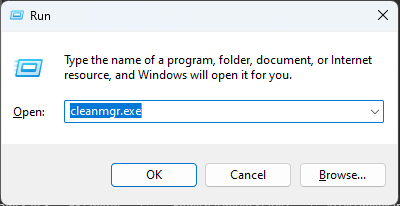
    Select C drive from the list of available drives and click OK. In the next window select the “Clean up system files” button as shown in the following image.

    This will once again prompt you to select the drive, select C drive again, and click OK.
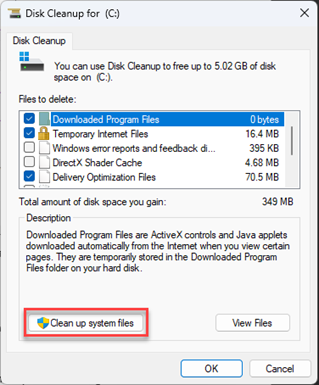
    Now Disk Cleanup will perform a comprehensive search and it will list all the files that you can remove.

    Check the boxes next to files that you can delete Temporary files, Previous version OS, Temporary internet files, Windows upgrade log files, and more after checking it all click OK and the disk cleanup will clean it all.

    Set windows to high-performance setting:

    You can set windows to prefer performance over display settings.

    This will improve the performance of the software though the display quality might suffer a bit.

    To activate this type Win + R key and then type powercfg.cpl and press enter key.
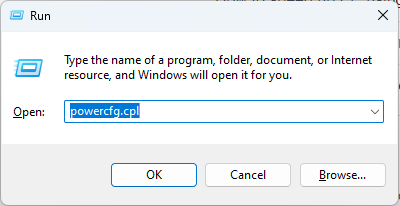
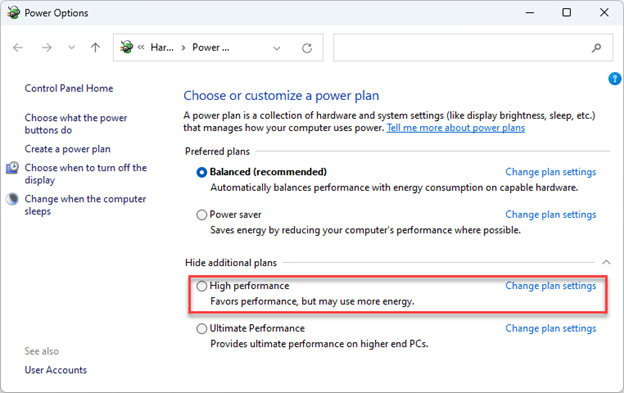
    Now power options page will open up where you can select the “High performance” or “Ultimate performance” settings.

    The “Ultimate performance” setting is only available in high-end systems and may not be available on all PCs or laptops.
    Update operating system:

    Keep your windows operating system updated.

    This will ensure you always have the latest drivers and updates that will ensure smooth performance of your PC and eventually AutoCAD as well.

    To update windows type the Win + I key then select windows update from the page that opens up as shown in the following image.
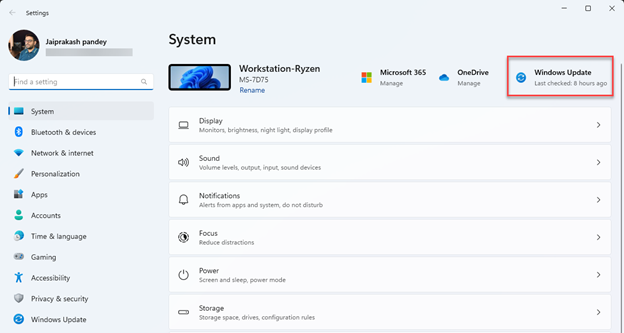
    Now click on check for updates then download and install all the updates suggested by windows.

    [/fusion_text][/fusion_builder_column][/fusion_builder_row][/fusion_builder_container][fusion_builder_container admin_label=”Course CTA” type=”flex” hundred_percent=”no” hundred_percent_height=”no” min_height_medium=”” min_height_small=”” min_height=”” hundred_percent_height_scroll=”no” align_content=”stretch” flex_align_items=”center” flex_justify_content=”center” flex_column_spacing=”” hundred_percent_height_center_content=”yes” equal_height_columns=”no” container_tag=”div” menu_anchor=”” hide_on_mobile=”small-visibility,medium-visibility,large-visibility” status=”published” publish_date=”” class=”” id=”” margin_top_medium=”” margin_bottom_medium=”” margin_top_small=”” margin_bottom_small=”” margin_top=”” margin_bottom=”” padding_top_medium=”” padding_right_medium=”” padding_bottom_medium=”” padding_left_medium=”” padding_top_small=”” padding_right_small=”” padding_bottom_small=”” padding_left_small=”” padding_top=”” padding_right=”” padding_bottom=”” padding_left=”” link_color=”” hue=”” saturation=”” lightness=”” alpha=”” link_hover_color=”” border_sizes_top=”” border_sizes_right=”” border_sizes_bottom=”” border_sizes_left=”” border_color=”” border_style=”solid” border_radius_top_left=”” border_radius_top_right=”” border_radius_bottom_right=”” border_radius_bottom_left=”” box_shadow=”no” box_shadow_vertical=”” box_shadow_horizontal=”” box_shadow_blur=”0″ box_shadow_spread=”0″ box_shadow_color=”” box_shadow_style=”” z_index=”” overflow=”” gradient_start_color=”” gradient_end_color=”” gradient_start_position=”0″ gradient_end_position=”100″ gradient_type=”linear” radial_direction=”center center” linear_angle=”180″ background_color=”” background_image=”” skip_lazy_load=”” background_position=”center center” background_repeat=”no-repeat” fade=”no” background_parallax=”none” enable_mobile=”no” parallax_speed=”0.3″ background_blend_mode=”none” video_mp4=”” video_webm=”” video_ogv=”” video_url=”” video_aspect_ratio=”16:9″ video_loop=”yes” video_mute=”yes” video_preview_image=”” pattern_bg=”none” pattern_custom_bg=”” pattern_bg_color=”” pattern_bg_style=”default” pattern_bg_opacity=”100″ pattern_bg_size=”” pattern_bg_blend_mode=”normal” mask_bg=”none” mask_custom_bg=”” mask_bg_color=”” mask_bg_accent_color=”” mask_bg_style=”default” mask_bg_opacity=”100″ mask_bg_transform=”left” mask_bg_blend_mode=”normal” render_logics=”” absolute=”off” absolute_devices=”small,medium,large” sticky=”off” sticky_devices=”small-visibility,medium-visibility,large-visibility” sticky_background_color=”” sticky_height=”” sticky_offset=”” sticky_transition_offset=”0″ scroll_offset=”0″ animation_type=”” animation_direction=”left” animation_color=”” animation_speed=”0.3″ animation_delay=”0″ animation_offset=”” filter_hue=”0″ filter_saturation=”100″ filter_brightness=”100″ filter_contrast=”100″ filter_invert=”0″ filter_sepia=”0″ filter_opacity=”100″ filter_blur=”0″ filter_hue_hover=”0″ filter_saturation_hover=”100″ filter_brightness_hover=”100″ filter_contrast_hover=”100″ filter_invert_hover=”0″ filter_sepia_hover=”0″ filter_opacity_hover=”100″ filter_blur_hover=”0″ admin_toggled=”yes”][fusion_builder_row][fusion_builder_column type=”1_1″ layout=”1_1″ align_self=”flex-start” content_layout=”column” align_content=”center” valign_content=”flex-start” content_wrap=”wrap” spacing=”” center_content=”no” column_tag=”div” link=”” target=”_self” link_description=”” min_height=”” hide_on_mobile=”small-visibility,medium-visibility,large-visibility” sticky_display=”normal,sticky” class=”” id=”” background_image_id=”” type_medium=”” type_small=”” order_medium=”0″ order_small=”0″ spacing_left_medium=”” spacing_right_medium=”” spacing_left_small=”” spacing_right_small=”” spacing_left=”” spacing_right=”” margin_top_medium=”” margin_bottom_medium=”” margin_top_small=”” margin_bottom_small=”” margin_top=”” margin_bottom=”” padding_top_medium=”” padding_right_medium=”” padding_bottom_medium=”” padding_left_medium=”” padding_top_small=”” padding_right_small=”” padding_bottom_small=”” padding_left_small=”” padding_top=”2%” padding_right=”2%” padding_bottom=”2%” padding_left=”2%” hover_type=”none” border_sizes_top=”” border_sizes_right=”” border_sizes_bottom=”” border_sizes_left=”” border_color=”” hue=”” saturation=”” lightness=”” alpha=”” border_style=”solid” border_radius_top_left=”10″ border_radius_top_right=”10″ border_radius_bottom_right=”10″ border_radius_bottom_left=”10″ box_shadow=”no” box_shadow_vertical=”” box_shadow_horizontal=”” box_shadow_blur=”0″ box_shadow_spread=”0″ box_shadow_color=”” box_shadow_style=”” z_index_subgroup=”regular” z_index=”” z_index_hover=”” overflow=”” background_type=”single” gradient_start_color=”” gradient_end_color=”” gradient_start_position=”0″ gradient_end_position=”100″ gradient_type=”linear” radial_direction=”center center” linear_angle=”180″ background_color=”var(–awb-color5)” background_image=”” lazy_load=”avada” skip_lazy_load=”” background_position=”left top” background_repeat=”no-repeat” background_blend_mode=”none” render_logics=”” sticky=”off” sticky_devices=”small-visibility,medium-visibility,large-visibility” sticky_offset=”” absolute=”off” absolute_top=”” absolute_right=”” absolute_bottom=”” absolute_left=”” filter_type=”regular” filter_hover_element=”self” filter_hue=”0″ filter_saturation=”100″ filter_brightness=”100″ filter_contrast=”100″ filter_invert=”0″ filter_sepia=”0″ filter_opacity=”100″ filter_blur=”0″ filter_hue_hover=”0″ filter_saturation_hover=”100″ filter_brightness_hover=”100″ filter_contrast_hover=”100″ filter_invert_hover=”0″ filter_sepia_hover=”0″ filter_opacity_hover=”100″ filter_blur_hover=”0″ transform_type=”regular” transform_hover_element=”self” transform_scale_x=”1″ transform_scale_y=”1″ transform_translate_x=”0″ transform_translate_y=”0″ transform_rotate=”0″ transform_skew_x=”0″ transform_skew_y=”0″ transform_origin=”” transform_scale_x_hover=”1″ transform_scale_y_hover=”1″ transform_translate_x_hover=”0″ transform_translate_y_hover=”0″ transform_rotate_hover=”0″ transform_skew_x_hover=”0″ transform_skew_y_hover=”0″ transition_duration=”300″ transition_easing=”ease” transition_custom_easing=”” animation_type=”” animation_direction=”left” animation_color=”” animation_speed=”0.3″ animation_delay=”0″ animation_offset=”” last=”true” border_position=”all” first=”true”][fusion_builder_row_inner][fusion_builder_column_inner type=”2_3″ layout=”2_3″ align_self=”center” content_layout=”column” align_content=”center” valign_content=”flex-start” content_wrap=”wrap” spacing=”” center_content=”no” column_tag=”div” link=”” target=”_self” link_description=”” min_height=”” hide_on_mobile=”small-visibility,medium-visibility,large-visibility” sticky_display=”normal,sticky” class=”” id=”” background_image_id=”” type_medium=”” type_small=”” order_medium=”0″ order_small=”0″ spacing_left_medium=”” spacing_right_medium=”” spacing_left_small=”” spacing_right_small=”” spacing_left=”6%” spacing_right=”” margin_top_medium=”” margin_bottom_medium=”” margin_top_small=”” margin_bottom_small=”” margin_top=”4%” margin_bottom=”4%” padding_top_medium=”” padding_right_medium=”” padding_bottom_medium=”” padding_left_medium=”” padding_top_small=”” padding_right_small=”” padding_bottom_small=”” padding_left_small=”” padding_top=”” padding_right=”” padding_bottom=”” padding_left=”2%” hover_type=”none” border_sizes_top=”” border_sizes_right=”” border_sizes_bottom=”” border_sizes_left=”” border_color=”” hue=”” saturation=”” lightness=”” alpha=”” border_style=”solid” border_radius_top_left=”” border_radius_top_right=”” border_radius_bottom_right=”” border_radius_bottom_left=”” box_shadow=”no” box_shadow_vertical=”” box_shadow_horizontal=”” box_shadow_blur=”0″ box_shadow_spread=”0″ box_shadow_color=”” box_shadow_style=”” overflow=”” background_type=”single” gradient_start_color=”” gradient_end_color=”” gradient_start_position=”0″ gradient_end_position=”100″ gradient_type=”linear” radial_direction=”center center” linear_angle=”180″ background_color=”” background_image=”” lazy_load=”avada” skip_lazy_load=”” background_position=”left top” background_repeat=”no-repeat” background_blend_mode=”none” render_logics=”” filter_type=”regular” filter_hue=”0″ filter_saturation=”100″ filter_brightness=”100″ filter_contrast=”100″ filter_invert=”0″ filter_sepia=”0″ filter_opacity=”100″ filter_blur=”0″ filter_hue_hover=”0″ filter_saturation_hover=”100″ filter_brightness_hover=”100″ filter_contrast_hover=”100″ filter_invert_hover=”0″ filter_sepia_hover=”0″ filter_opacity_hover=”100″ filter_blur_hover=”0″ animation_type=”” animation_direction=”left” animation_speed=”0.3″ animation_offset=”” last=”false” border_position=”all” first=”true”][fusion_text columns=”” column_min_width=”” column_spacing=”” rule_style=”” rule_size=”” rule_color=”” hue=”” saturation=”” lightness=”” alpha=”” content_alignment_medium=”” content_alignment_small=”” content_alignment=”” hide_on_mobile=”small-visibility,medium-visibility,large-visibility” sticky_display=”normal,sticky” class=”” id=”” margin_top=”” margin_right=”” margin_bottom=”” margin_left=”” fusion_font_family_text_font=”” fusion_font_variant_text_font=”” font_size=”” line_height=”” letter_spacing=”” text_transform=”none” text_color=”var(–awb-color8)” animation_type=”” animation_direction=”left” animation_color=”” animation_speed=”0.3″ animation_delay=”0″ animation_offset=””]

    Learn AutoCAD right from scratch to a pro-level with these project-based courses

    [/fusion_text][fusion_button link=”https://thesourcecad.com/autocad-courses/” title=”” target=”_self” link_attributes=”” alignment_medium=”” alignment_small=”” alignment=”left” modal=”” hide_on_mobile=”small-visibility,medium-visibility,large-visibility” sticky_display=”normal,sticky” class=”” id=”” color=”custom” button_gradient_top_color=”var(–awb-color3)” hue=”” saturation=”” lightness=”” alpha=”” button_gradient_bottom_color=”var(–awb-color3)” button_gradient_top_color_hover=”var(–awb-color4)” button_gradient_bottom_color_hover=”var(–awb-color4)” gradient_start_position=”” gradient_end_position=”” gradient_type=”” radial_direction=”” linear_angle=”180″ accent_color=”” accent_hover_color=”” type=”flat” bevel_color=”” bevel_color_hover=”” border_top=”” border_right=”” border_bottom=”” border_left=”” border_radius_top_left=”” border_radius_top_right=”” border_radius_bottom_right=”” border_radius_bottom_left=”” border_color=”” border_hover_color=”” size=”large” padding_top=”” padding_right=”” padding_bottom=”” padding_left=”” fusion_font_family_button_font=”” fusion_font_variant_button_font=”” font_size=”” line_height=”” letter_spacing=”” text_transform=”” stretch=”no” margin_top=”” margin_right=”” margin_bottom=”” margin_left=”” icon=”” icon_position=”left” icon_divider=”no” hover_transition=”none” animation_type=”” animation_direction=”left” animation_color=”” animation_speed=”0.3″ animation_delay=”0″ animation_offset=””]Check Course Details[/fusion_button][/fusion_builder_column_inner][fusion_builder_column_inner type=”1_3″ layout=”1_3″ align_self=”center” content_layout=”column” align_content=”center” valign_content=”flex-start” content_wrap=”wrap” spacing=”” center_content=”yes” column_tag=”div” link=”” target=”_self” link_description=”” min_height=”” hide_on_mobile=”large-visibility” sticky_display=”normal,sticky” class=”” id=”” background_image_id=”” type_medium=”” type_small=”” order_medium=”0″ order_small=”0″ spacing_left_medium=”” spacing_right_medium=”” spacing_left_small=”” spacing_right_small=”” spacing_left=”” spacing_right=”” margin_top_medium=”” margin_bottom_medium=”” margin_top_small=”” margin_bottom_small=”” margin_top=”” margin_bottom=”” padding_top_medium=”” padding_right_medium=”” padding_bottom_medium=”” padding_left_medium=”” padding_top_small=”” padding_right_small=”” padding_bottom_small=”” padding_left_small=”” padding_top=”” padding_right=”” padding_bottom=”” padding_left=”” hover_type=”none” border_sizes_top=”” border_sizes_right=”” border_sizes_bottom=”” border_sizes_left=”” border_color=”” hue=”” saturation=”” lightness=”” alpha=”” border_style=”solid” border_radius_top_left=”” border_radius_top_right=”” border_radius_bottom_right=”” border_radius_bottom_left=”” box_shadow=”no” box_shadow_vertical=”” box_shadow_horizontal=”” box_shadow_blur=”0″ box_shadow_spread=”0″ box_shadow_color=”” box_shadow_style=”” z_index_subgroup=”regular” z_index=”” z_index_hover=”” overflow=”” background_type=”single” gradient_start_color=”” gradient_end_color=”” gradient_start_position=”0″ gradient_end_position=”100″ gradient_type=”linear” radial_direction=”center center” linear_angle=”180″ background_color=”” background_image=”” lazy_load=”avada” skip_lazy_load=”” background_position=”left top” background_repeat=”no-repeat” background_blend_mode=”none” render_logics=”” sticky=”off” sticky_devices=”small-visibility,medium-visibility,large-visibility” sticky_offset=”” absolute=”off” absolute_top=”” absolute_right=”” absolute_bottom=”” absolute_left=”” filter_type=”regular” filter_hover_element=”self” filter_hue=”0″ filter_saturation=”100″ filter_brightness=”100″ filter_contrast=”100″ filter_invert=”0″ filter_sepia=”0″ filter_opacity=”100″ filter_blur=”0″ filter_hue_hover=”0″ filter_saturation_hover=”100″ filter_brightness_hover=”100″ filter_contrast_hover=”100″ filter_invert_hover=”0″ filter_sepia_hover=”0″ filter_opacity_hover=”100″ filter_blur_hover=”0″ transform_type=”regular” transform_hover_element=”self” transform_scale_x=”1″ transform_scale_y=”1″ transform_translate_x=”0″ transform_translate_y=”0″ transform_rotate=”0″ transform_skew_x=”0″ transform_skew_y=”0″ transform_origin=”” transform_scale_x_hover=”1″ transform_scale_y_hover=”1″ transform_translate_x_hover=”0″ transform_translate_y_hover=”0″ transform_rotate_hover=”0″ transform_skew_x_hover=”0″ transform_skew_y_hover=”0″ transition_duration=”300″ transition_easing=”ease” transition_custom_easing=”” animation_type=”” animation_direction=”left” animation_color=”” animation_speed=”0.3″ animation_delay=”0″ animation_offset=”” last=”true” border_position=”all” first=”false”][fusion_imageframe image_id=”25502|full” aspect_ratio=”” custom_aspect_ratio=”100″ aspect_ratio_position=”” skip_lazy_load=”” lightbox=”no” gallery_id=”” lightbox_image=”” lightbox_image_id=”” alt=”” link=”” linktarget=”_self” hide_on_mobile=”small-visibility,medium-visibility,large-visibility” sticky_display=”normal,sticky” class=”” id=”” max_width=”” sticky_max_width=”” align_medium=”none” align_small=”none” align=”center” mask=”” custom_mask=”” mask_size=”” mask_custom_size=”” mask_position=”” mask_custom_position=”” mask_repeat=”” style_type=”” blur=”” stylecolor=”” hue=”” saturation=”” lightness=”” alpha=”” hover_type=”none” margin_top_medium=”” margin_right_medium=”” margin_bottom_medium=”” margin_left_medium=”” margin_top_small=”” margin_right_small=”” margin_bottom_small=”” margin_left_small=”” margin_top=”” margin_right=”” margin_bottom=”” margin_left=”” bordersize=”” bordercolor=”” borderradius=”” z_index=”” caption_style=”off” caption_align_medium=”none” caption_align_small=”none” caption_align=”none” caption_title=”” caption_text=”” caption_title_tag=”2″ fusion_font_family_caption_title_font=”” fusion_font_variant_caption_title_font=”” caption_title_size=”” caption_title_line_height=”” caption_title_letter_spacing=”” caption_title_transform=”” caption_title_color=”” caption_background_color=”” fusion_font_family_caption_text_font=”” fusion_font_variant_caption_text_font=”” caption_text_size=”” caption_text_line_height=”” caption_text_letter_spacing=”” caption_text_transform=”” caption_text_color=”” caption_border_color=”” caption_overlay_color=”” caption_margin_top=”” caption_margin_right=”” caption_margin_bottom=”” caption_margin_left=”” animation_type=”” animation_direction=”left” animation_color=”” animation_speed=”0.3″ animation_delay=”0″ animation_offset=”” filter_hue=”0″ filter_saturation=”100″ filter_brightness=”100″ filter_contrast=”100″ filter_invert=”0″ filter_sepia=”0″ filter_opacity=”100″ filter_blur=”0″ filter_hue_hover=”0″ filter_saturation_hover=”100″ filter_brightness_hover=”100″ filter_contrast_hover=”100″ filter_invert_hover=”0″ filter_sepia_hover=”0″ filter_opacity_hover=”100″ filter_blur_hover=”0″]https://thesourcecad.com/wp-content/uploads/2014/10/Courses-new.png[/fusion_imageframe][/fusion_builder_column_inner][/fusion_builder_row_inner][/fusion_builder_column][/fusion_builder_row][/fusion_builder_container][fusion_builder_container type=”legacy” hundred_percent=”no” hundred_percent_height=”no” min_height_medium=”” min_height_small=”” min_height=”” hundred_percent_height_scroll=”no” align_content=”stretch” flex_align_items=”flex-start” flex_justify_content=”flex-start” flex_column_spacing=”” hundred_percent_height_center_content=”yes” equal_height_columns=”no” container_tag=”div” menu_anchor=”” hide_on_mobile=”small-visibility,medium-visibility,large-visibility” status=”published” publish_date=”” class=”” id=”” margin_top_medium=”” margin_bottom_medium=”” margin_top_small=”” margin_bottom_small=”” margin_top=”” margin_bottom=”” padding_top_medium=”” padding_right_medium=”” padding_bottom_medium=”” padding_left_medium=”” padding_top_small=”” padding_right_small=”” padding_bottom_small=”” padding_left_small=”” padding_top=”” padding_right=”” padding_bottom=”” padding_left=”” link_color=”var(–awb-color3)” hue=”” saturation=”” lightness=”” alpha=”” link_hover_color=”var(–awb-color4)” border_sizes_top=”” border_sizes_right=”” border_sizes_bottom=”” border_sizes_left=”” border_color=”” border_style=”solid” border_radius_top_left=”” border_radius_top_right=”” border_radius_bottom_right=”” border_radius_bottom_left=”” box_shadow=”no” box_shadow_vertical=”” box_shadow_horizontal=”” box_shadow_blur=”0″ box_shadow_spread=”0″ box_shadow_color=”” box_shadow_style=”” z_index=”” overflow=”” gradient_start_color=”” gradient_end_color=”” gradient_start_position=”0″ gradient_end_position=”100″ gradient_type=”linear” radial_direction=”center center” linear_angle=”180″ background_color=”” background_image=”” skip_lazy_load=”” background_position=”center center” background_repeat=”no-repeat” fade=”no” background_parallax=”none” enable_mobile=”no” parallax_speed=”0.3″ background_blend_mode=”none” video_mp4=”” video_webm=”” video_ogv=”” video_url=”” video_aspect_ratio=”16:9″ video_loop=”yes” video_mute=”yes” video_preview_image=”” pattern_bg=”none” pattern_custom_bg=”” pattern_bg_color=”” pattern_bg_style=”default” pattern_bg_opacity=”100″ pattern_bg_size=”” pattern_bg_blend_mode=”normal” mask_bg=”none” mask_custom_bg=”” mask_bg_color=”” mask_bg_accent_color=”” mask_bg_style=”default” mask_bg_opacity=”100″ mask_bg_transform=”left” mask_bg_blend_mode=”normal” render_logics=”” absolute=”off” absolute_devices=”small,medium,large” sticky=”off” sticky_devices=”small-visibility,medium-visibility,large-visibility” sticky_background_color=”” sticky_height=”” sticky_offset=”” sticky_transition_offset=”0″ scroll_offset=”0″ animation_type=”” animation_direction=”left” animation_color=”” animation_speed=”0.3″ animation_delay=”0″ animation_offset=”” filter_hue=”0″ filter_saturation=”100″ filter_brightness=”100″ filter_contrast=”100″ filter_invert=”0″ filter_sepia=”0″ filter_opacity=”100″ filter_blur=”0″ filter_hue_hover=”0″ filter_saturation_hover=”100″ filter_brightness_hover=”100″ filter_contrast_hover=”100″ filter_invert_hover=”0″ filter_sepia_hover=”0″ filter_opacity_hover=”100″ filter_blur_hover=”0″ admin_toggled=”yes”][fusion_builder_row][fusion_builder_column type=”1_1″ layout=”1_1″ background_position=”left top” background_color=”” border_color=”” border_style=”solid” border_position=”all” spacing=”yes” background_image=”” background_repeat=”no-repeat” padding_top=”” padding_right=”” padding_bottom=”” padding_left=”” margin_top=”0px” margin_bottom=”0px” class=”” id=”” animation_type=”” animation_speed=”0.3″ animation_direction=”left” hide_on_mobile=”small-visibility,medium-visibility,large-visibility” center_content=”no” last=”true” min_height=”” hover_type=”none” link=”” border_sizes_top=”” border_sizes_bottom=”” border_sizes_left=”” border_sizes_right=”” first=”true”][fusion_text columns=”” column_min_width=”” column_spacing=”” rule_style=”” rule_size=”” rule_color=”” hue=”” saturation=”” lightness=”” alpha=”” content_alignment_medium=”” content_alignment_small=”” content_alignment=”” hide_on_mobile=”small-visibility,medium-visibility,large-visibility” sticky_display=”normal,sticky” class=”” id=”” margin_top=”” margin_right=”” margin_bottom=”” margin_left=”” fusion_font_family_text_font=”” fusion_font_variant_text_font=”” font_size=”” line_height=”” letter_spacing=”” text_transform=”” text_color=”” animation_type=”” animation_direction=”left” animation_color=”” animation_speed=”0.3″ animation_delay=”0″ animation_offset=””]

    Step 2: Speeding up AutoCAD software

    As the drawing size increases the performance of AutoCAD will also start to suffer.

    So, the larger the data sets more is the optimization needed to keep AutoCAD working smoothly.

    So here are the tips that will help you improve the performance of AutoCAD.

    Set up hardware acceleration:

    Without hardware acceleration, AutoCAD won’t allocate tasks that are going to run efficiently on specific hardware and will use the processor for most of the work.

    Once you activate hardware acceleration AutoCAD will allocate the task that needs GPU to GPU and other tasks to other system resources making room for calculations in the processor.

    This as you can see will improve the performance of AutoCAD significantly.

    To activate hardware acceleration open AutoCAD and type the 3DCONFIG command and press enter.  Then click to activate the hardware acceleration toggle as shown in the following image.

    If it is already ON don’t deactivate it just keep it active and close the “Graphics performance” window.

    Freeze unused layers:

    This tip is especially helpful for larger drawings containing several objects and data types.

    So, if your drawing regeneration time is longer or your cursor is jumping when working with the drawing then simply freeze the layers that you are not using.

    To freeze the layers type LAYFRZ and press enter then click on the object from your drawing that you want to freeze and the layer containing that object will freeze.

    Repeat this for several layers and soon you will have a lightweight drawing and visible performance improvement.

    Freezing the layer will essentially tell AutoCAD to ignore all objects that are on that layer when regenerating the drawing and this will work as if objects of the frozen layer don’t even exist.

    You can always unfreeze the layer when you are done working with your drawing using the command LAYTHW.

    Keep only required drawing tabs open:

    This may seem like a trivial thing, but it can impact the performance of your system significantly.

    When working with AutoCAD just ensure you are only opening the drawing you need to work with. If you keep several tabs open, then AutoCAD will be forced to keep these files available for you in the system memory making things slower for you.

    Remove third-party plugins:

    If you are using plugins to speed up your workflow, then chances are you might have installed several of these plugins over time and now most of them are hardly, if ever, used.

    So, it’s better to remove the plugins that you don’t use anymore to gain an extra performance boost.

    To remove the plugins go to the add-ins tab and select the App manager icon as shown in the following image.

    Now select the app that you want to remove from the list and then right-click on it and select Uninstall. This will remove the app from AutoCAD, and it will eventually make your software lighter and improve its performance.

    Clean AutoCAD drawings:

    When drawings are older or when they use several references and data links they tend to accumulate a lot of redundant data types as well.

    This bloats up your drawing file for no reason at all and this eventually impacts the performance of AutoCAD.

    To speed up the performance keep your drawing clean and you can do that using the PURGE command.

    Type PURGE and press enter key.

    Now select all the extra objects that you want to remove from the list as shown in the following image.
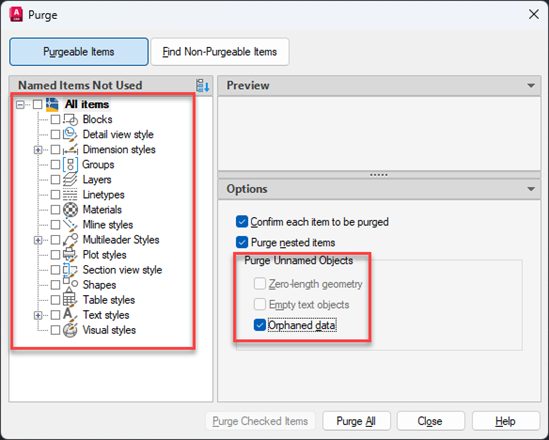
    Also make sure you check the boxes under the “Purge unnamed Objects” box like Zero-length geometry, empty text objects, and Orphaned data.

    All of these options may not be active for all the drawings but if it is active for your drawing then you can check these boxes.

    Click “Purge all” after making the selection and that should clean your drawing.

    Save the new drawing and for the sake of comparison you can even compare the size of purged and original drawing files and you will notice a big difference if your file is large and old.

    There are also some plugins and other tools that you can use to clean AutoCAD drawings.

    Changing some system variables:

    There are some system variables especially the ones related to the display settings of the drawing that can improve the performance of AutoCAD if deactivated.

    For reference, you can type SELECTIONPREVIEW press enter key then type 0, and press the enter key again.

    This will disable the preview of objects that are highlighted when you hover your cursor over these objects.

    The default value of this system variable is 3.
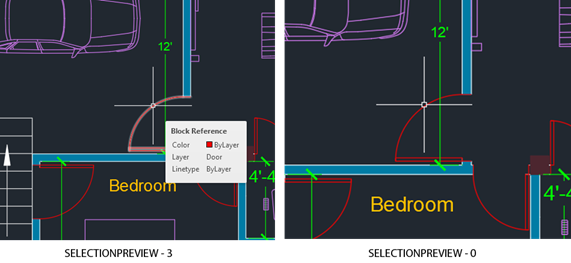
    Another system variable that you can deactivate is Dynamic input mode.

    Type DYNMODE and press enter key. If it is active its current value will show up as 3 change that value to 0 and press enter again.
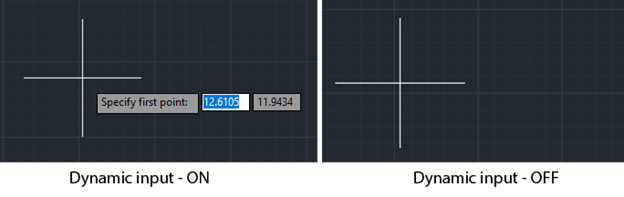
    This will deactivate the dynamic input which shows up next to the cursor when you select a command. This in turn will also improve the performance of AutoCAD.

    Update AutoCAD:

    This goes without saying that you should keep your software always up to date.

    This ensures the stability of performance, and it keeps bugs out of your software.

    To update AutoCAD select “Autodesk desktop app” from the system tray as shown in the following image and select the AutoCAD tab from the window that shows up.
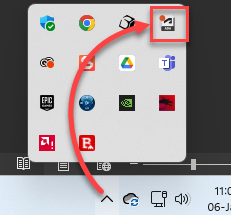
    Click on the update button next to all the updates related to AutoCAD and it will automatically update your software.
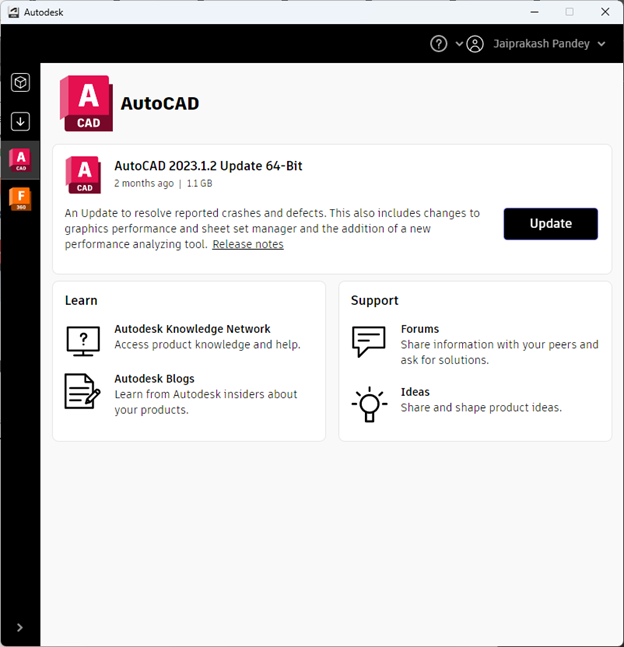
    Conclusion:

    As you can see speeding up AutoCAD is a two-step process and it involves speeding up your PC and then the software itself.

    If all else fails then the only logical next step is upgrading your PC or laptop with better hardware.

    You can explore the best laptop for AutoCAD and change your workstation completely or you can also check the hardware that is creating issues and selectively upgrade them.

    Did these tips help improve the performance of AutoCAD in your case? Let me know in the comments below.

    [/fusion_text][/fusion_builder_column][/fusion_builder_row][/fusion_builder_container]

  • Troubleshooting common problems in AutoCAD and DWG files

    Troubleshooting common problems in AutoCAD and DWG files

    [fusion_builder_container hundred_percent=”no” equal_height_columns=”no” menu_anchor=”” hide_on_mobile=”small-visibility,medium-visibility,large-visibility” class=”” id=”” background_color=”” background_image=”” background_position=”center center” background_repeat=”no-repeat” fade=”no” background_parallax=”none” parallax_speed=”0.3″ video_mp4=”” video_webm=”” video_ogv=”” video_url=”” video_aspect_ratio=”16:9″ video_loop=”yes” video_mute=”yes” overlay_color=”” video_preview_image=”” border_size=”” border_color=”” border_style=”solid” padding_top=”” padding_bottom=”” padding_left=”” padding_right=”” admin_toggled=”yes”][fusion_builder_row][fusion_builder_column type=”1_1″ layout=”1_1″ background_position=”left top” background_color=”” border_size=”” border_color=”” border_style=”solid” border_position=”all” spacing=”yes” background_image=”” background_repeat=”no-repeat” padding_top=”” padding_right=”” padding_bottom=”” padding_left=”” margin_top=”0px” margin_bottom=”0px” class=”” id=”” animation_type=”” animation_speed=”0.3″ animation_direction=”left” hide_on_mobile=”small-visibility,medium-visibility,large-visibility” center_content=”no” last=”no” min_height=”” hover_type=”none” link=””][fusion_text columns=”” column_min_width=”” column_spacing=”” rule_style=”default” rule_size=”” rule_color=”” class=”” id=””]

    Errors in AutoCAD can be divided into two broad categories, the error related to the CAD file and error related to the Software itself. If the issues are related to corrupt CAD files then you can easily repair corrupt AutoCAD drawings using simple AutoCAD commands.

    There are also some specific and known issues that can be easily solved by making small changes in your software. Here I have listed those issues along with their possible troubleshooting tip.

    Can’t select more than one object

    If you are not able to select more than one object in AutoCAD then change the value of PICKADD system variable to 1 or 2.

    Some products fail to install

    This issue is related to the installation of new software. At the end of AutoCAD installation, you may see this error message stating it failed to install some of the products. You can solve this issue using tips mentioned in Autodesk forums, check it here.

    File tabs missing

    You can use FILETAB command to bring back file tabs in the interface, you can also hide the file tabs using FILETABCLOSE command. You can also toggle the visibility of file tabs from Interface panel of View tab.

    Mouse scroll wheel not panning

    If clicking the mouse wheel is not activating the PAN tool instead it is activating the object snap menu then change the MBUTTONPAN system variable value to 1.

    Cursor disappears in the drawing area

    This one is another known issue where your cursor becomes hidden from drawing area but it will continue to work normally and remain visible in the ribbon. You can still make selections and make windows but the cursor will not be visible.

    To solve this issue type 3DCONFIG on the command line and uncheck “High quality geometry” and also “Smooth line display” check box, leave all other settings unchanged and click OK to close Graphics Performance window.

    Can’t explode blocks

    If you try to explode blocks from your drawing and encounter this error “1 could not be exploded” then you need to allow exploding for the block using Block Definition window.

    Type B and press enter, select the block which you are unable to explode from the list of blocks and click on Allow exploding check box and click OK to save the redefined block.

    Can’t edit text with the double click

    If you are not able to edit text or attributes with the double click then change the value of DBLCLKEDIT system variable to 1 also make sure PICKFIRST system variable is set to 1.

    Copy and Trim command not working

    This issue is mostly seen with COPY and TRIM commands but it can also happen with some other commands.

    Generally, this due to some custom LISPS overriding system variables or default command aliases.

    To solve this issue open a drawing in which everything seems to be working fine and go to Tools panel of express tools tab and click on System Variables icon. Alternatively, you can also use SYSVDLG command to open System Variables window.

    Export the complete list of system variables by clicking save all button and import the saved system variable file (SVF) in affected drawing using Read button of System variables window.

    Some text and symbol are missing from the print

    In many cases, you may find that the printed or PDF output has some text or symbols missing. The issue generally happens if the plotter fails to capture custom fonts used for creating the symbols or text.

    Troubleshooting common problems in AutoCAD

    To solve this problem start the PLOT command then select your plotter and click on properties button to modify its properties. From the Properties panel select the custom properties option and check the radio button “capture custom fonts”.

    For newer versions of AutoCAD, you can also click on PDF options button on Plot window to change custom properties of PDF plotters.

    AutoCAD splash screen abruptly closes

    This issue is related to AutoCAD license manager where you try to launch the software and it shows the splash screen for some time and then closes abruptly. In some of the cases, you may also see an error message “The security system (softlock license manager) is not functioning or is improperly installed”.

    To resolve the issue you need to replace corrupt AutoCAD license file with a new one. In this case, reinstallation does not solve the issue.

    Open task manager by pressing ctrl + Alt + delete for windows 8 and 10 users and select Services tab. Select FlexNet Licensing Service from the list then right click on it and select Stop from the contextual menu. For windows 7 users you need to stop FlexNet Licensing Service from Services shortcut of Administrative tools in Control panel.

    After stopping the Licensing service go to C:\ProgramData\FLEXnet folder and delete all of its contents. Return back to the FlexNet Licensing Service option and right-click on it and select Start from the contextual menu.

    Launch your AutoCAD software again and it will now prompt for License detail. Enter the product license details and you are good to go.

    Restart your PC

    This may sound trivial but restarting your PC can solve many common issues and this is probably the first thing that you should do before tweaking any software related settings.

    Reset Software

    In most of the cases restarting the PC solves many issues but if restart fails to solve your problem try Resetting AutoCAD, the reset button is in the Autodesk AutoCAD 20XX folder on start menu as shown in the image below.

    If the reset option further prompts you to make a backup before creating rest then choose the option which you want and then hit the reset option. I prefer to reset it completely without any backup as the backup might contain the scripts or files causing the error.

    If the issue is related to custom settings of your software profile then you can delete your current profile or migrate a profile from another PC to your current PC. Changing the profile can also remove your customizations, read the article below for more on profile migration.

    Related: Migrate custom settings of AutoCAD using profiles

    Hardware acceleration

    If the issue is related to the graphics then update your graphics driver. Also, toggle on/off hardware acceleration option. You can access hardware acceleration option using 3DCONFIG command. This feature is only available if your video card supports OpenGL, a 2D and 3D graphics API.

    Hard Reset

    If none of these tips are working for you then you can try manual AutoCAD reset as well. By doing a manual reset you essentially return AutoCAD to an out of the box condition removing all of your customizations and possibly errors too. Check the related article mentioned below for instructions of doing hard rest in AutoCAD.

    Related: How to manually reset AutoCAD to the default setting

    I hope this article helped in solving issues with your AutoCAD software or drawing, If you still have issues then I would suggest you post it in Autodesk forums. You can also share your AutoCAD related issues in the comments below.

    [/fusion_text][/fusion_builder_column][/fusion_builder_row][/fusion_builder_container]

  • Creating and modifying eTransmit package in AutoCAD

    Creating and modifying eTransmit package in AutoCAD

    An AutoCAD drawing may contain lots of external data in the form of X-ref, font styles, images, excel tables, textures, materials for 3D drawings and other components. Once you have finished working on a project you need to ensure that you transmit all of these external files to make it easy for end user to work on the project without searching for the missing components.

    But selecting external files manually is a time consuming and error prone task, AutoCAD has a tool called eTransmit which makes this task very fast and easy. It creates a package of all drawing dependent elements in the form of a ZIP file or folders.

    To use eTransmit make sure you have saved your drawing. After saving click on application button on the top left of your AutoCAD window and click on Publish and then eTransmit option as shown in the image above.

    Create Transmittal window will pop up with a tree view of all attachments in your drawings, if you want to view it in list view you can switch to Files Table tab.

    In the tree view, you will find current drawings panel where all attachments will be visible. You can add multiple files in the eTransmit package by clicking the Add File button on the bottom of Current Drawings panel as shown in the image below.

    Below you will find Enter Notes panel where you can add notes to the package for the recipient. Once your eTransmittal file is created a report will be generated and it will be transmitted as TXT file along with complete package you can view that report using View Report button on the bottom left of the window.

    On the right of create transmittal window, you will find Transmittal Setups button click on it and a new window will pop up where you can modify settings for transmittal package and save it for further use.

    Click on New button and name your setup then click on Continue, now you can customize settings of the eTransmittal package using Modify Transmittal Setup window. Let’s have a look at some of the useful options of the window.

    Transmittal type and location:

    From Transmittal package type drop down menu of this panel, you can select the type of package to create, like a zip or a simple folder.

    transmittal type and location

    If your recipient uses an older version of AutoCAD then you can save drawings in an older version also using File format drop down menu.

    Specify the location where you want to save the transmittal file using ellipses next to Transmittal file folder field.

    Path Options:

    Here you will find three radio buttons as shown in the image below.

    eTransmit in AutoCAD

    The first radio button will make the eTransmittal package with each component in a separate folder. Place all files in one folder option will place all attached components inside a single folder.

    The third option will create a structured folder such that each component will maintain its path inside transmittal package. For example, if an X-ref is placed inside folder B which is inside folder A then this transmittal will create a folder A inside folder B and then place the Xref inside folder B.

    Actions:

    Here you will again find multiple radio buttons but most of them are self-explanatory.

    eTransmit in AutoCAD

    The Bind external references radio button will bind your Xref inside current drawing i.e. it will convert Xref into a block and place it in the drawing.

    Purge drawings radio button will clean your drawing of all unused components like layers, blocks, and linetypes and create the eTransmit package with those cleaned drawings.

    So finally…

    Once you have made all required settings click on OK and close Modify Transmittal Setup window box and click OK again. Your complete package will be published at the specified location with all settings you made so far.

    Do you have questions related to this tip? Let me know in the comments below.